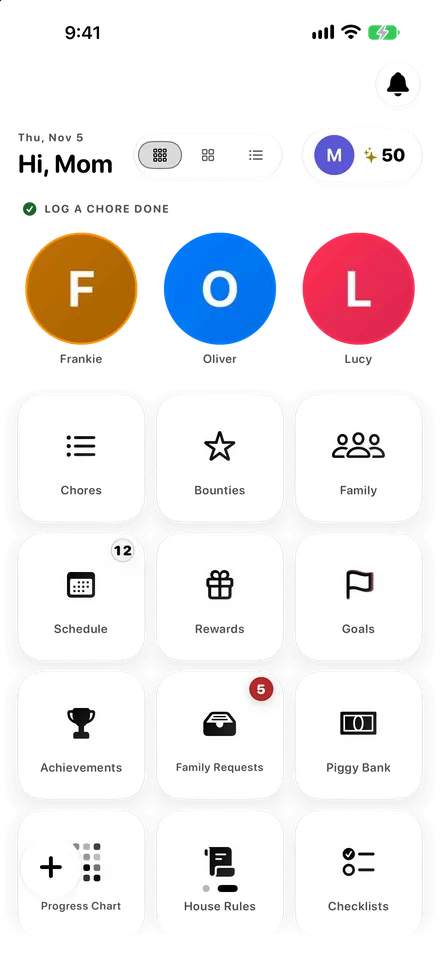
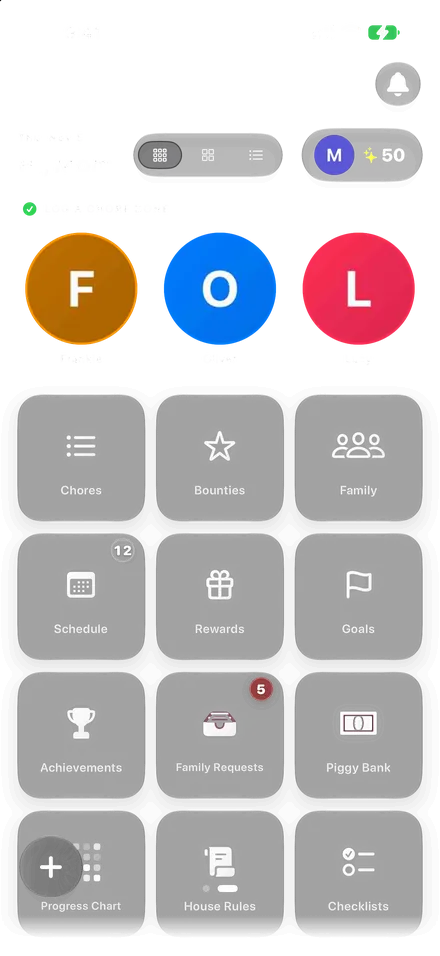
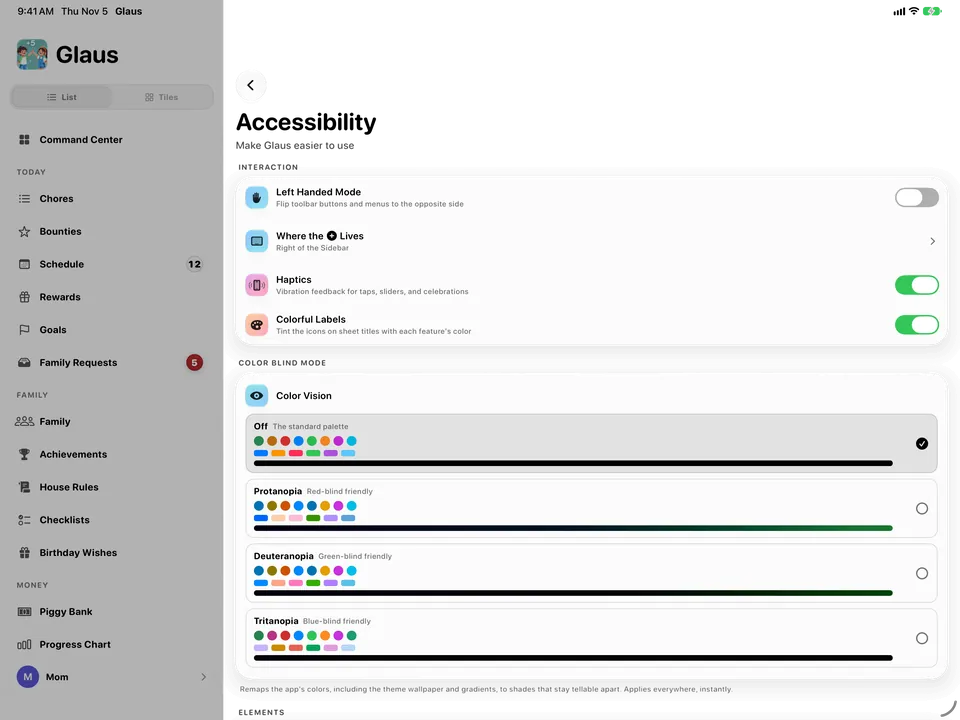
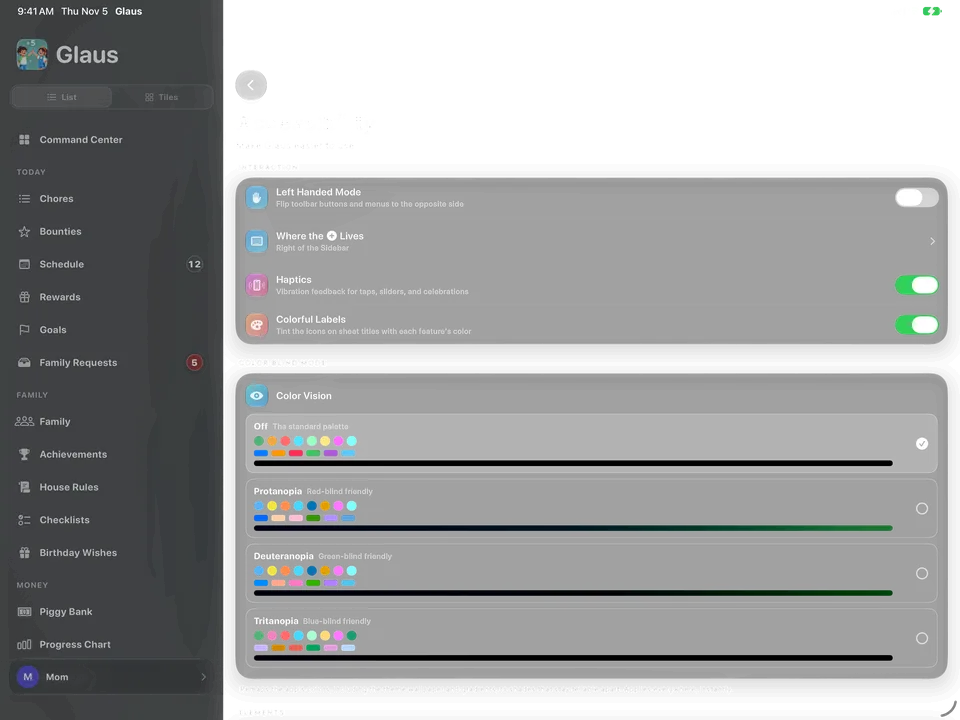
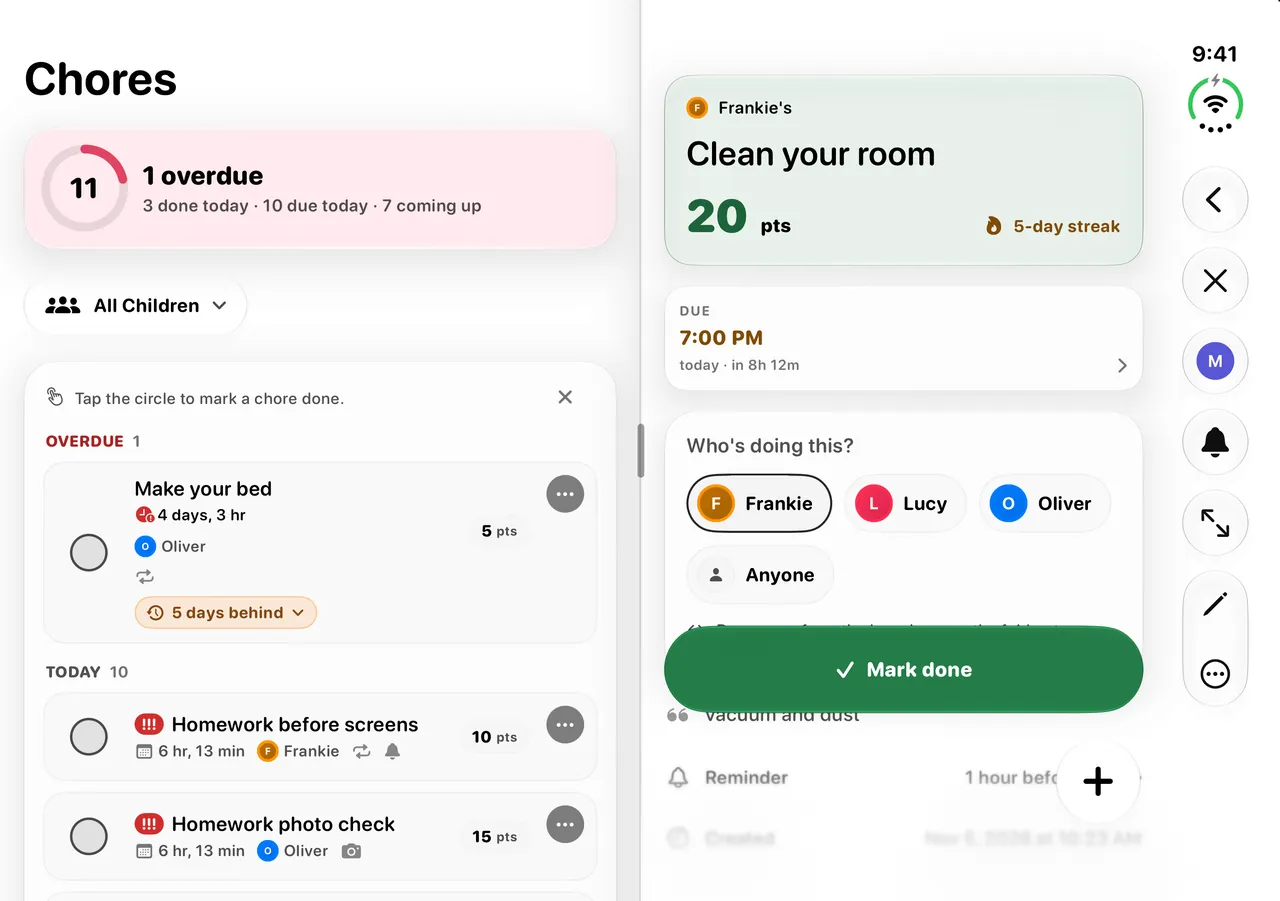
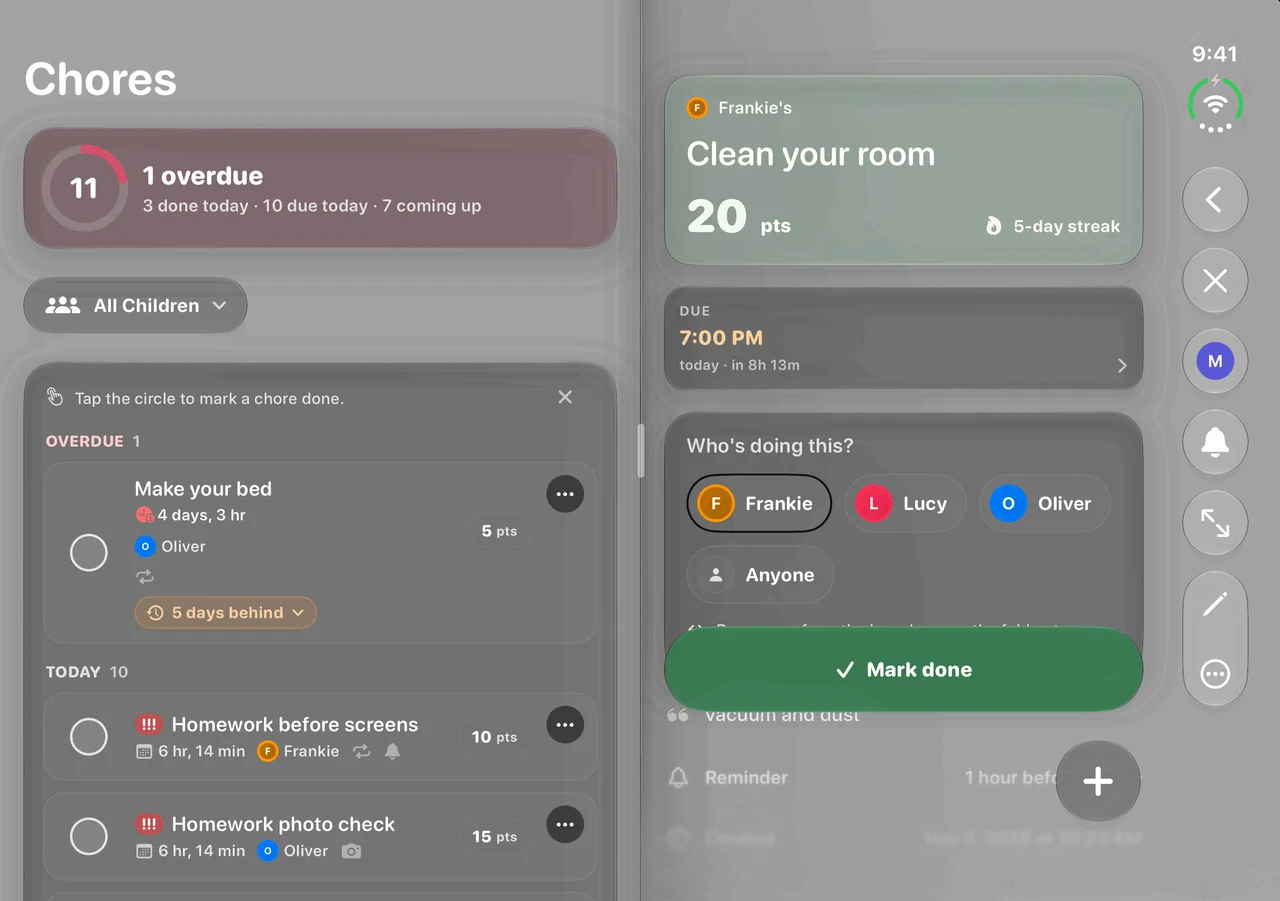
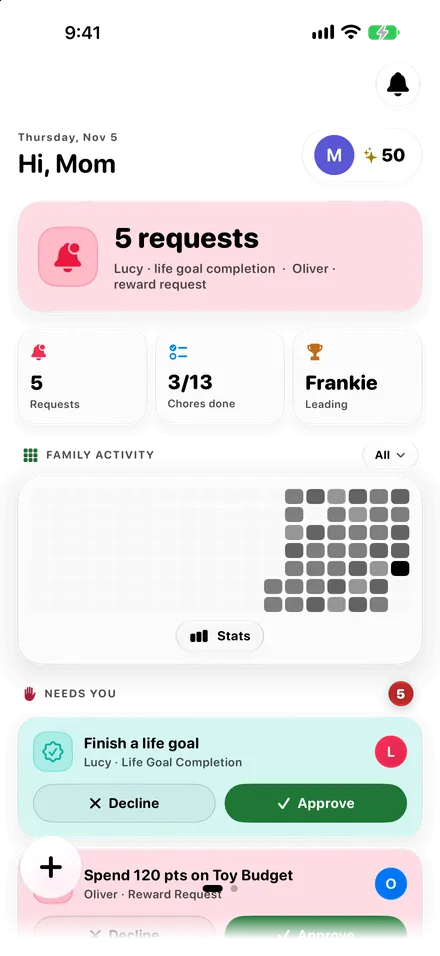
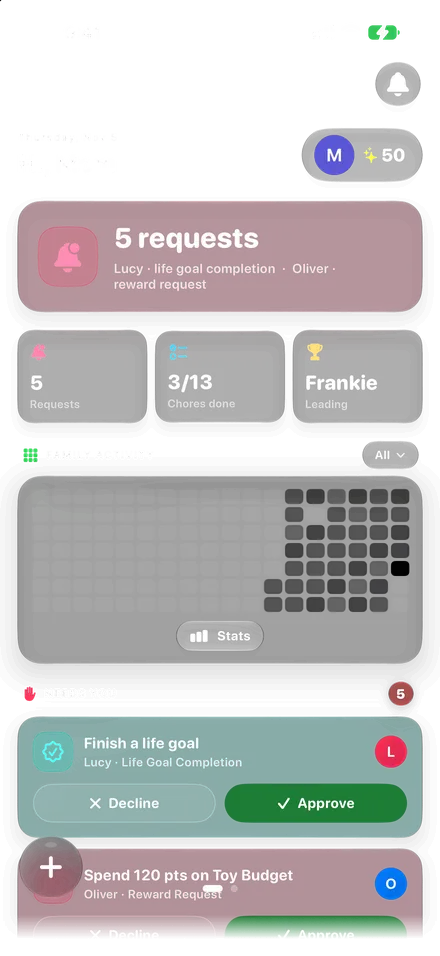
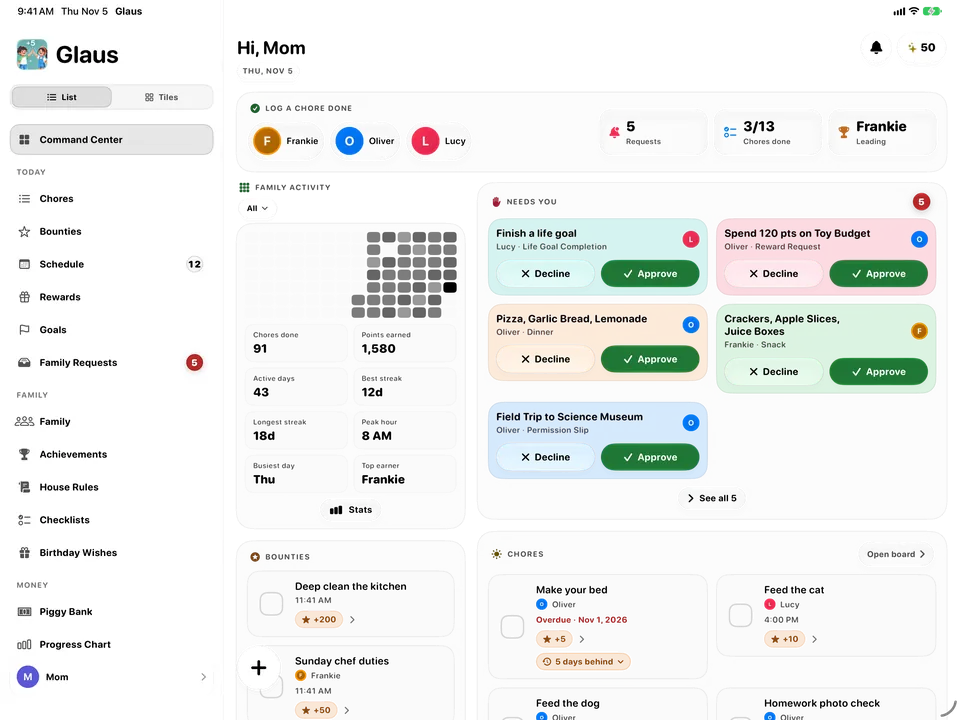
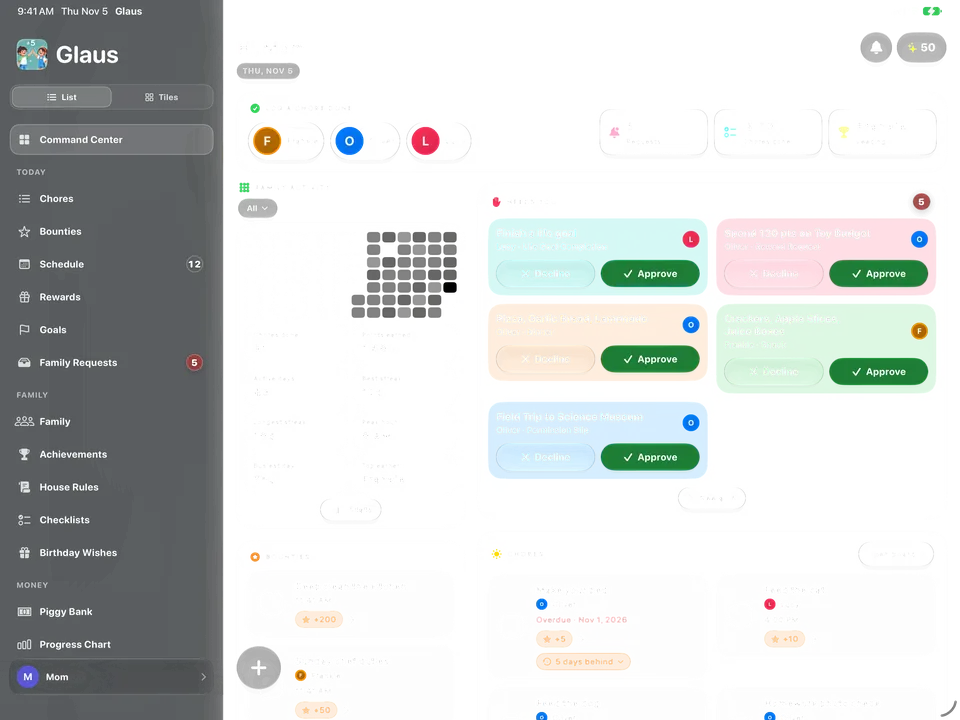
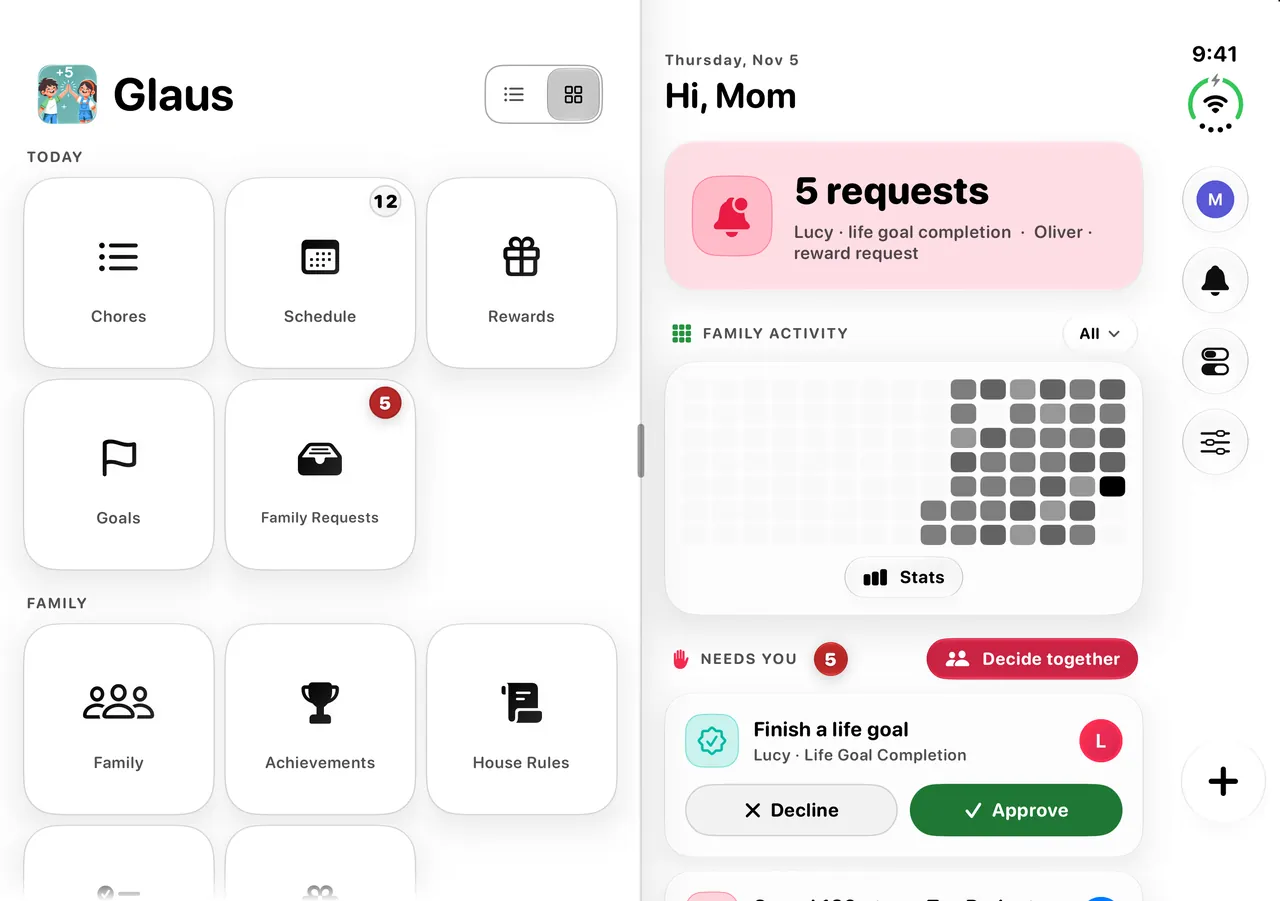
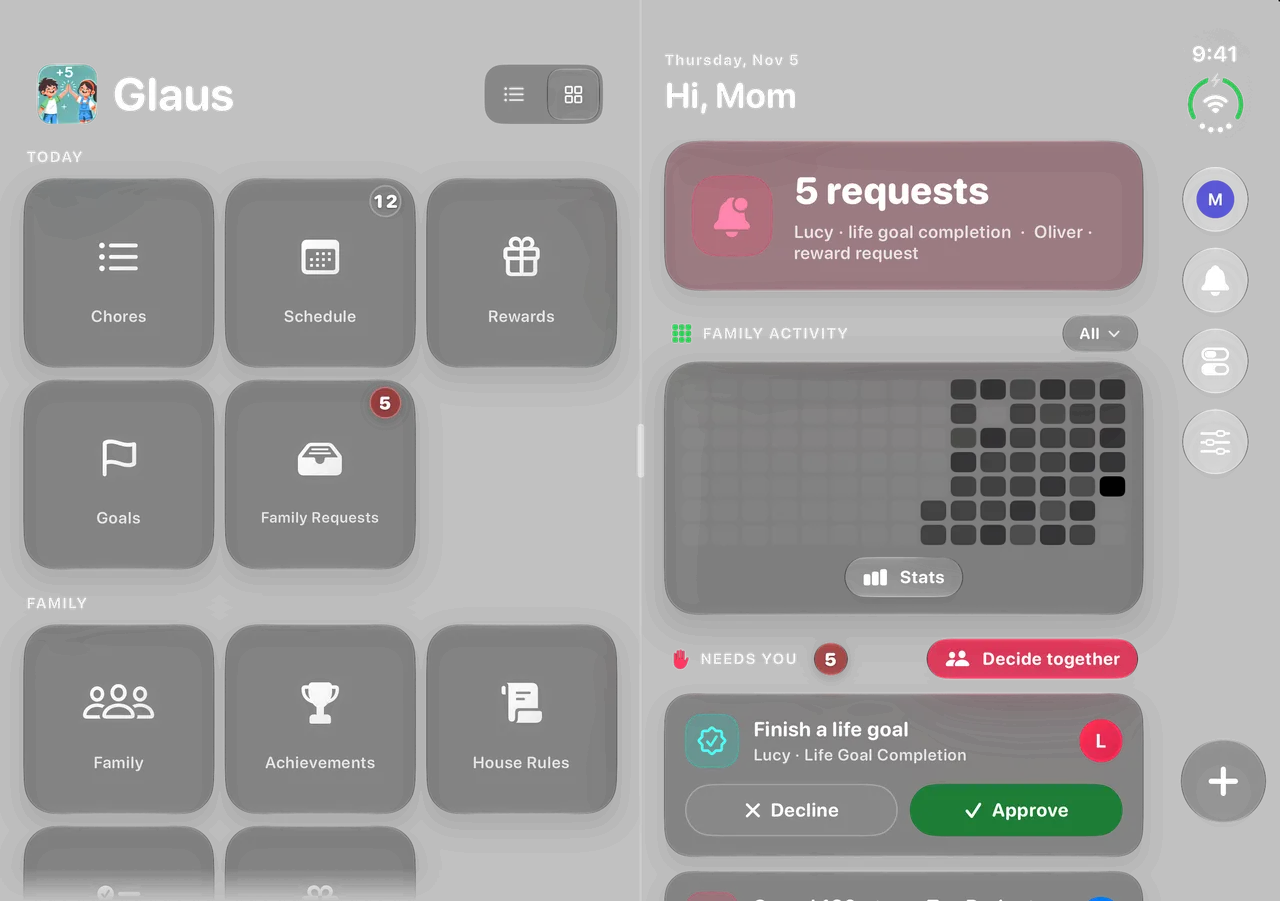
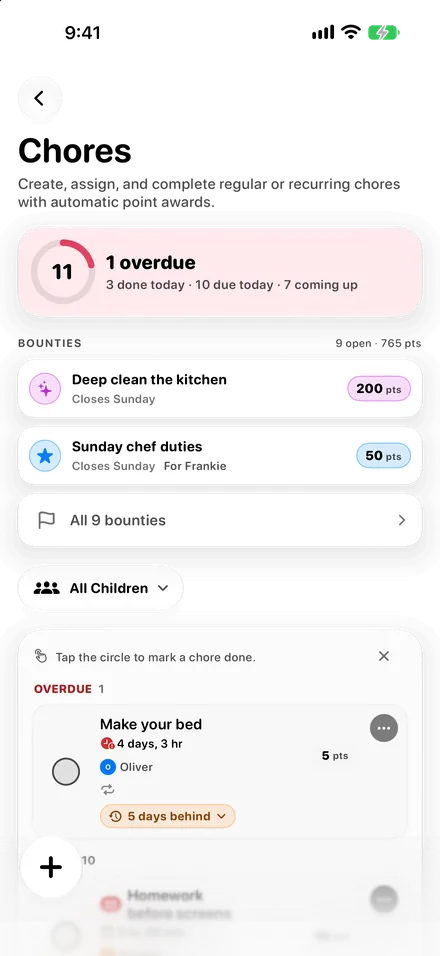
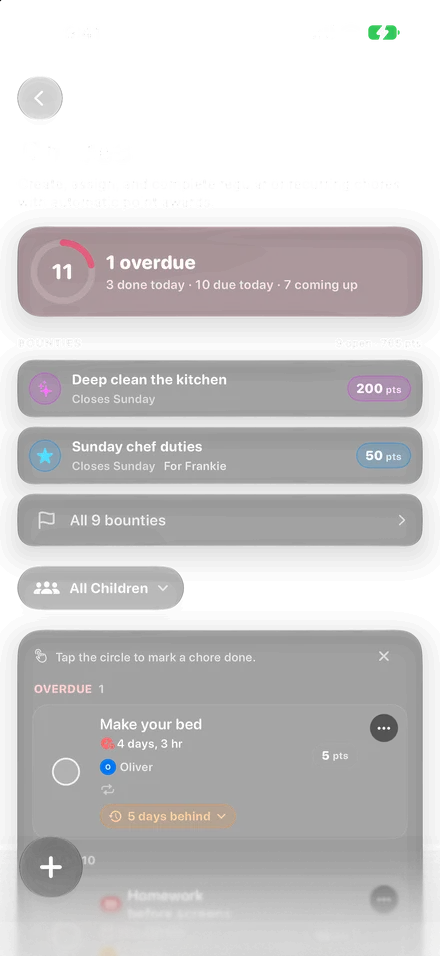
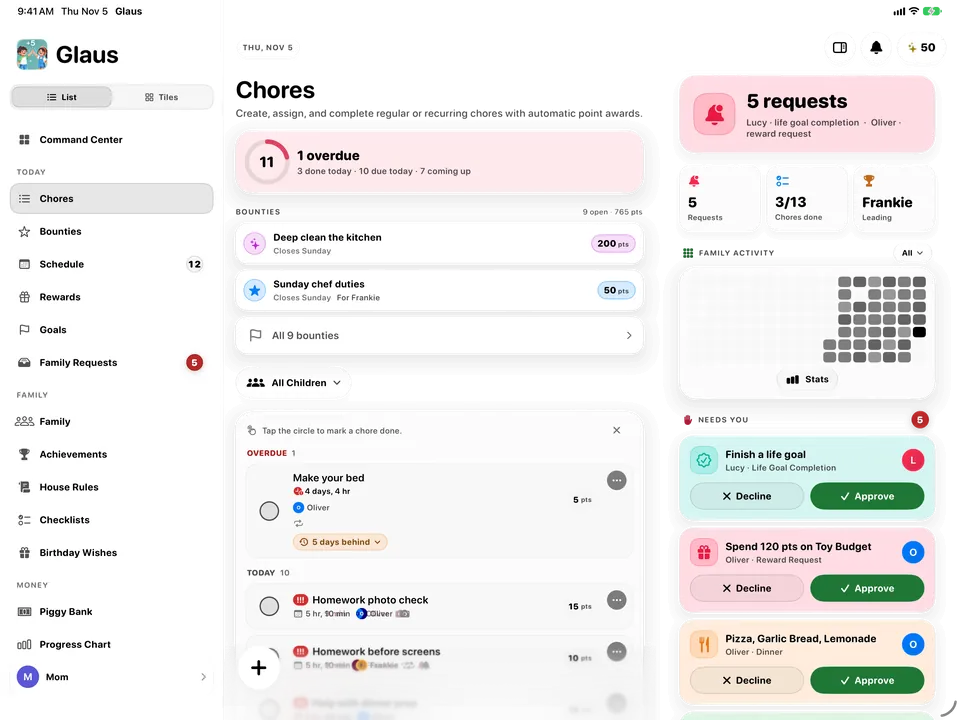
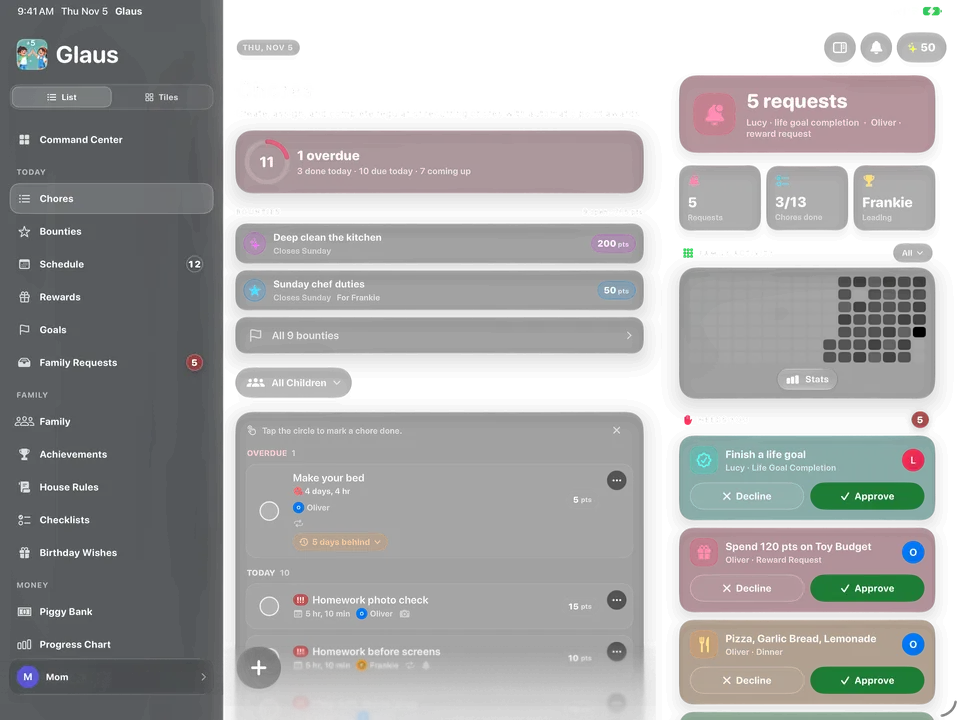
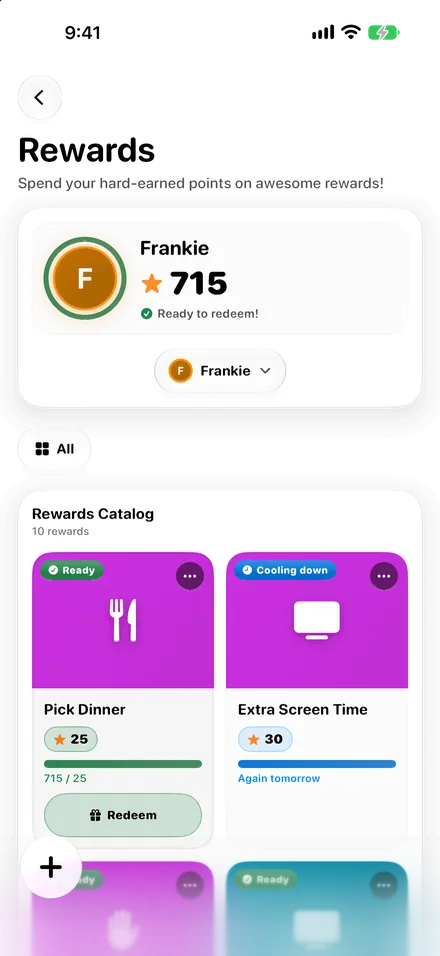
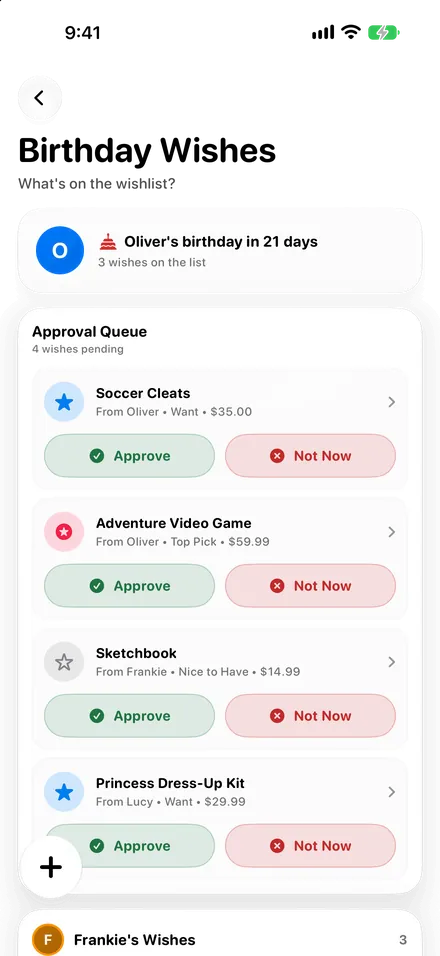
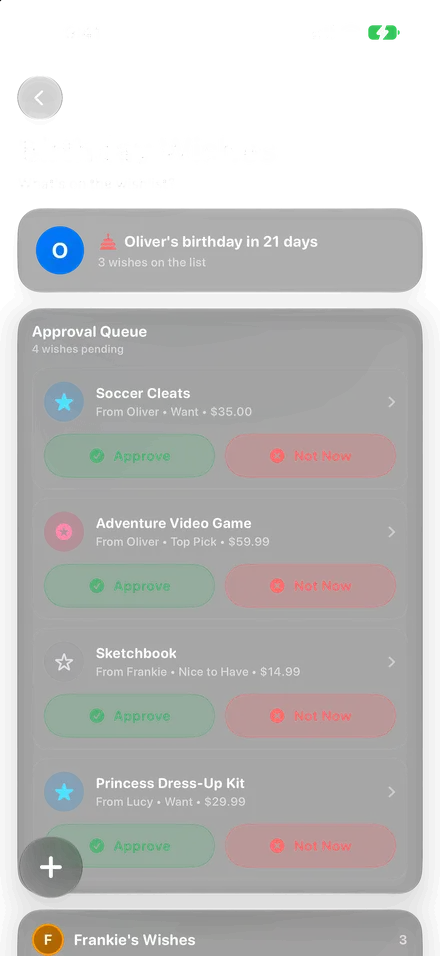
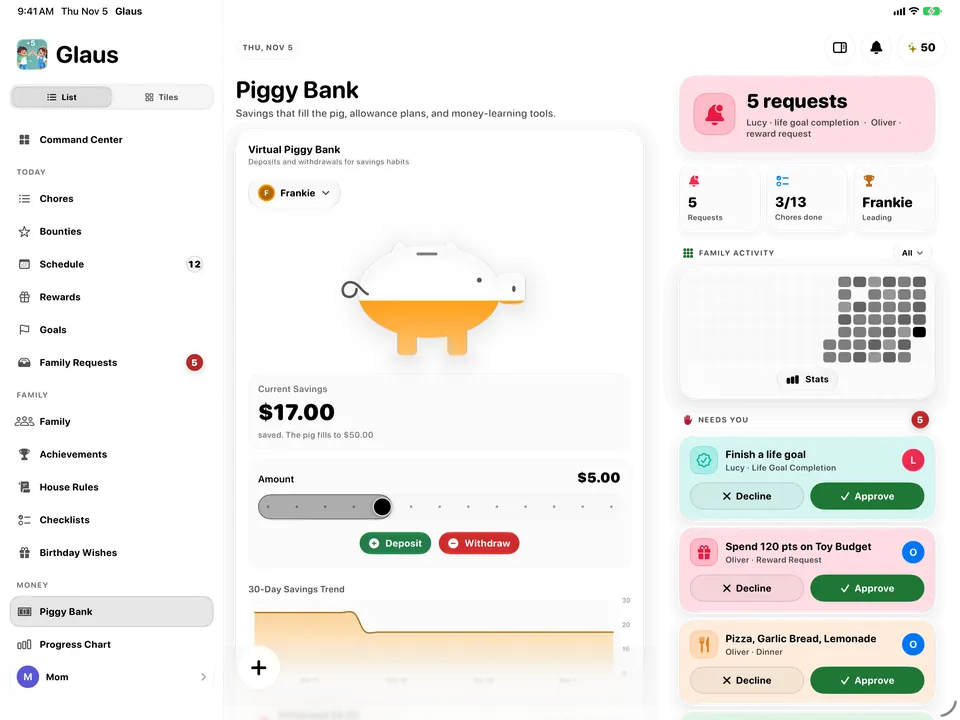
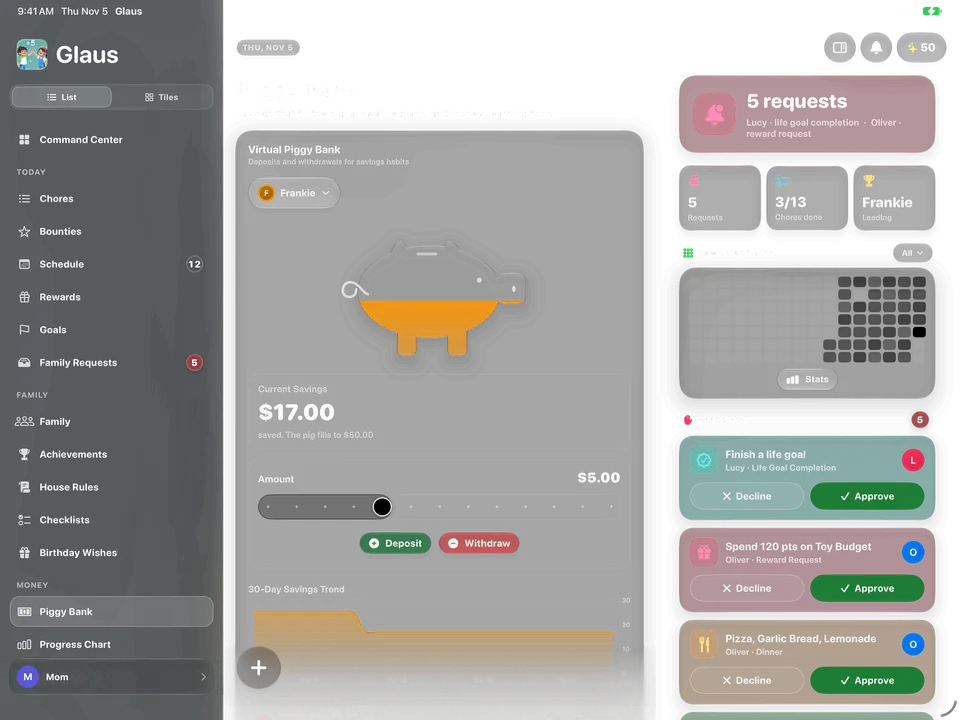
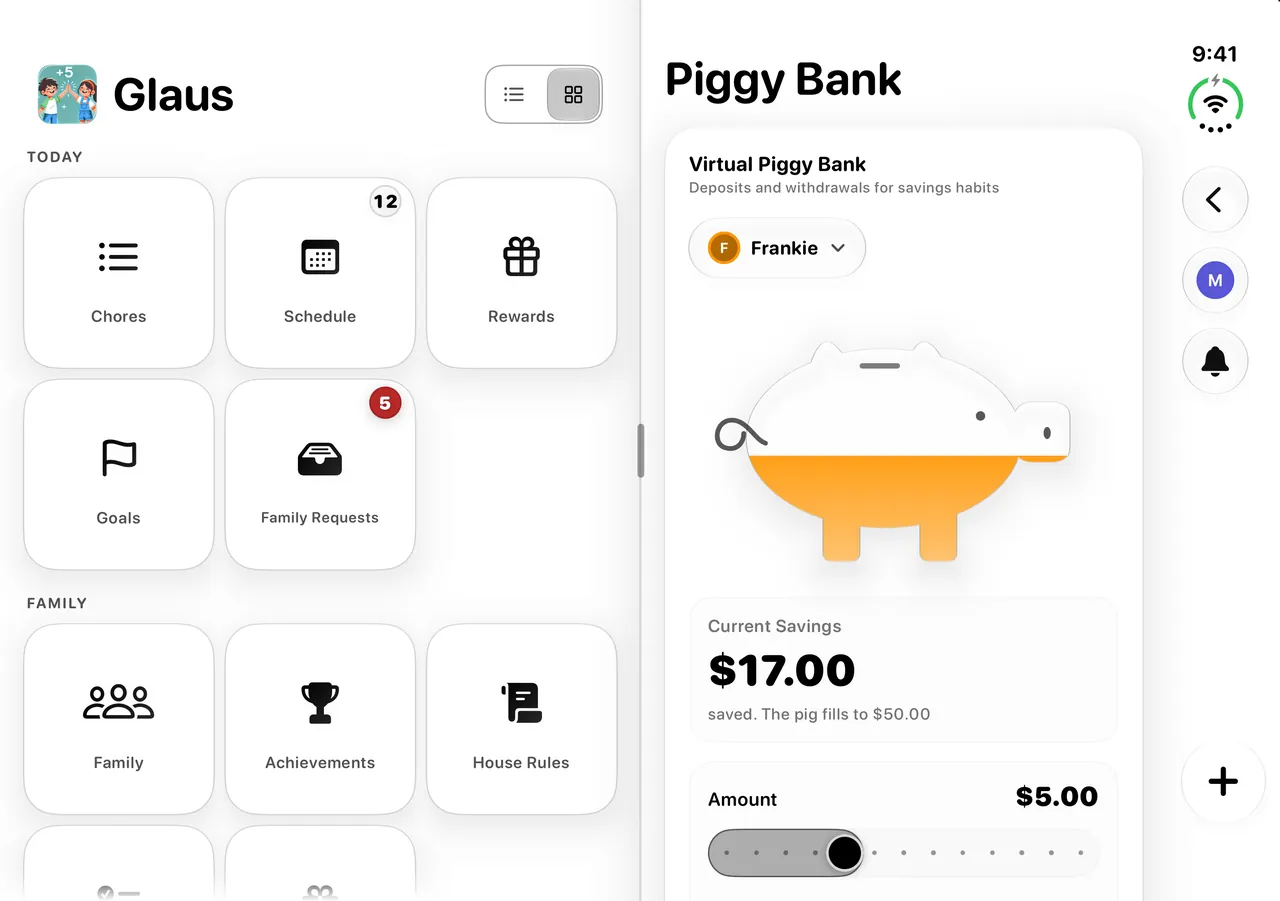
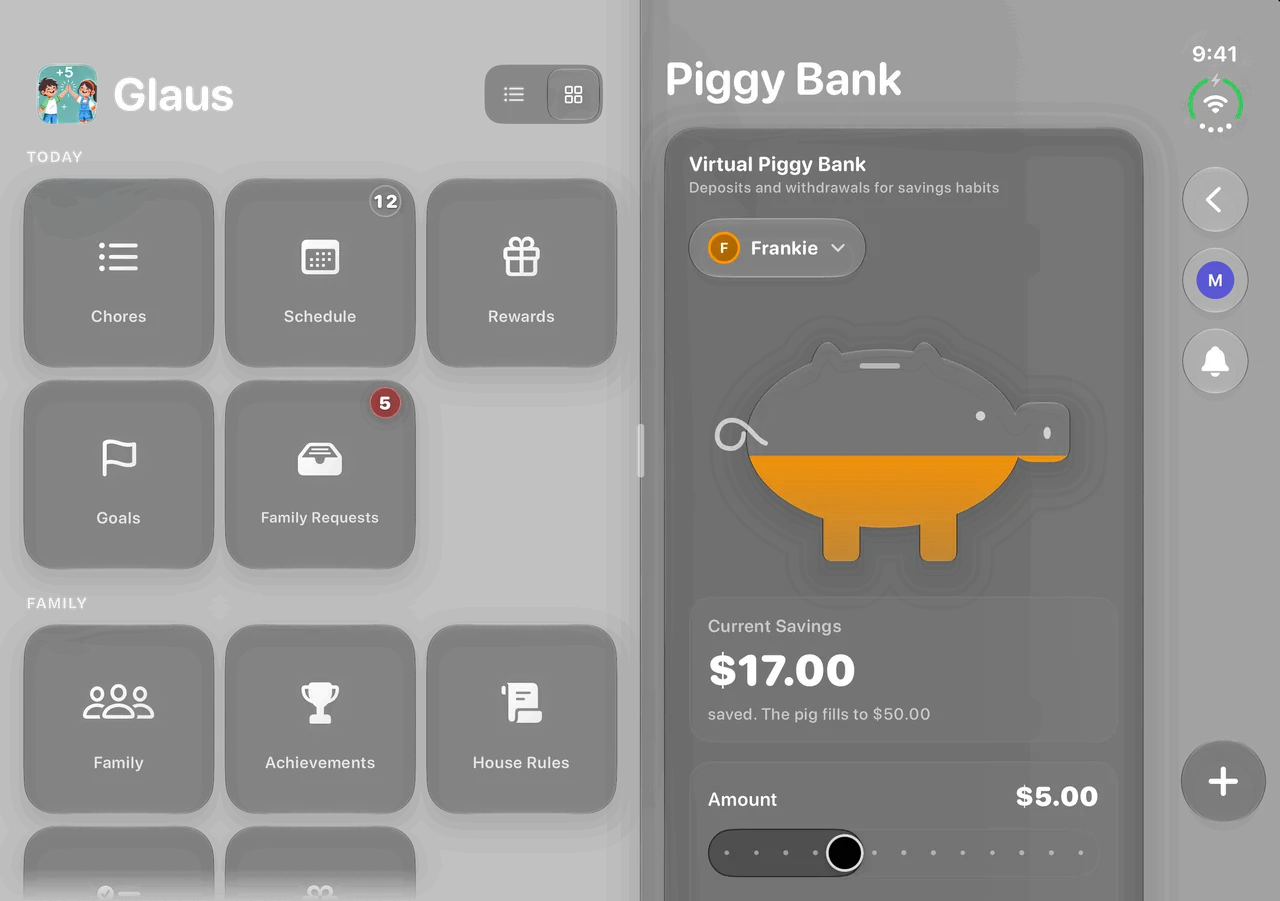
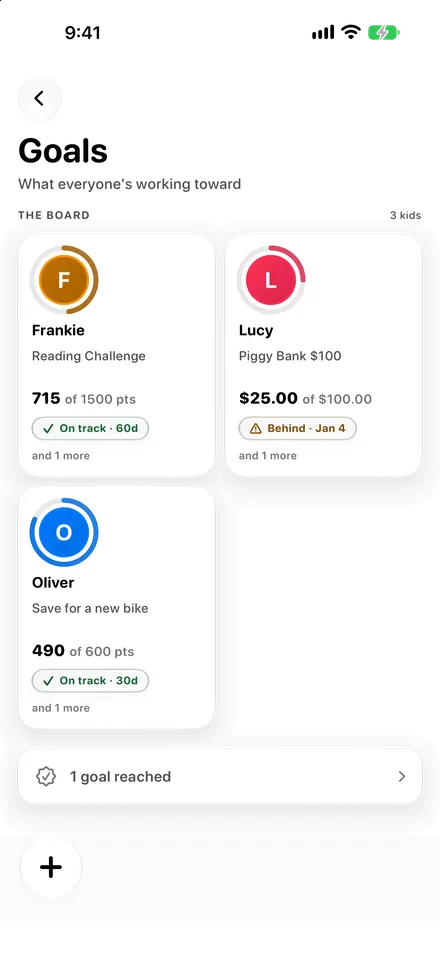
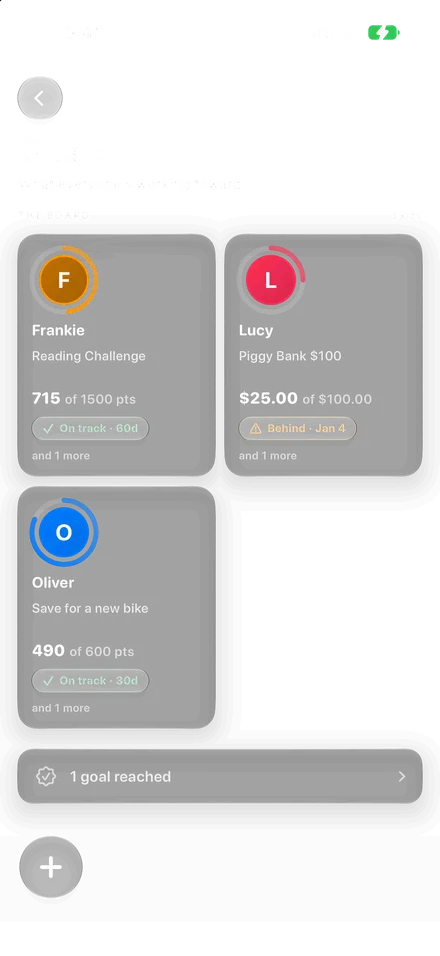
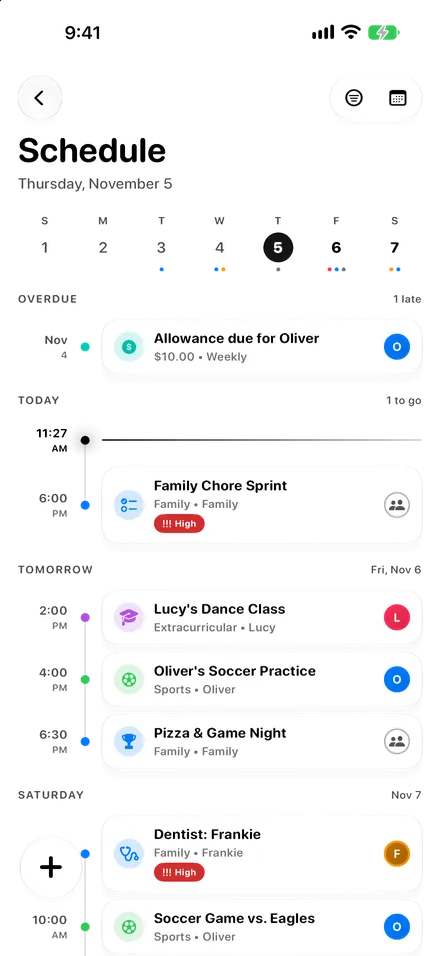
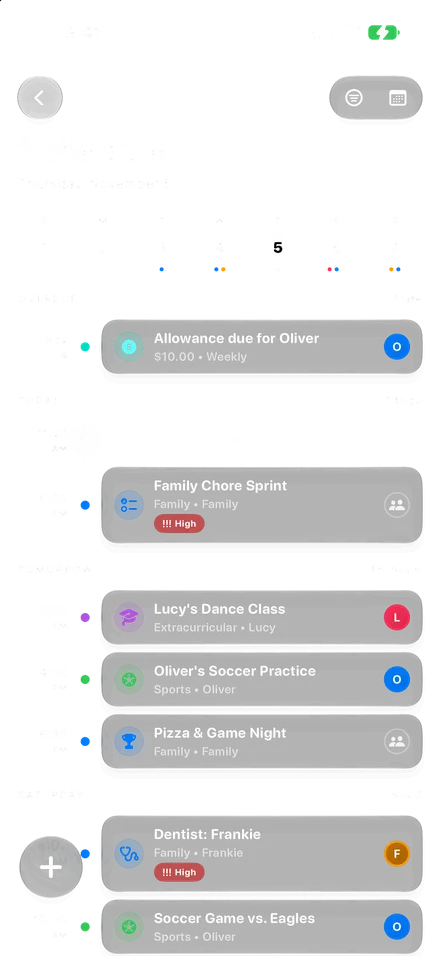
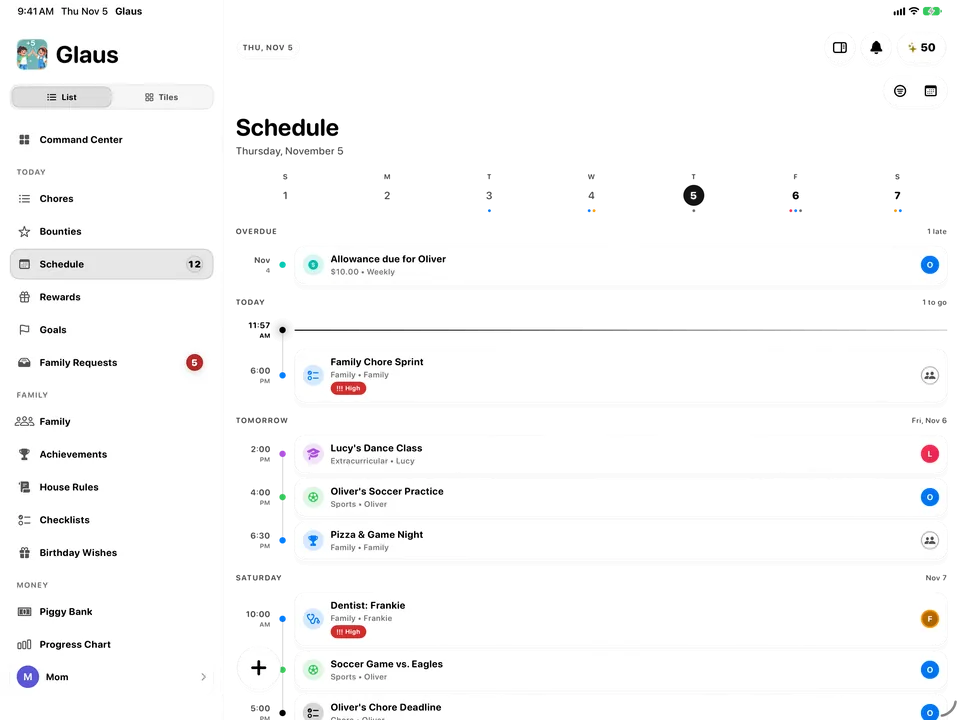
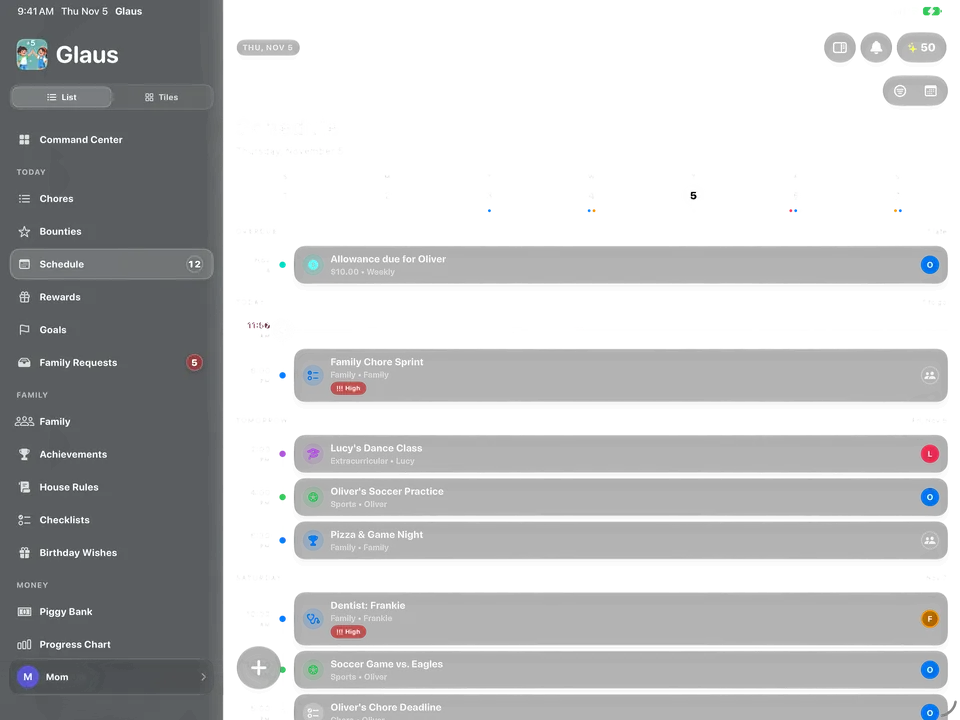
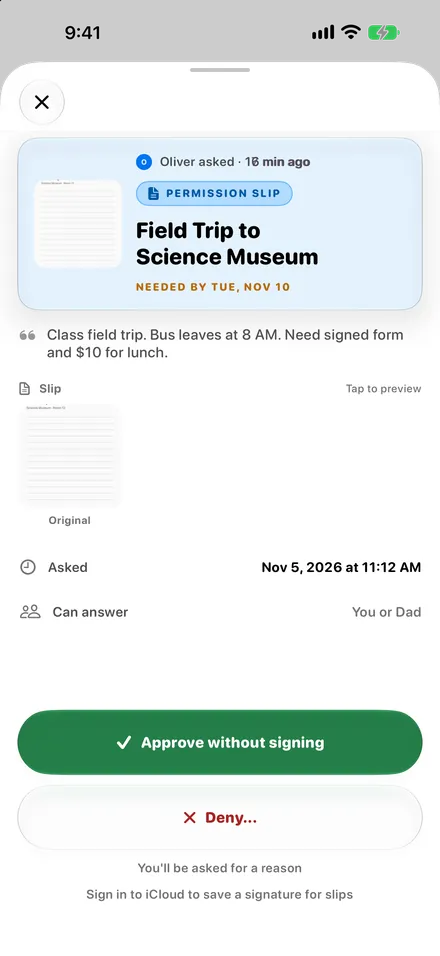
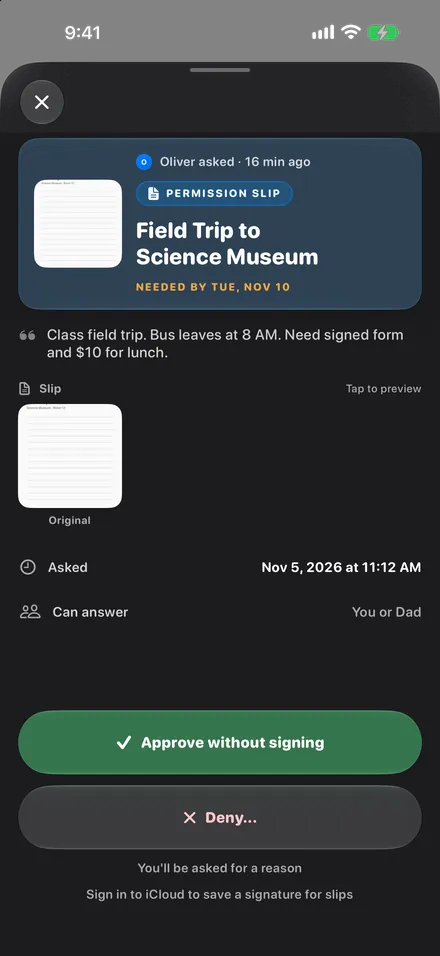
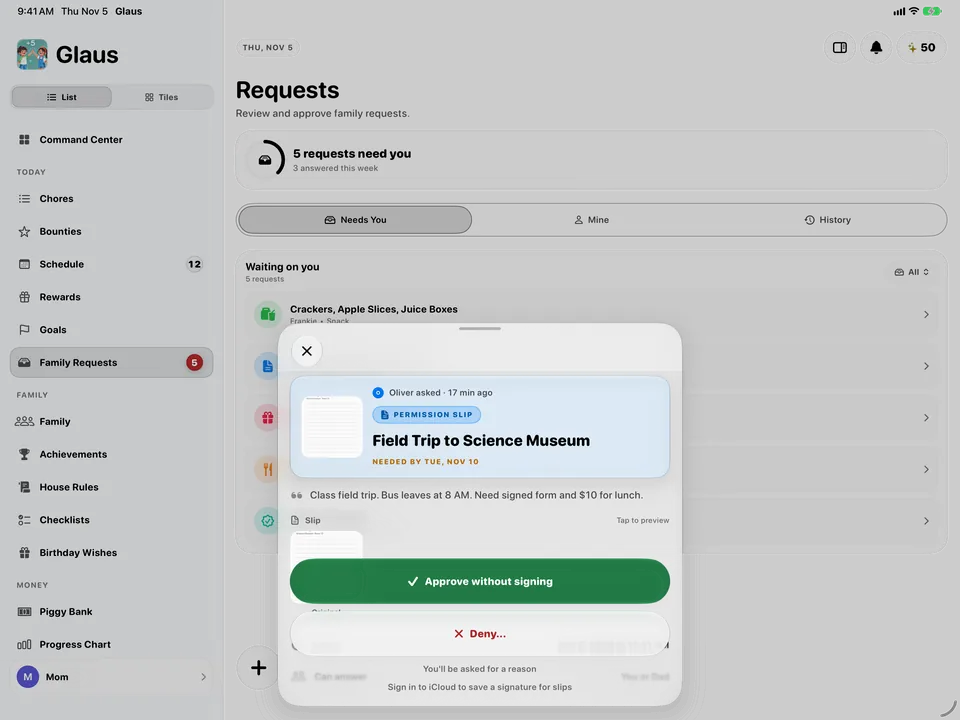
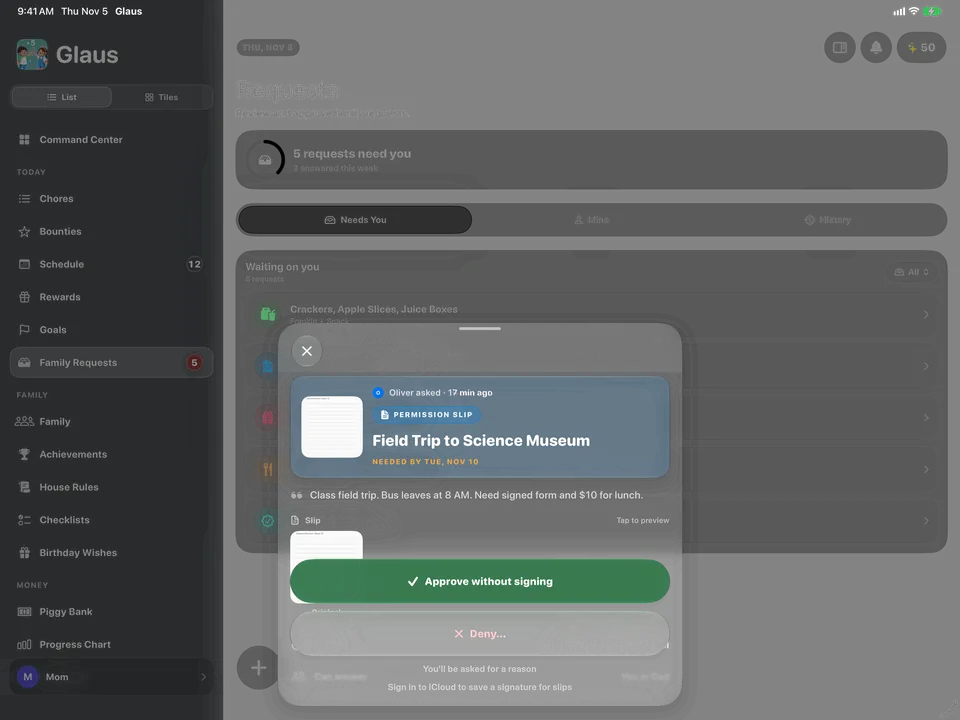
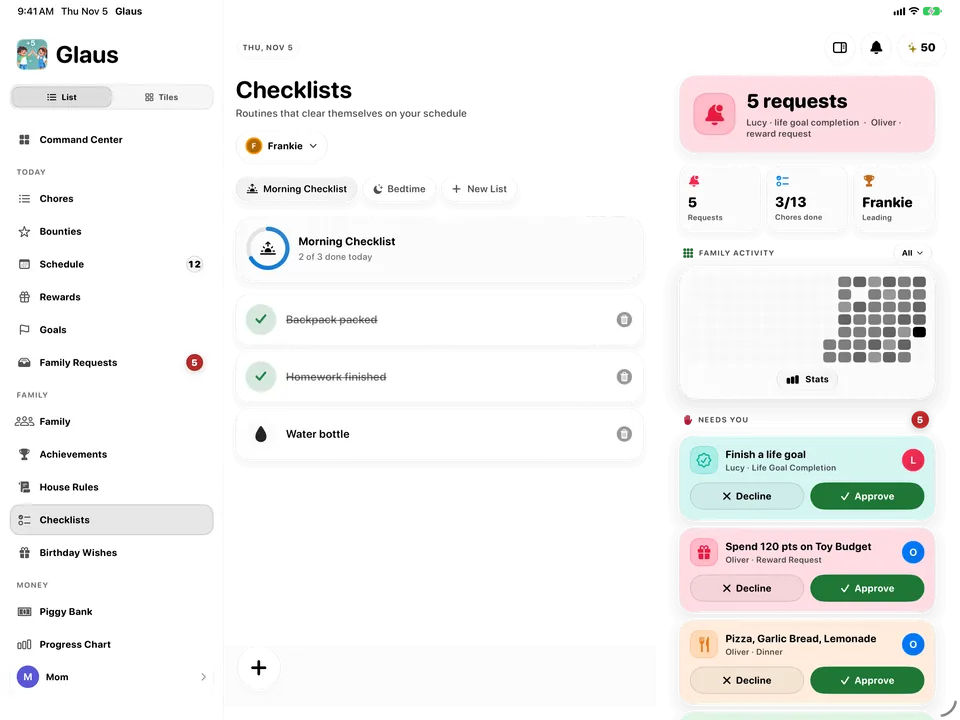
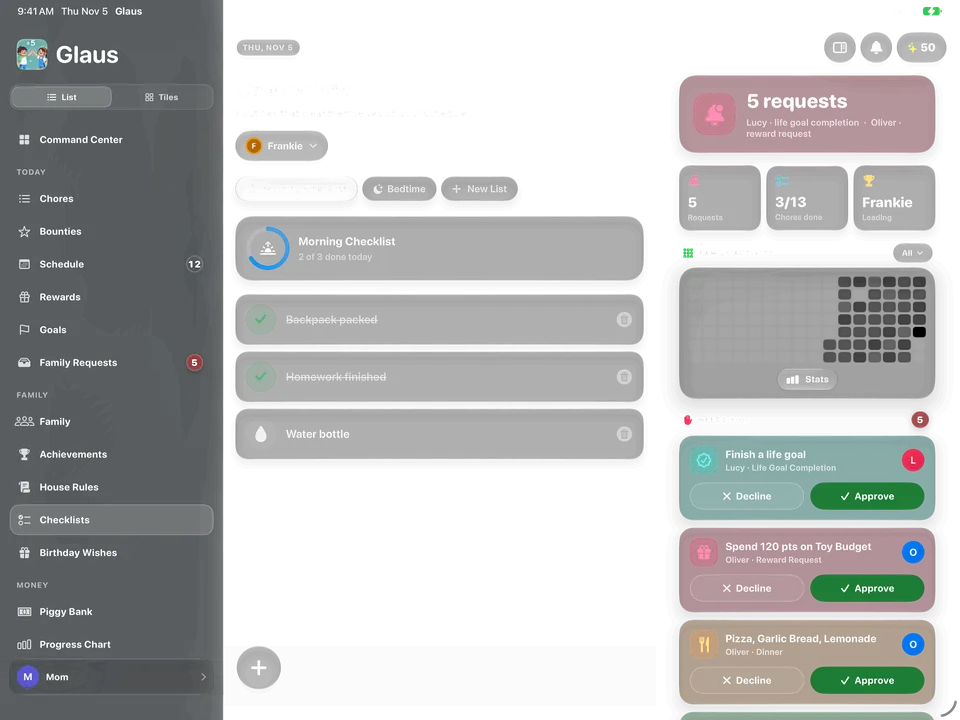
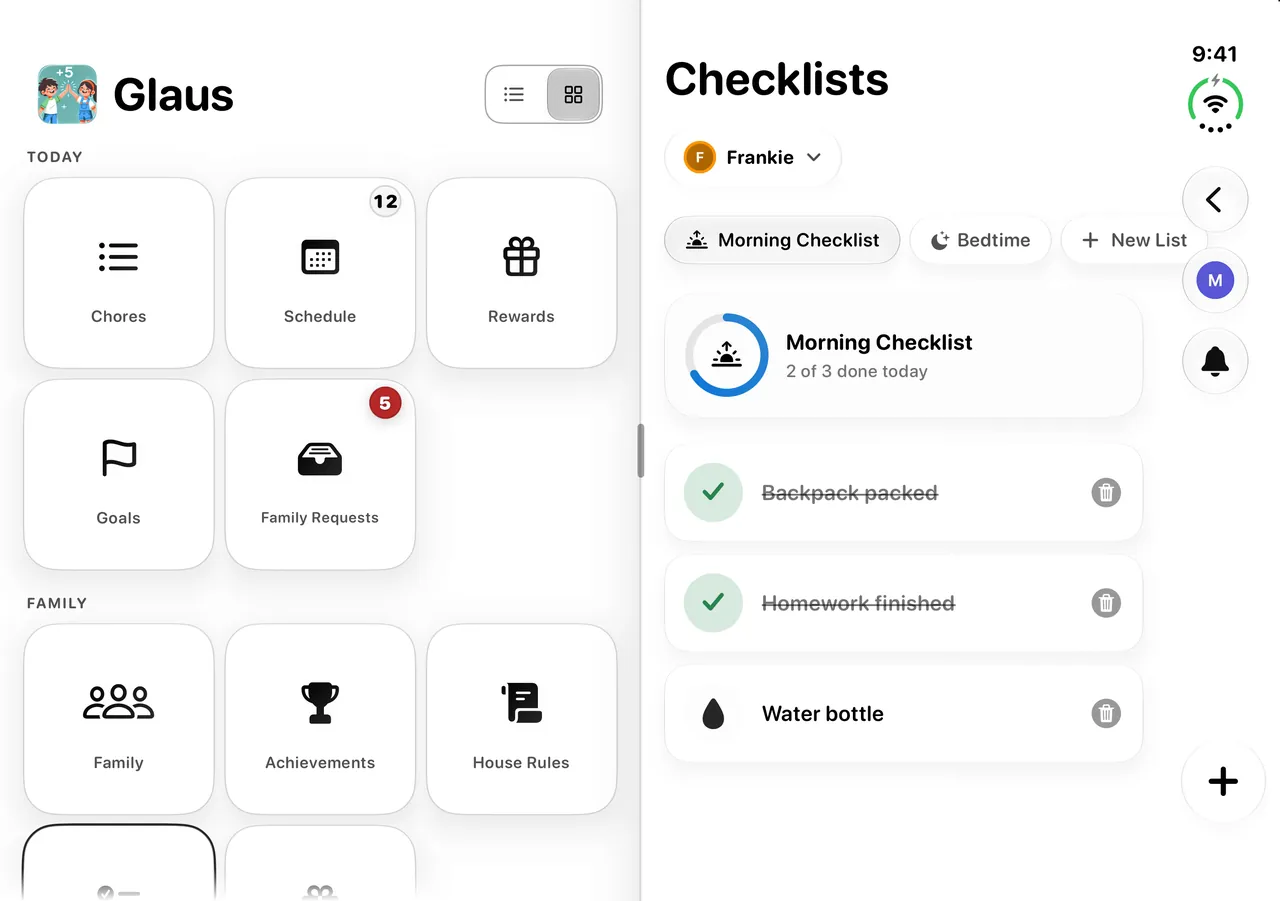
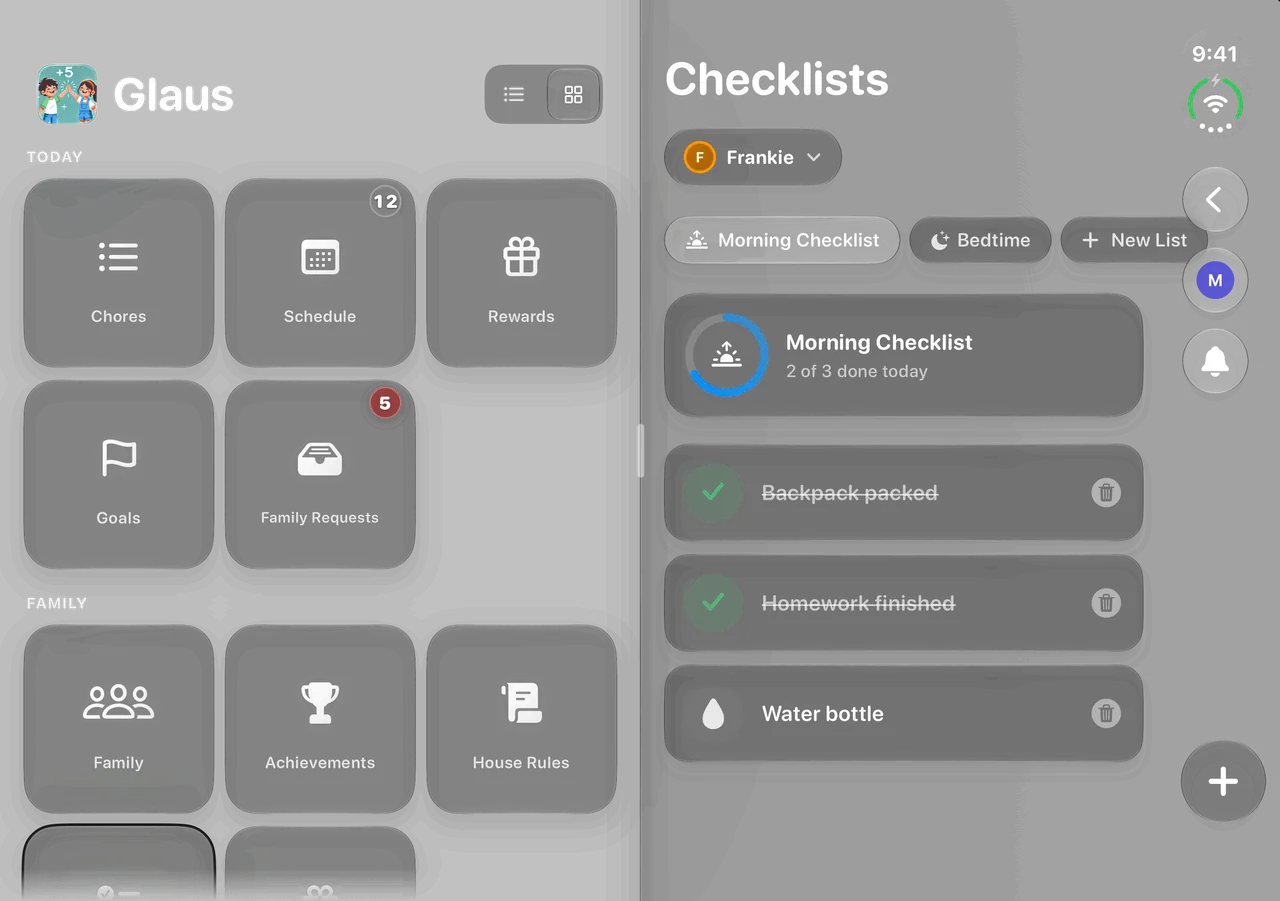
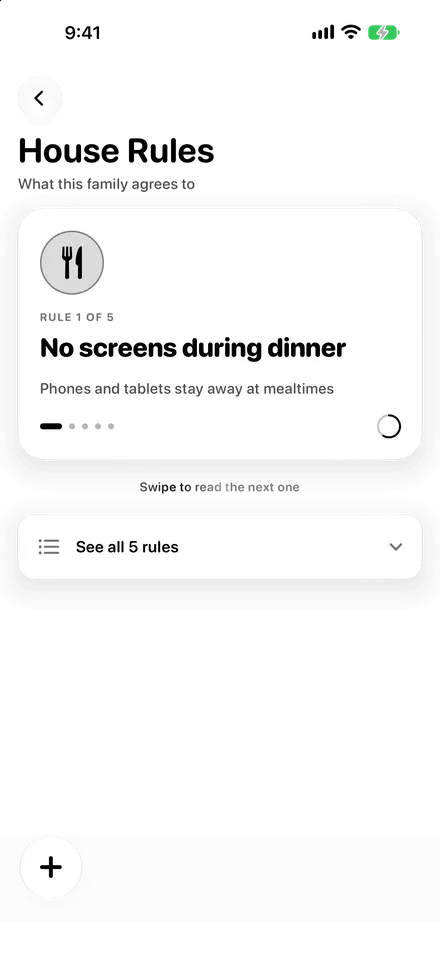
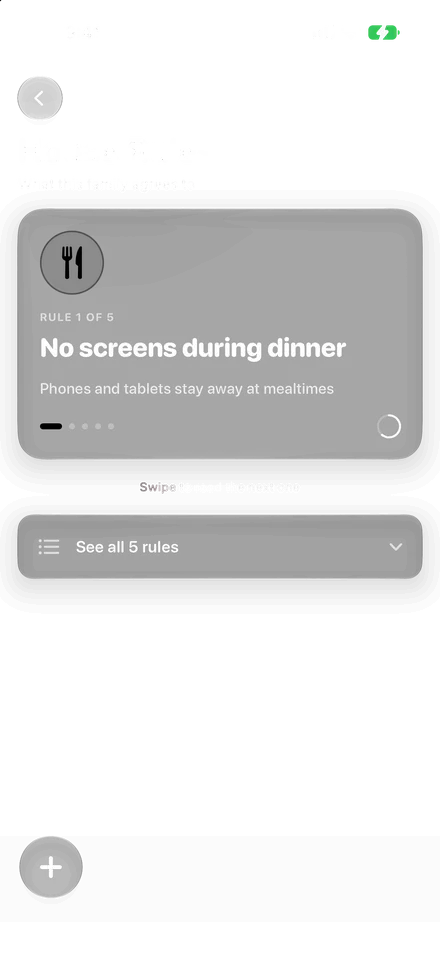
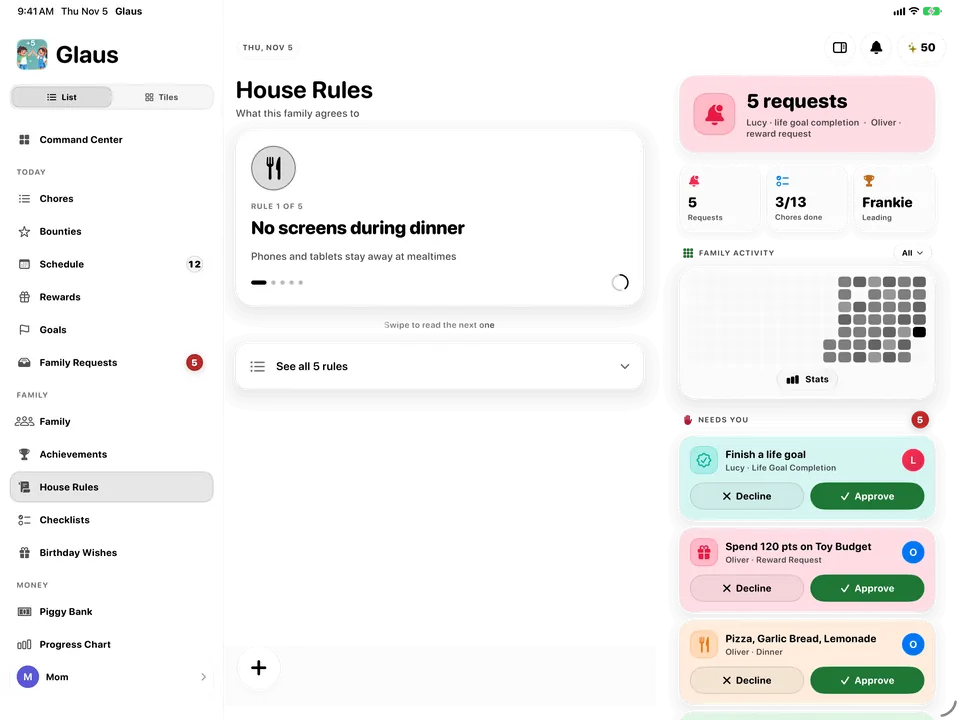
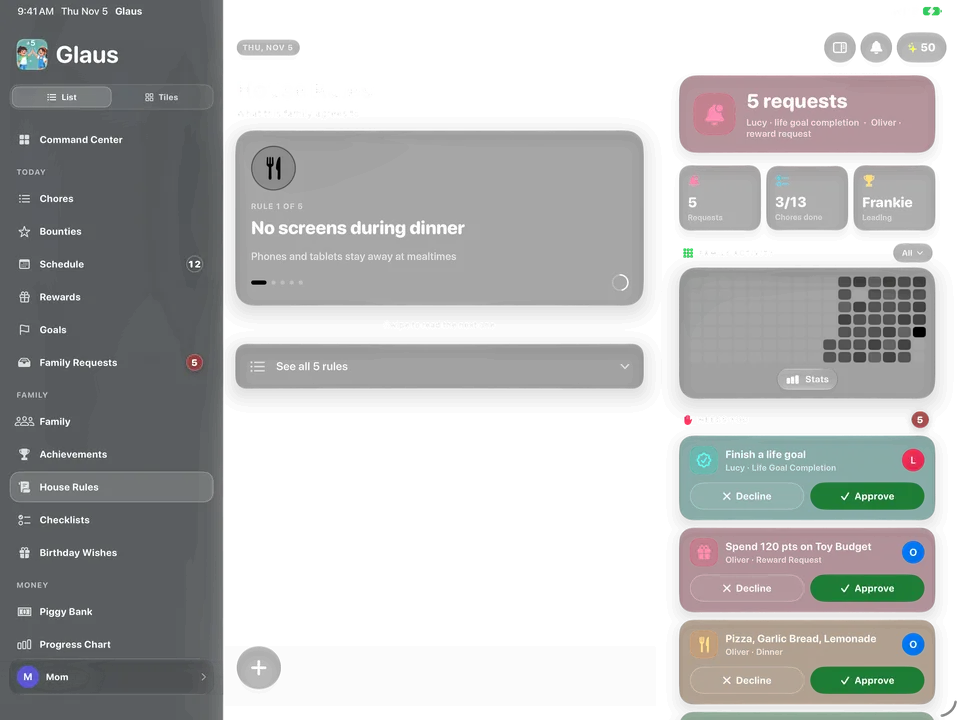
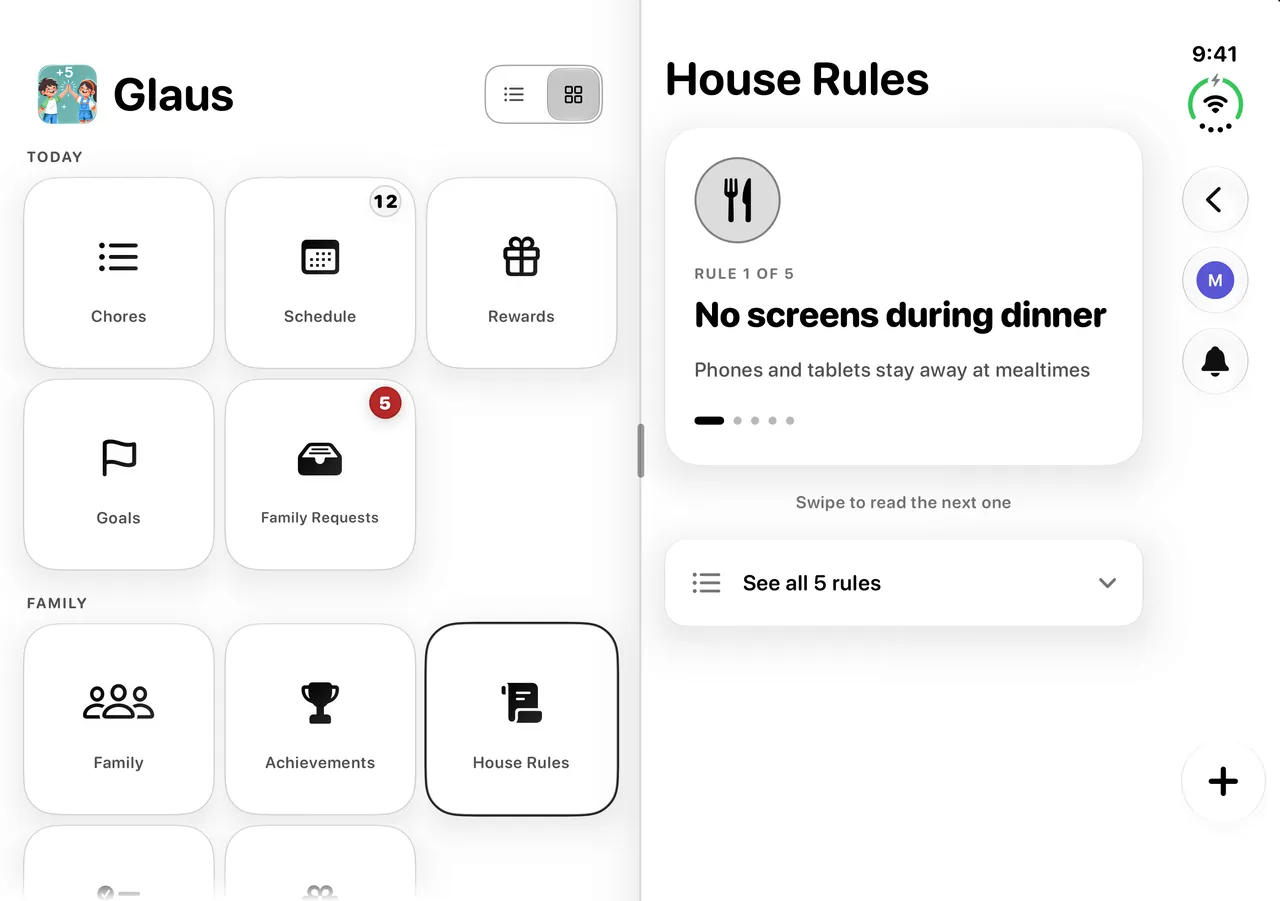
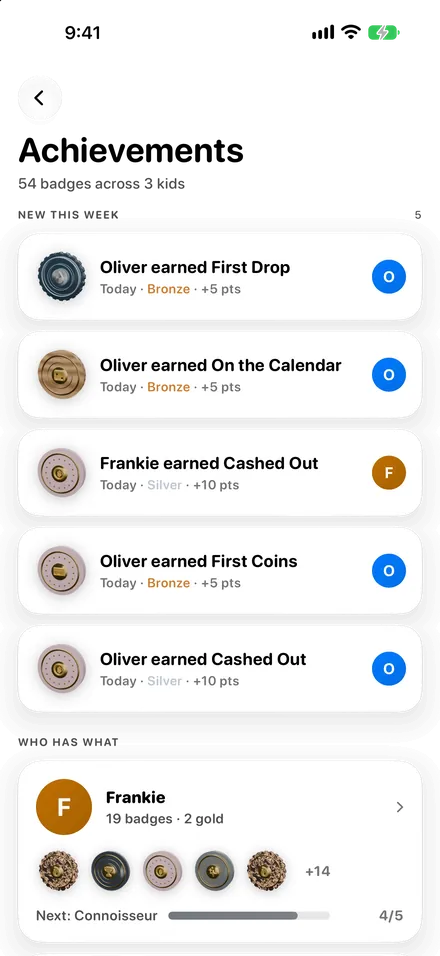
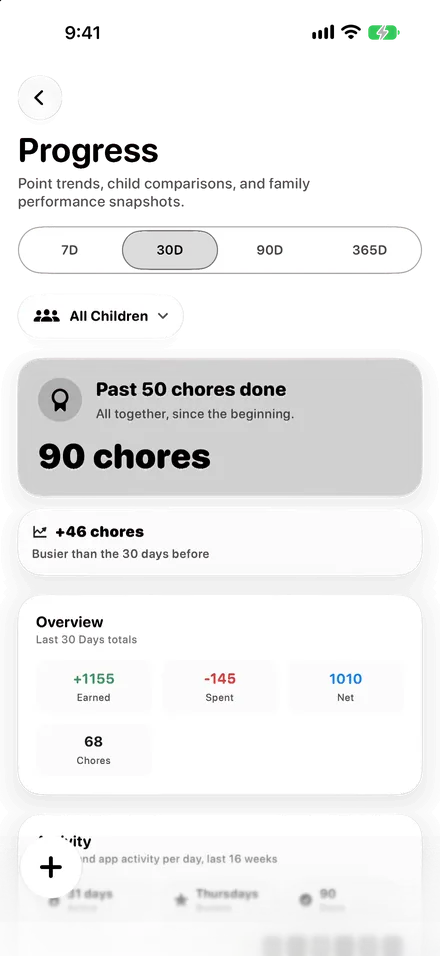
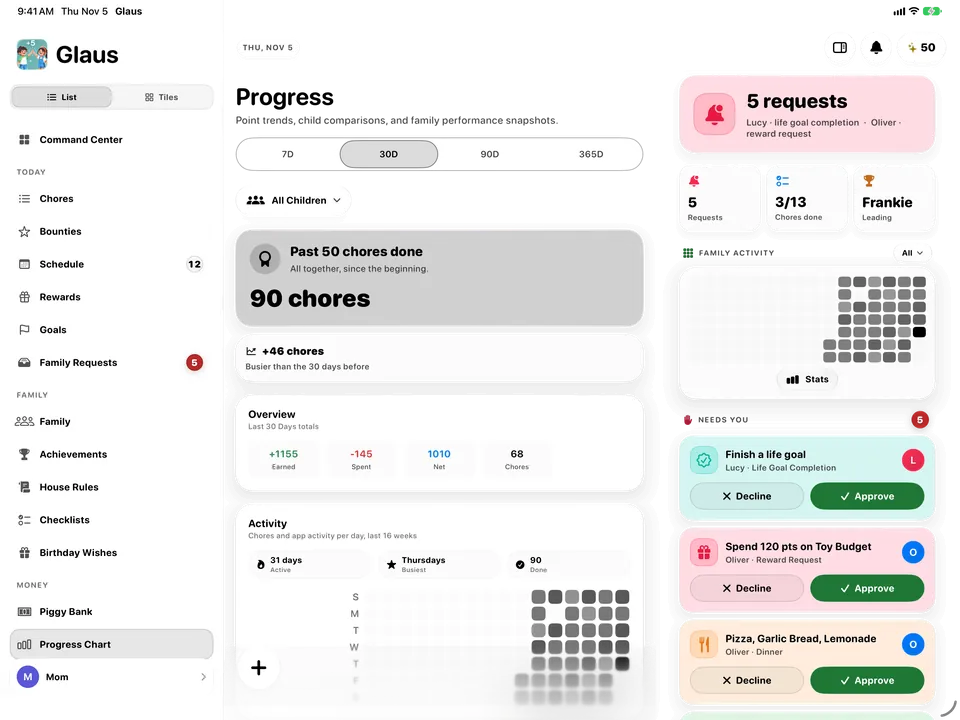
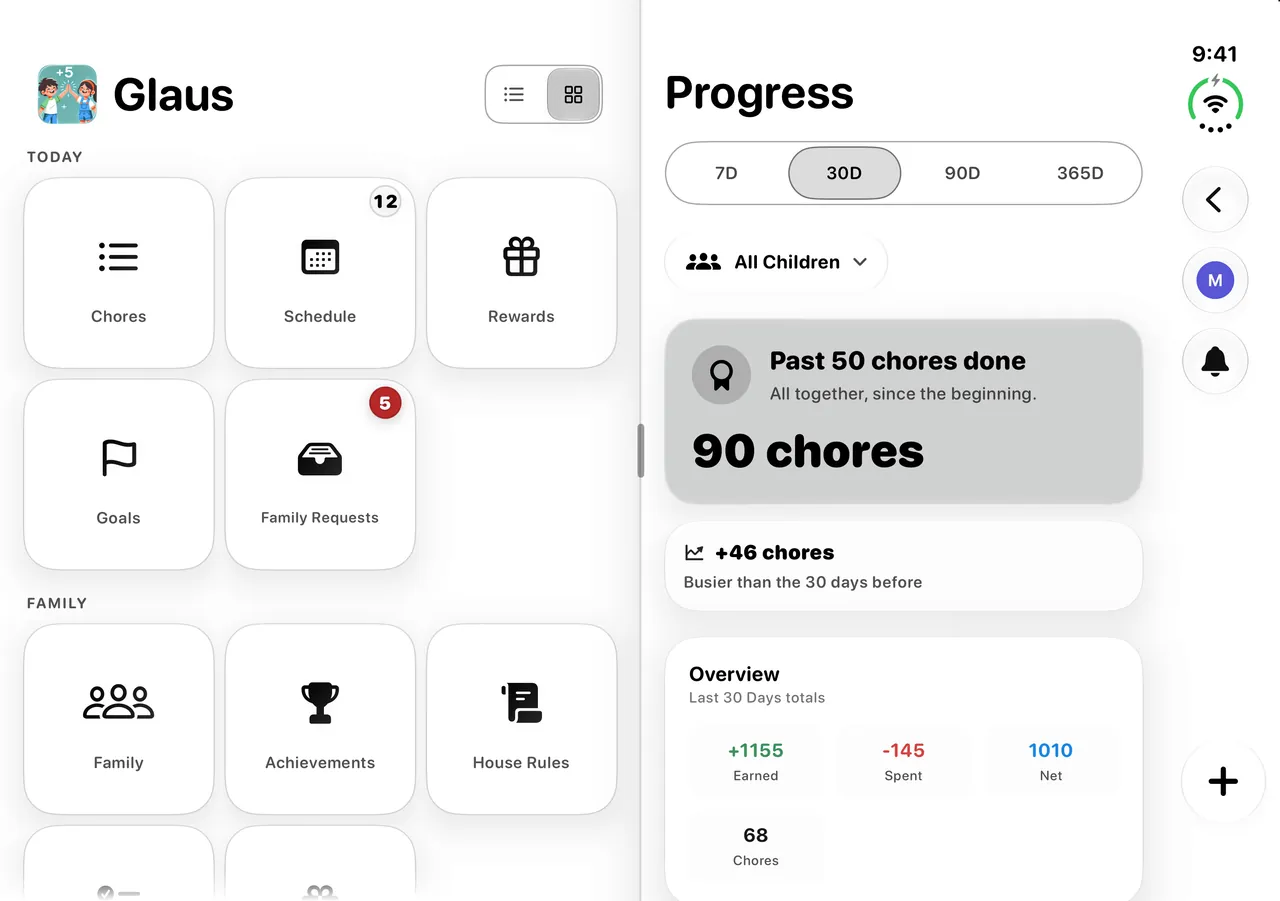
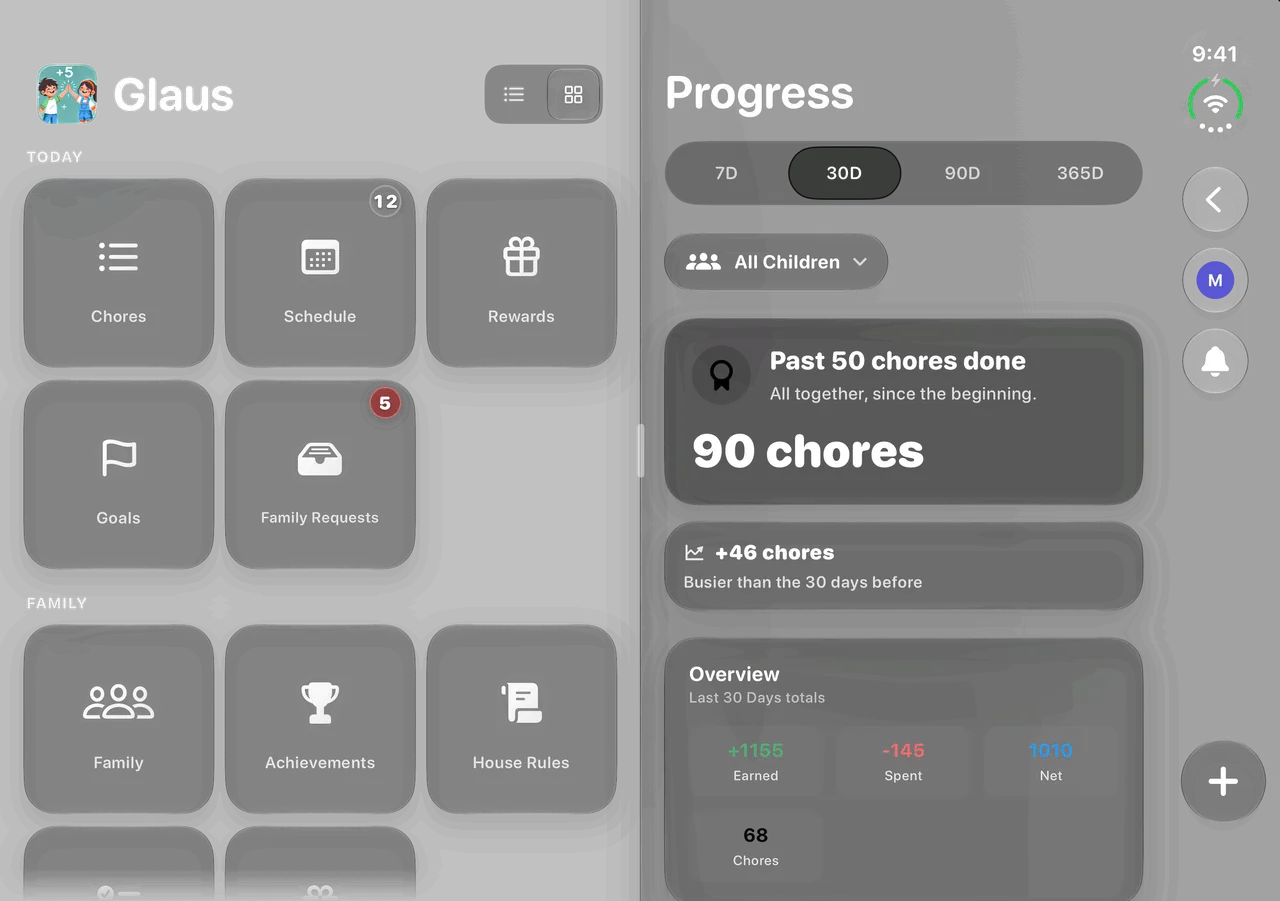
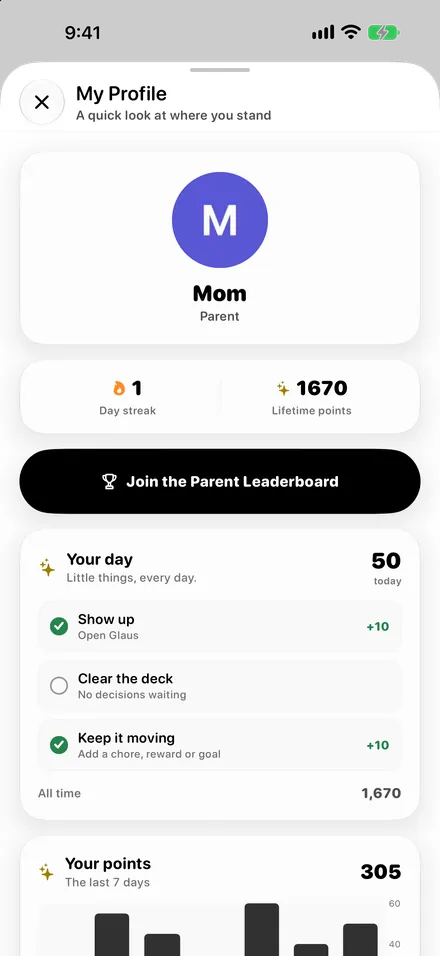
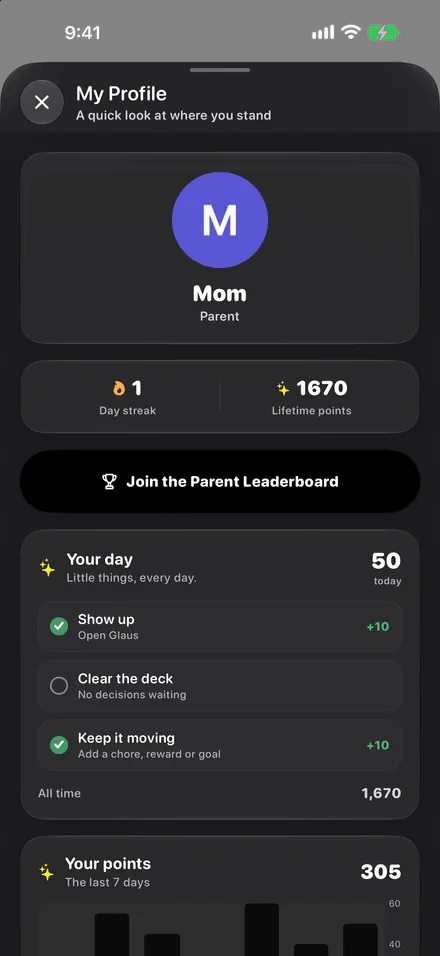
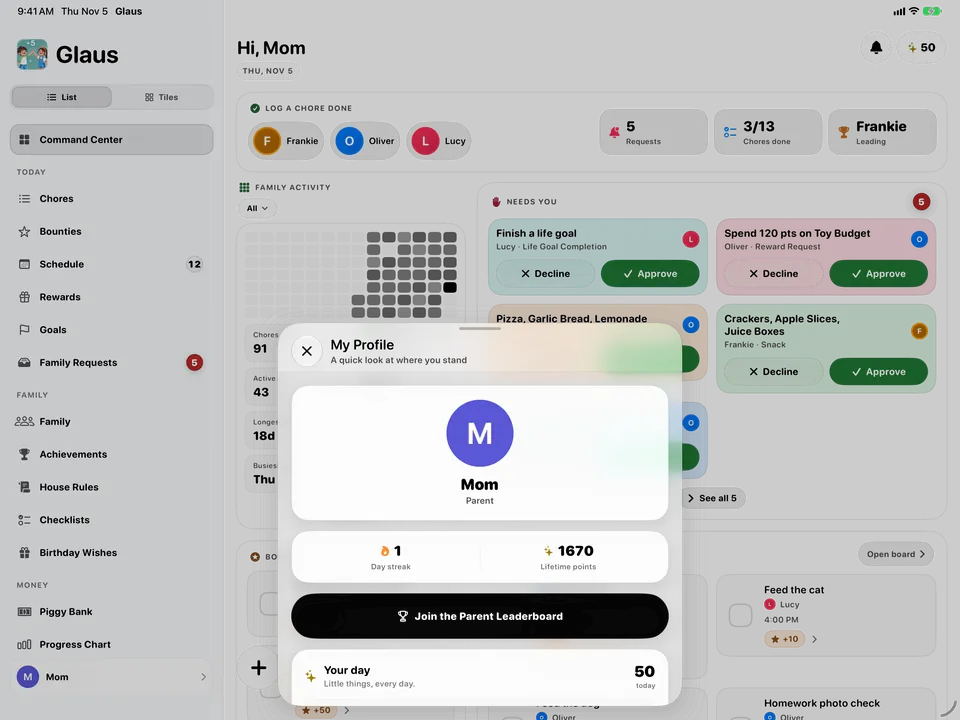
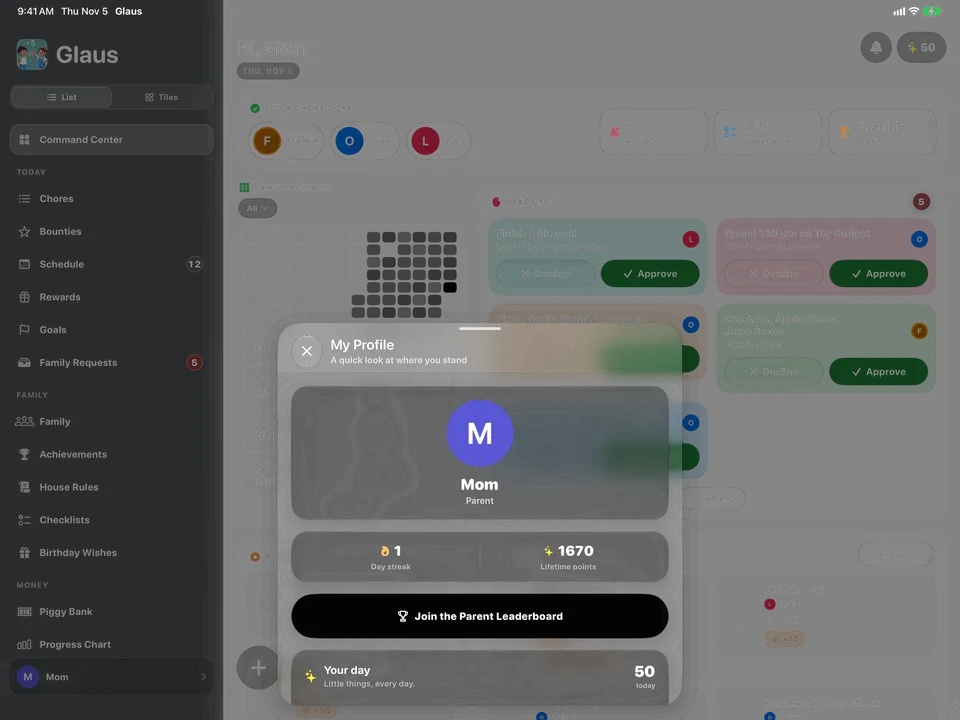
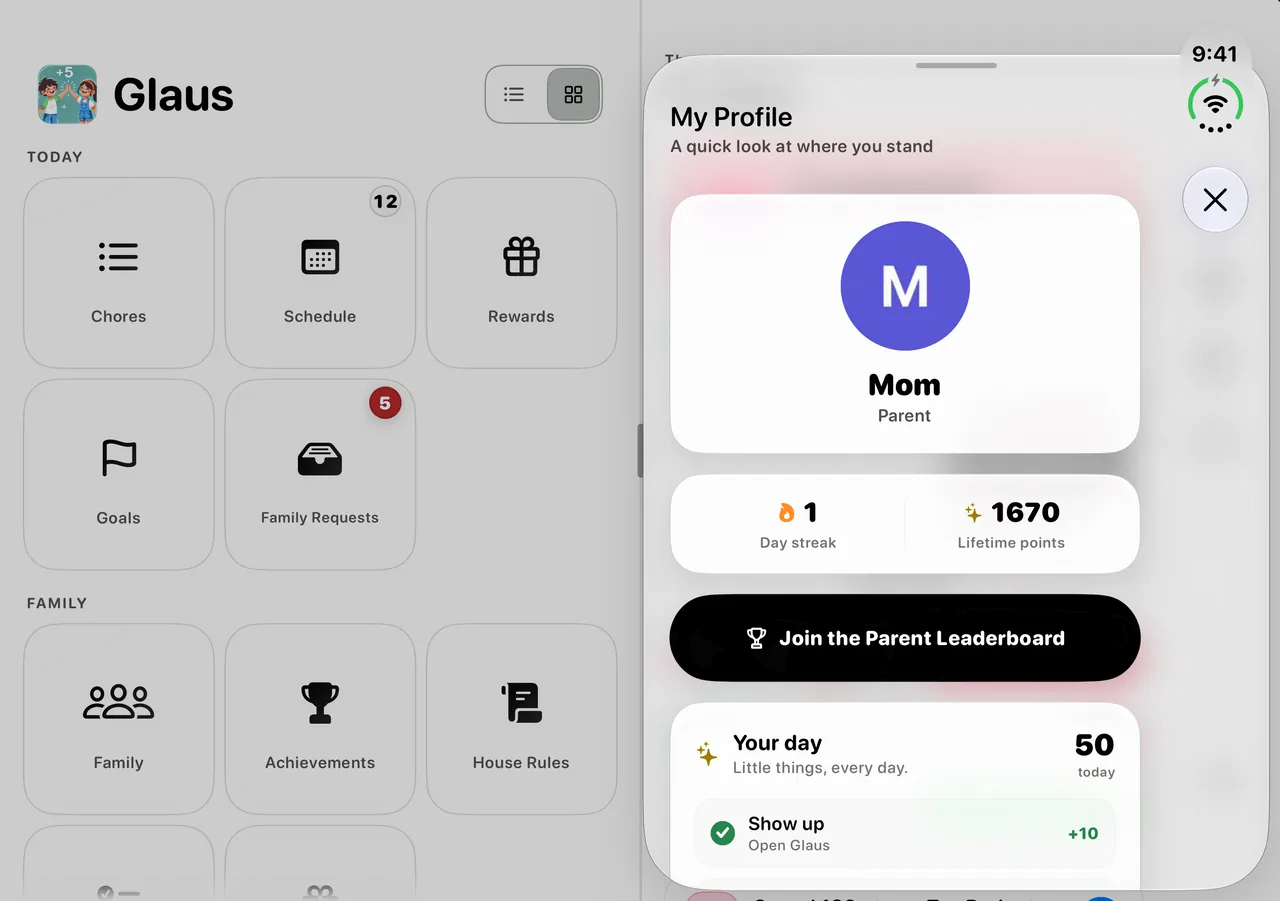
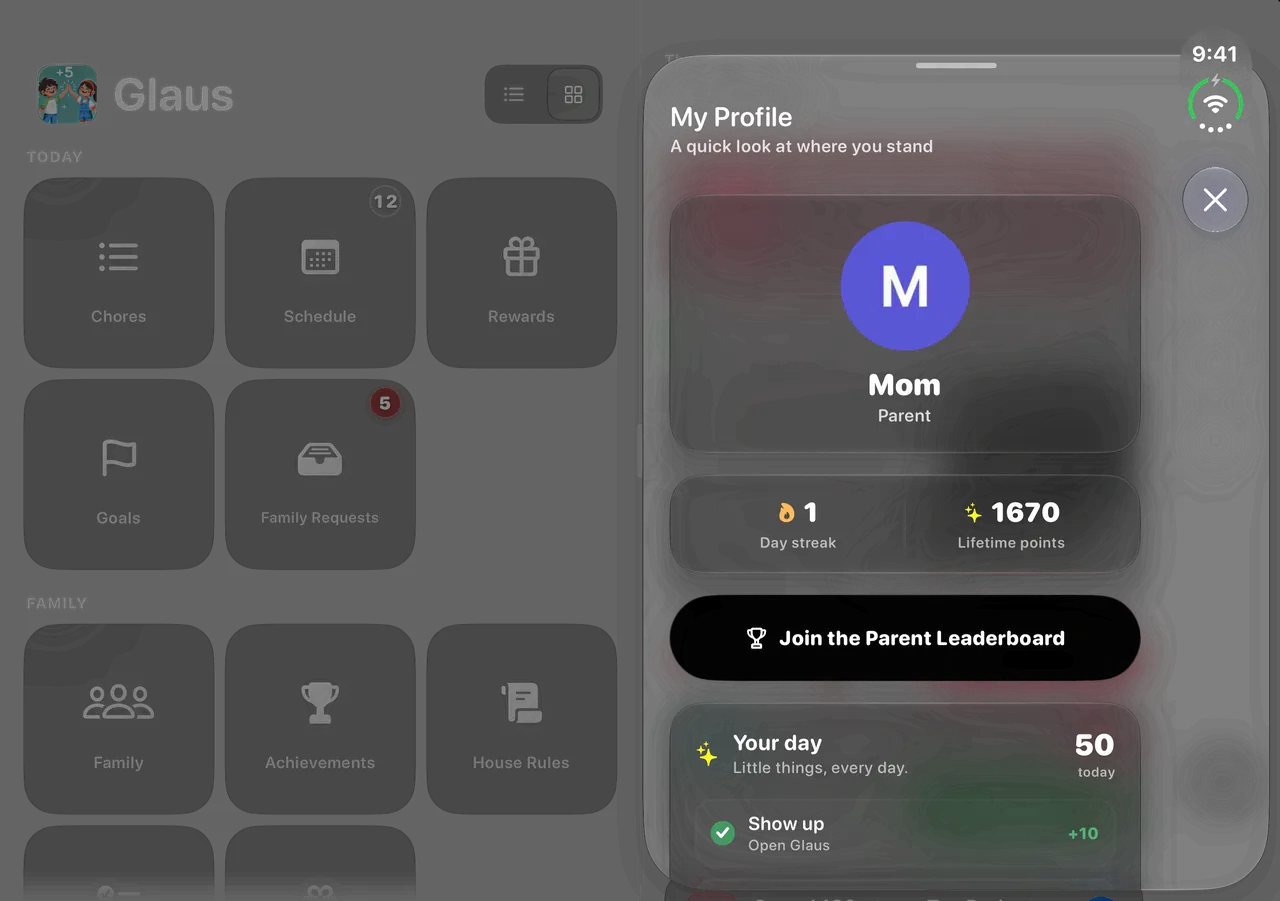
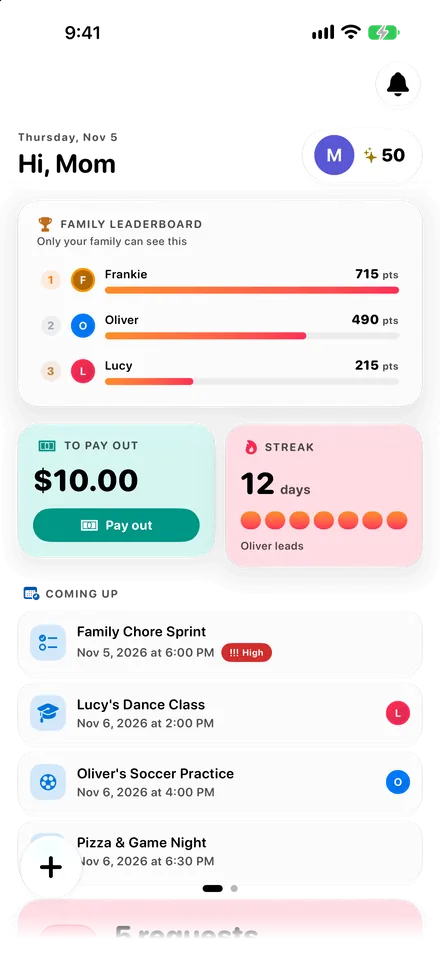
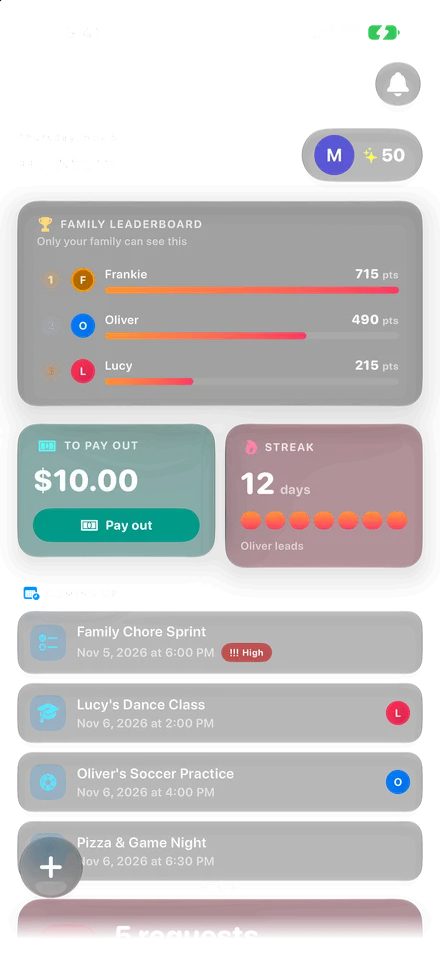
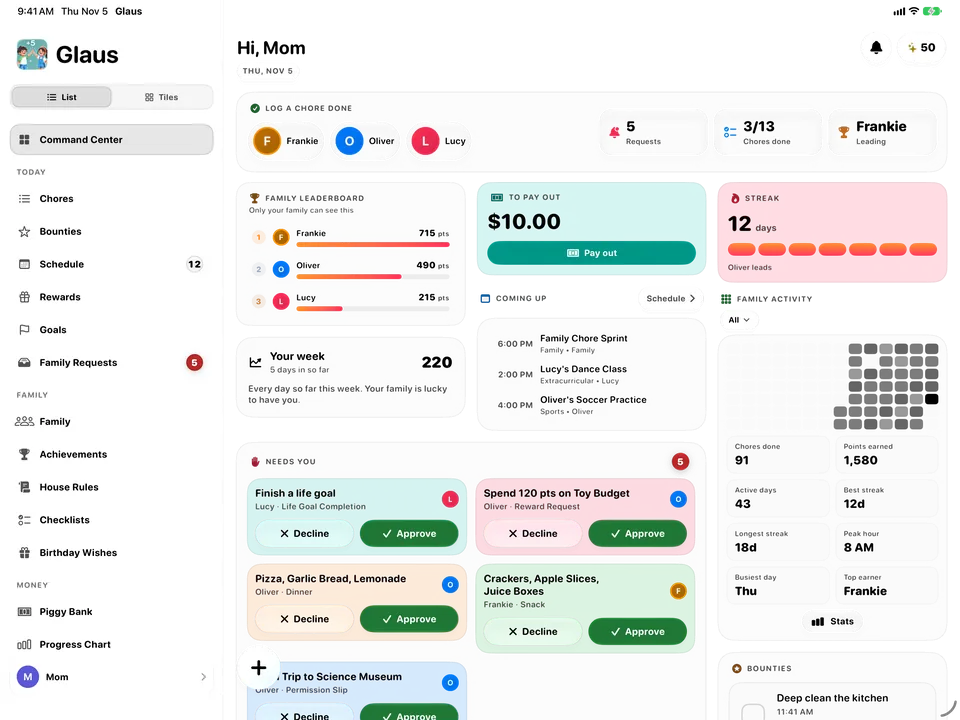
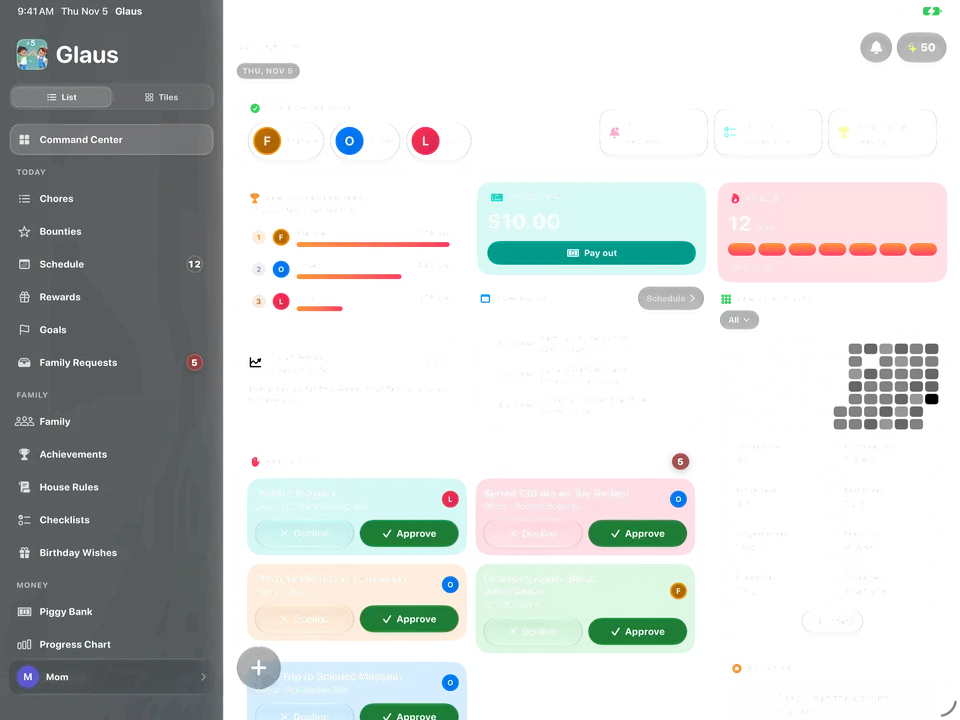
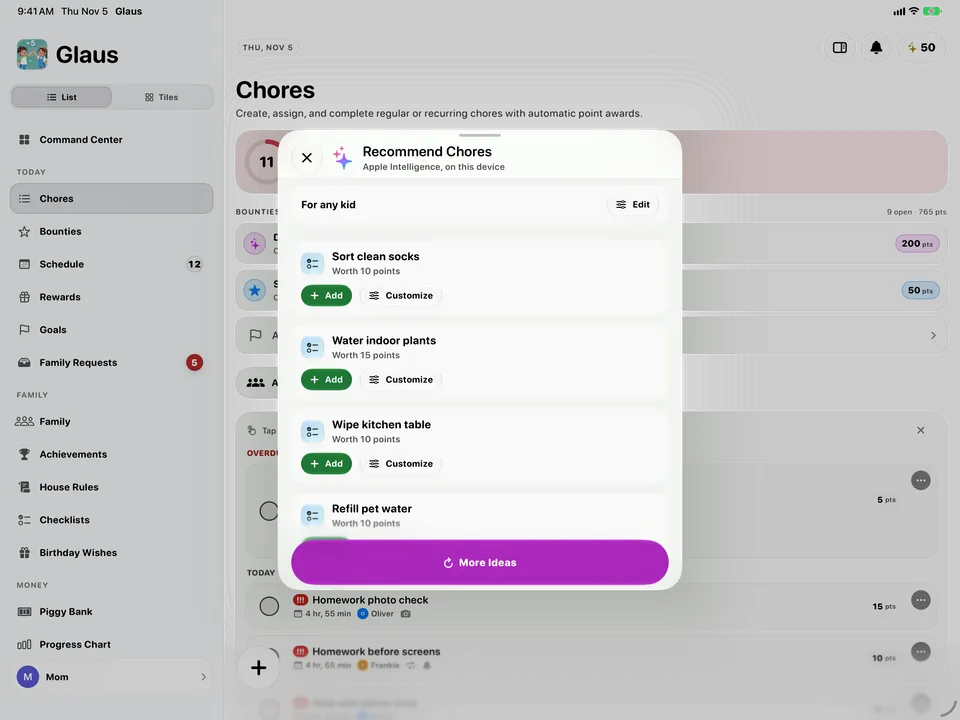
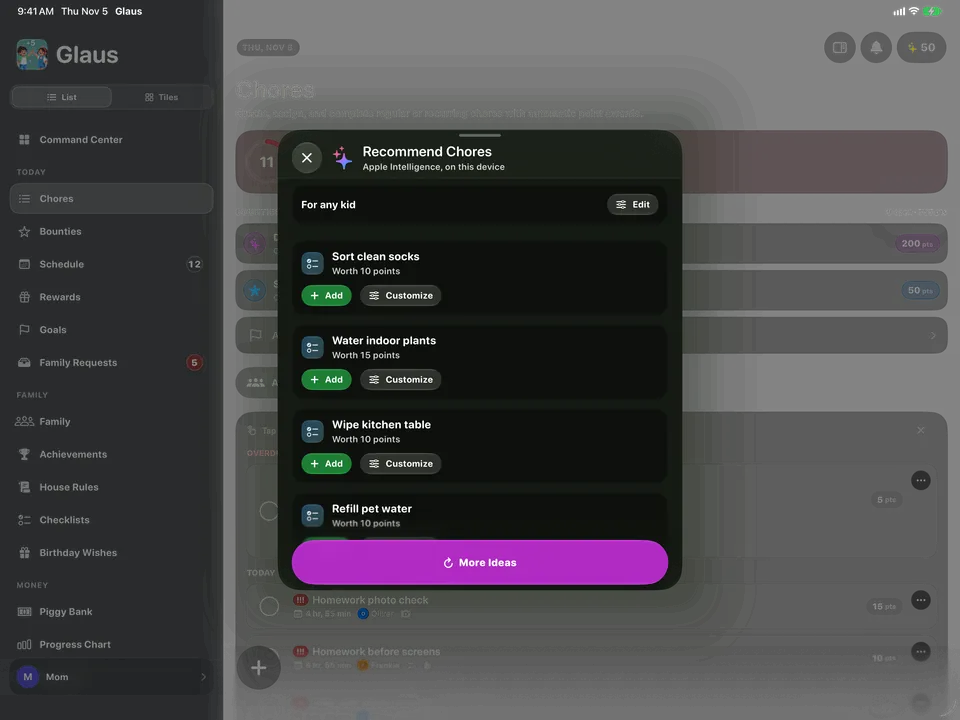
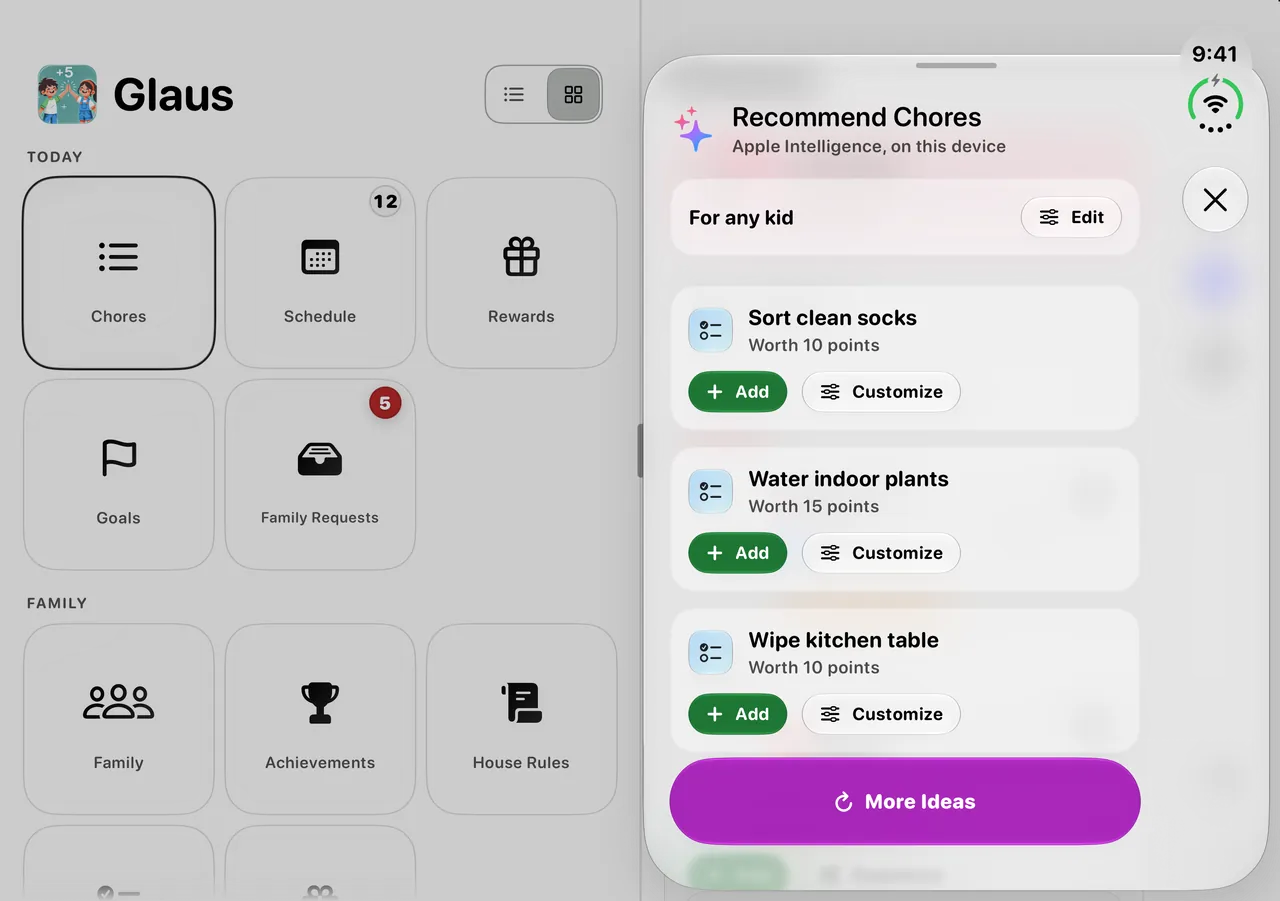
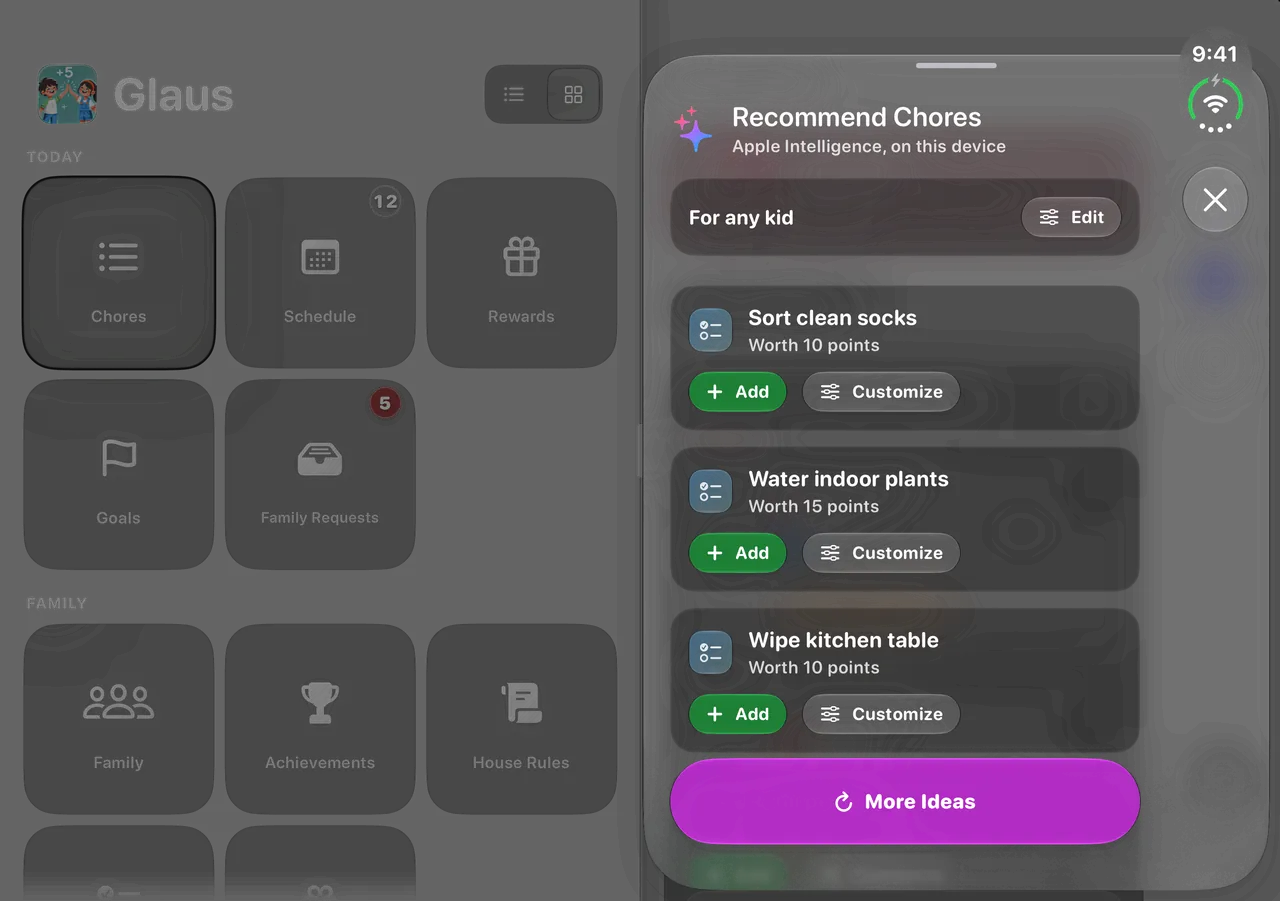
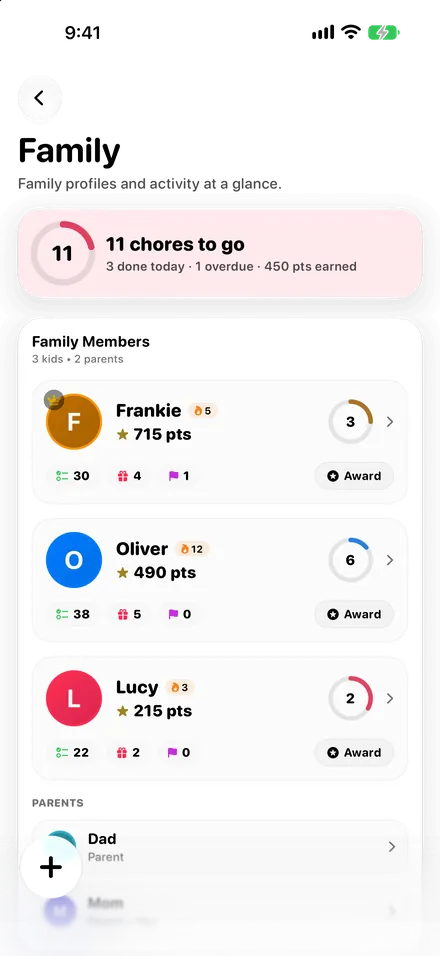
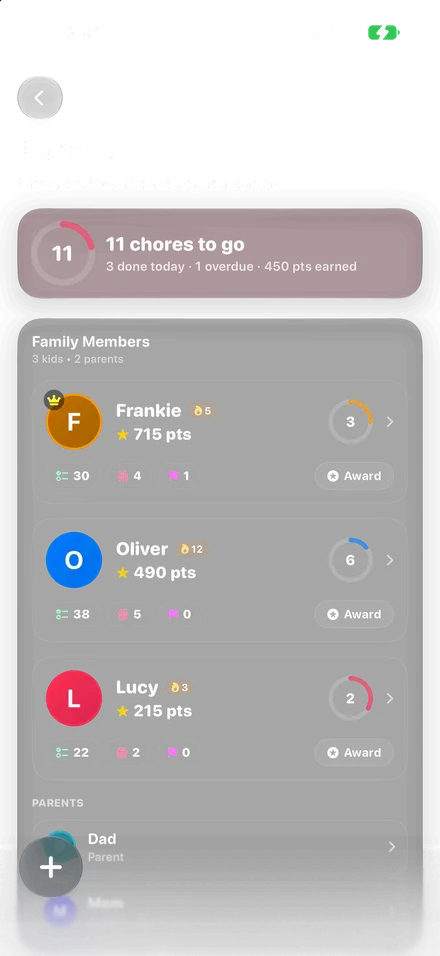
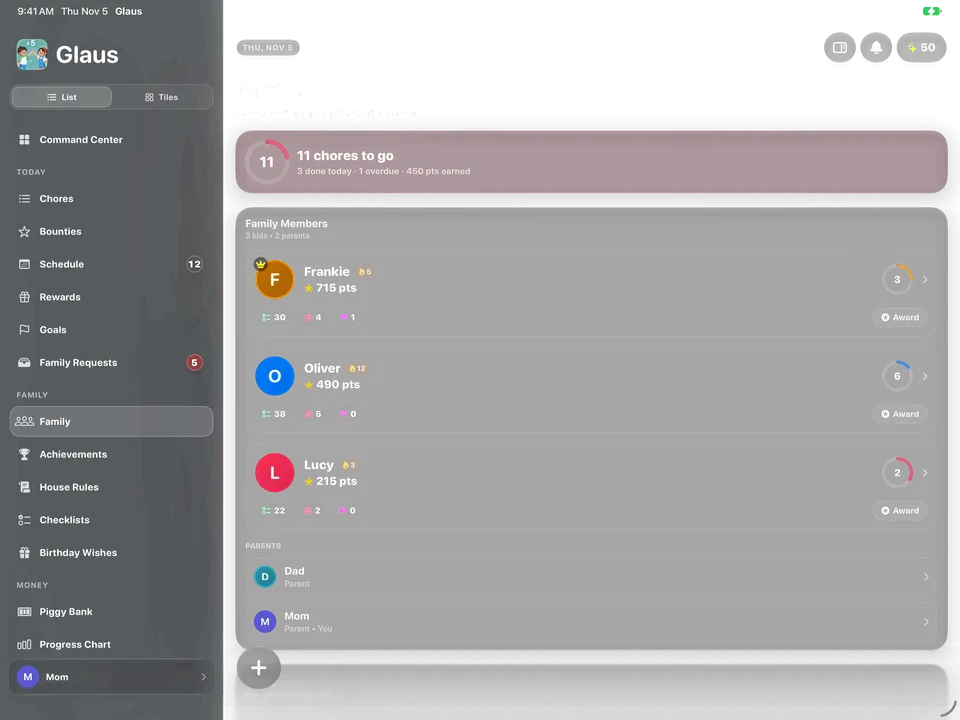
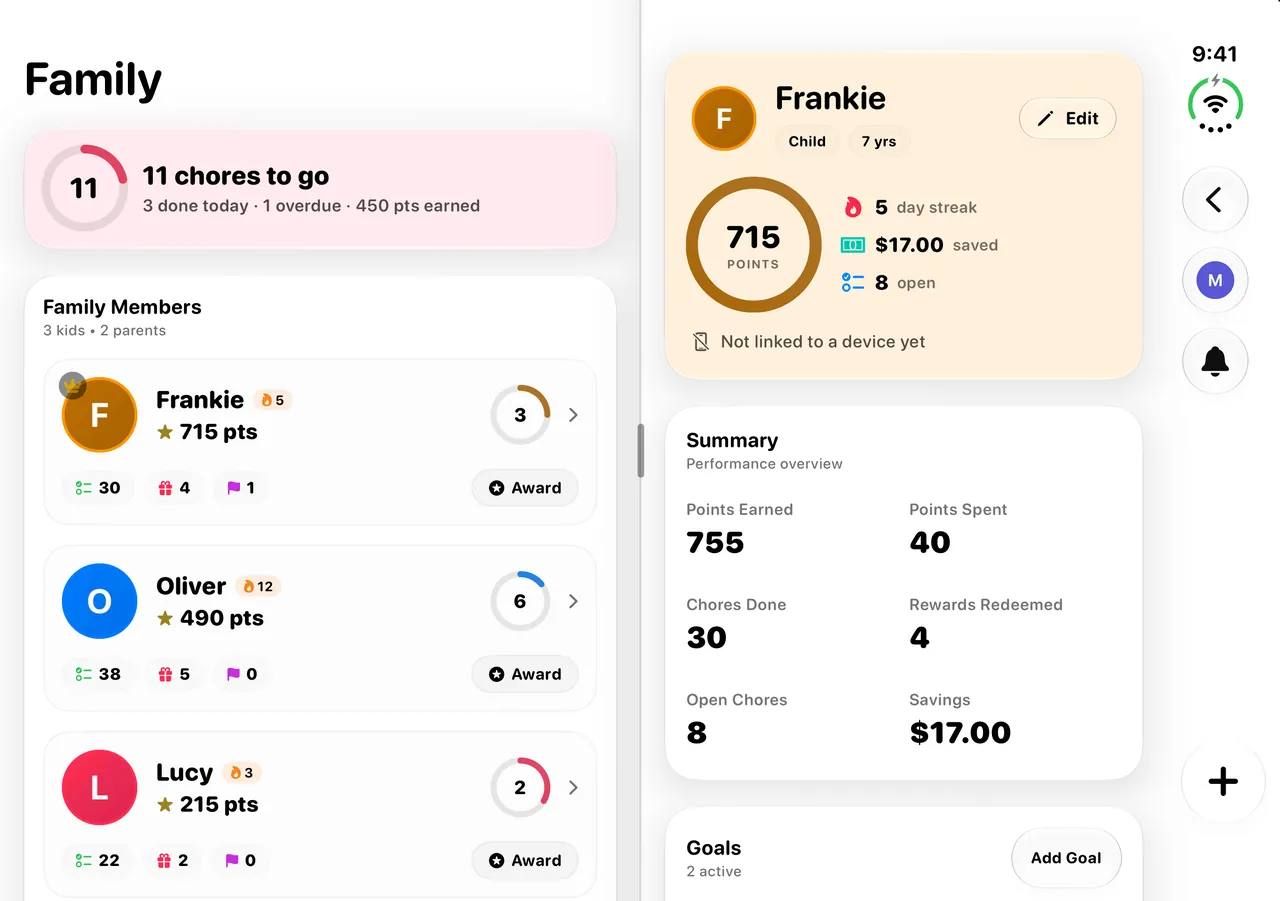
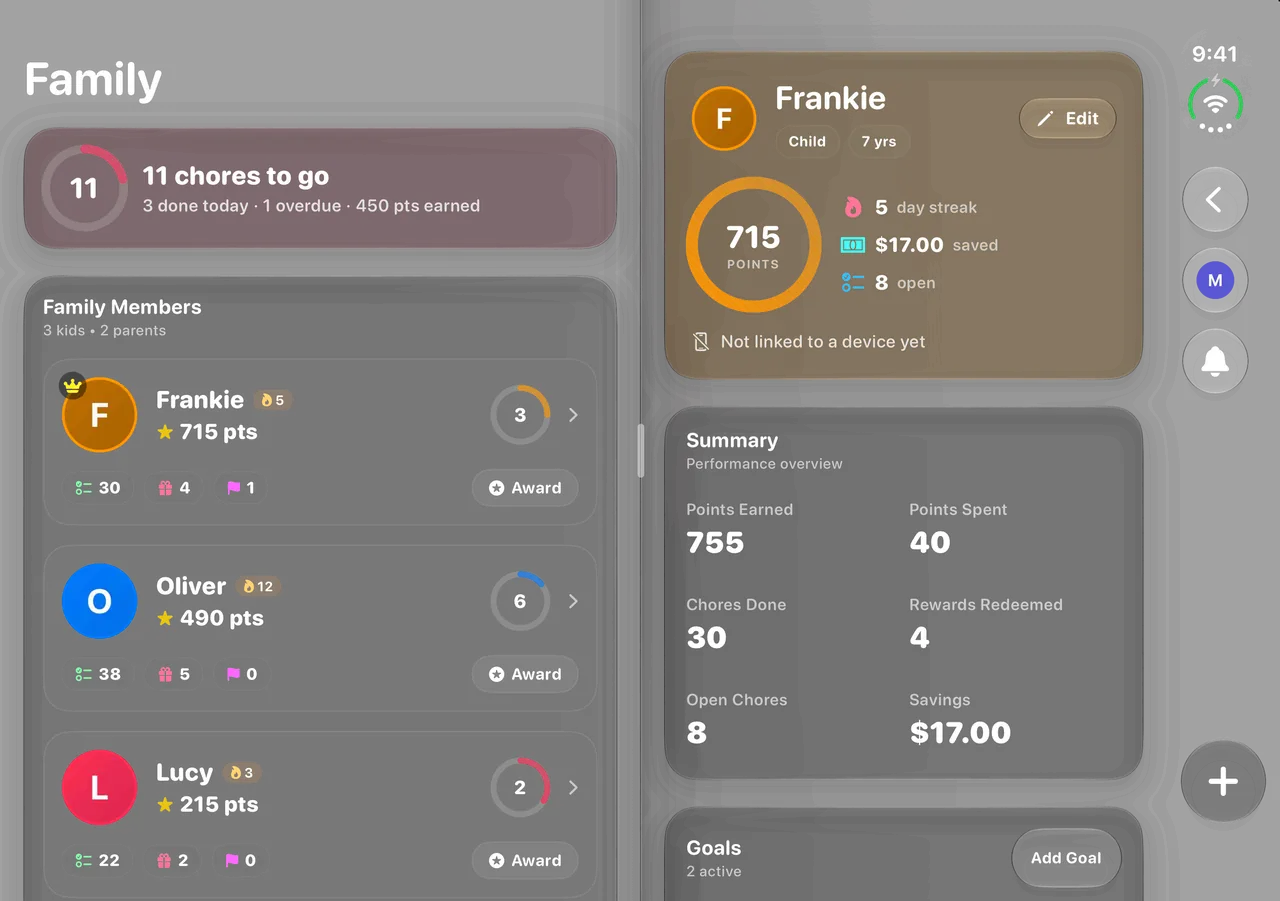
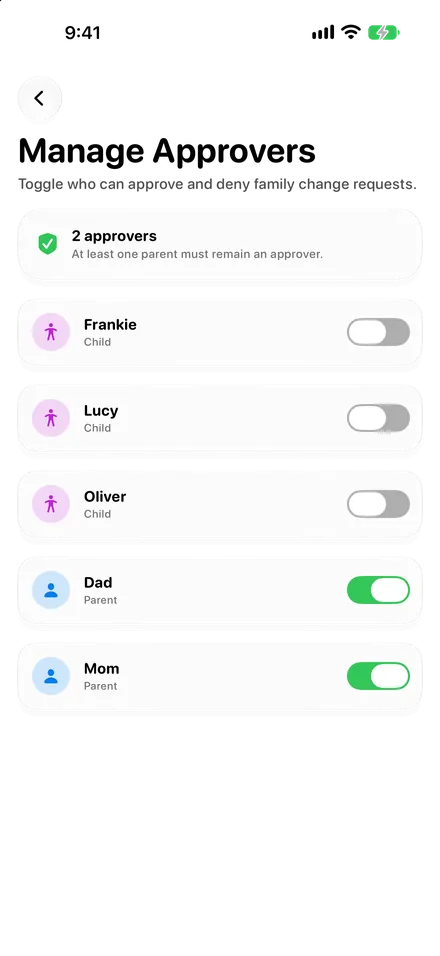
Every screen swipes back home, one layer at a time.
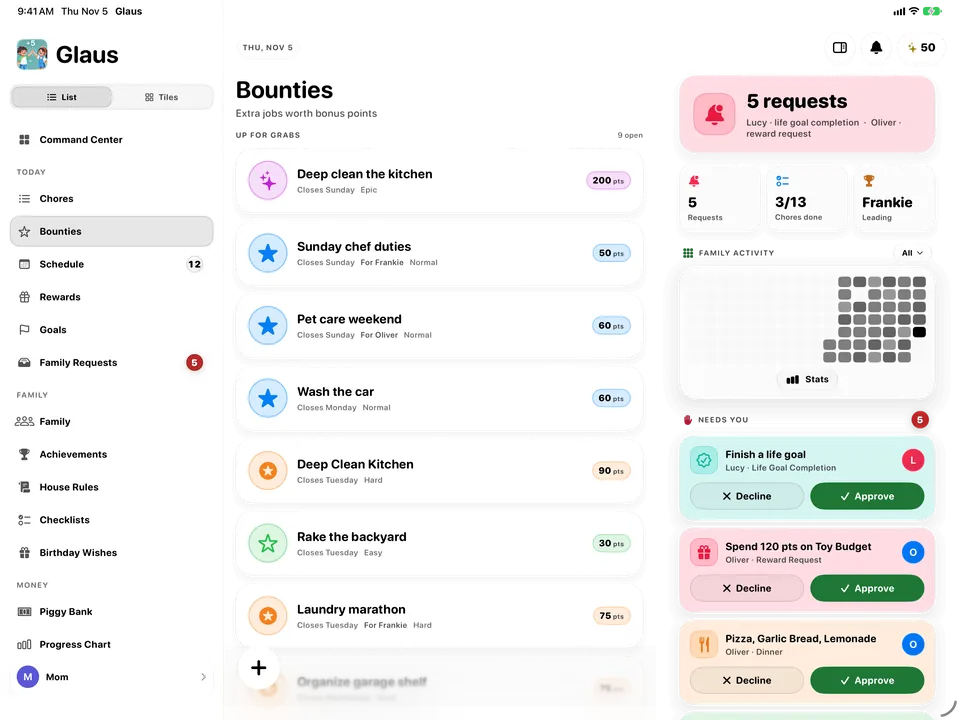
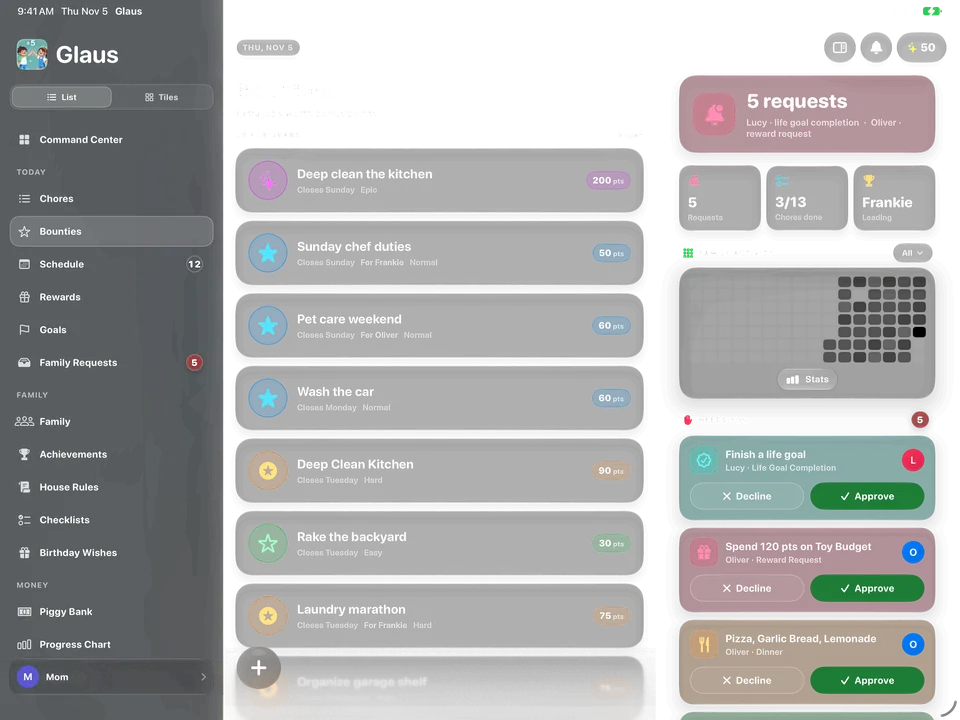
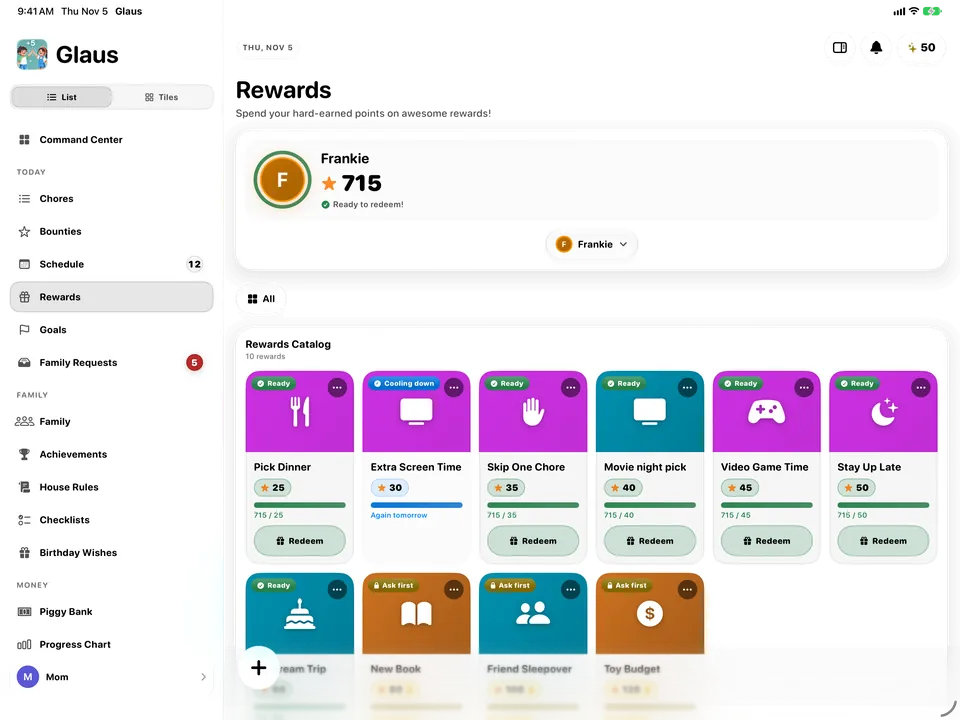
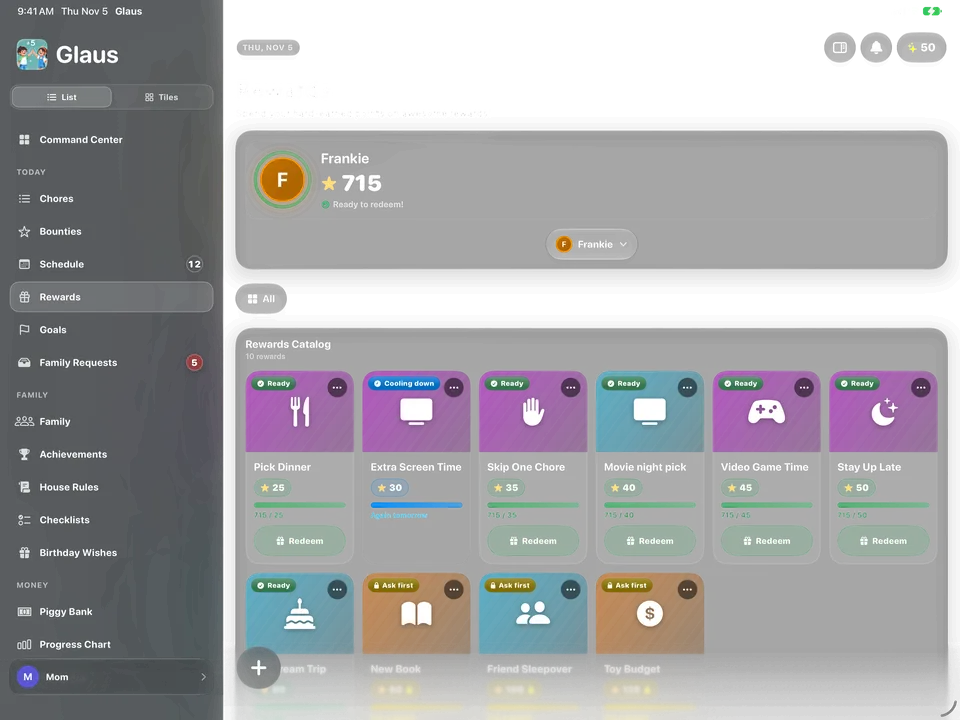
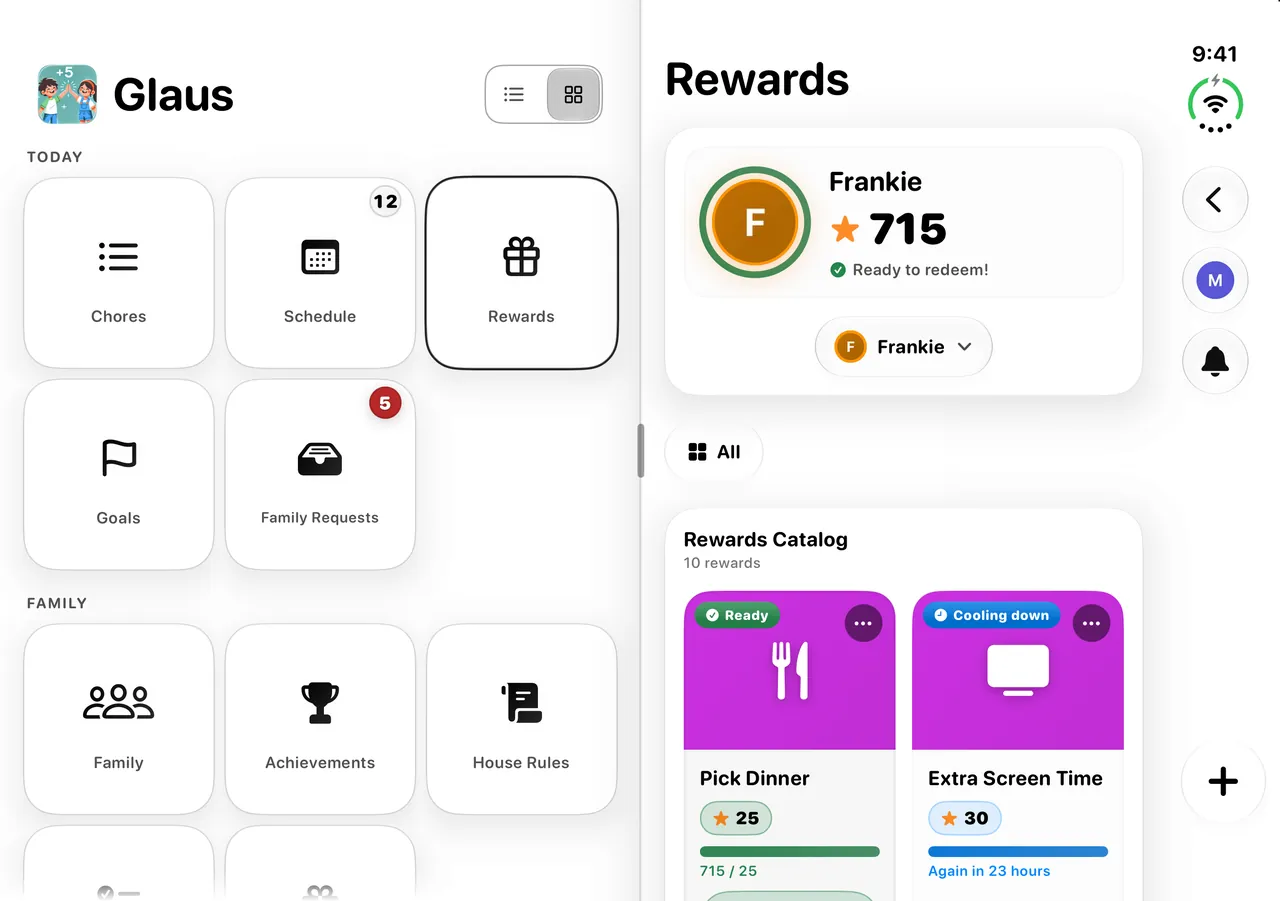
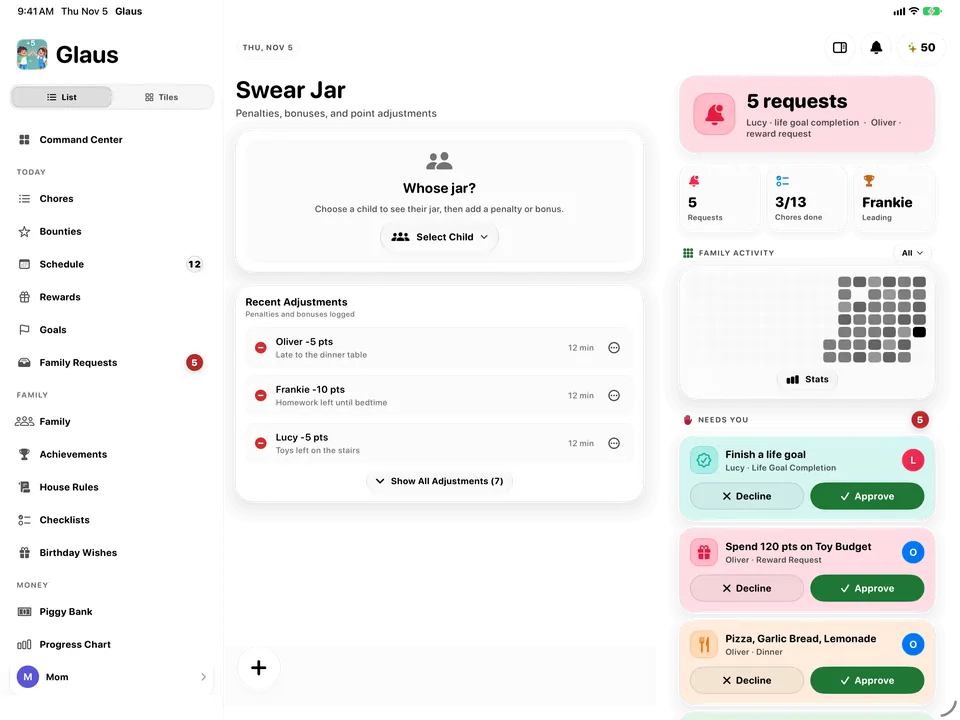
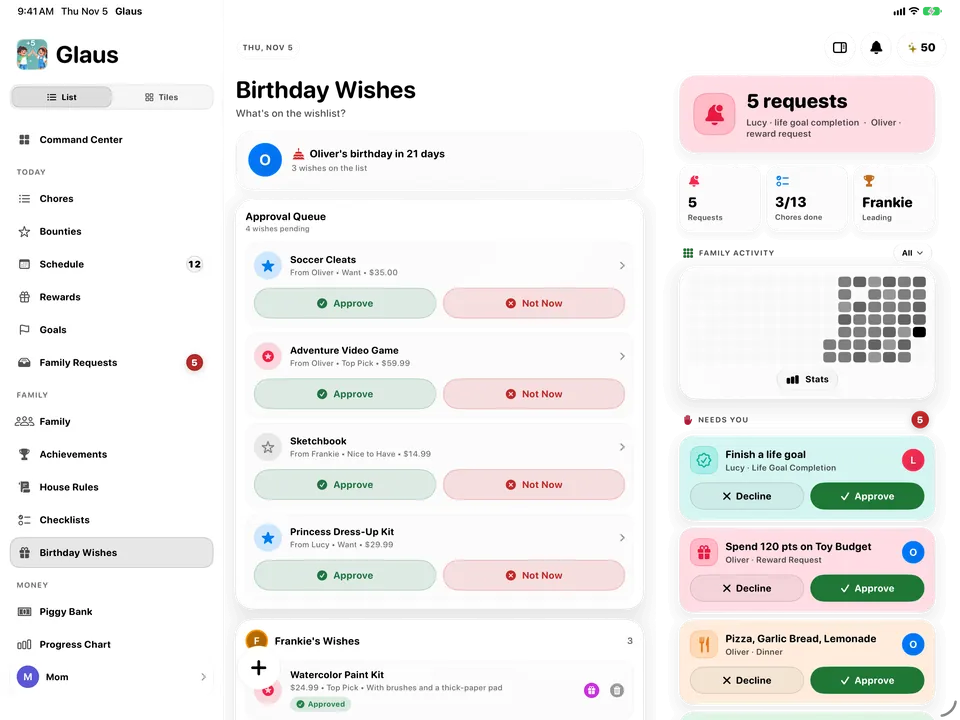
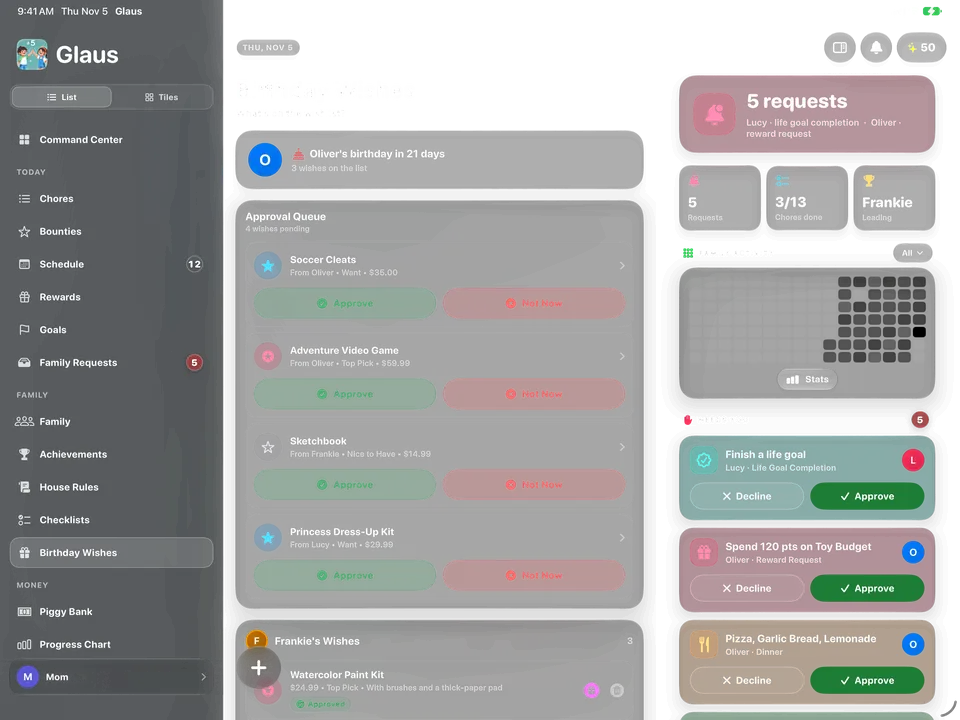
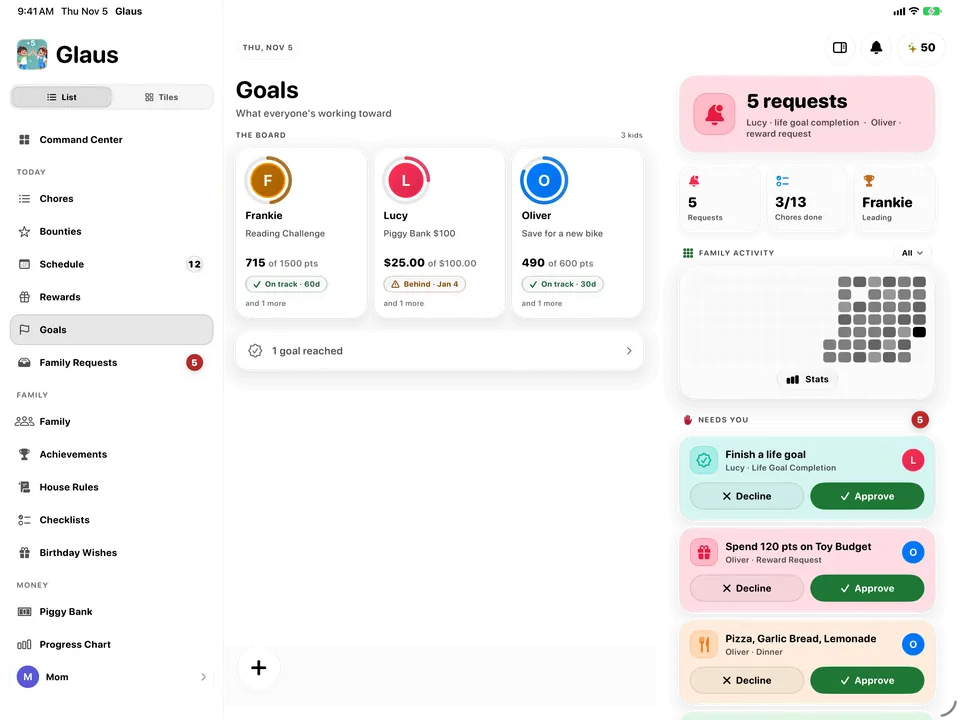
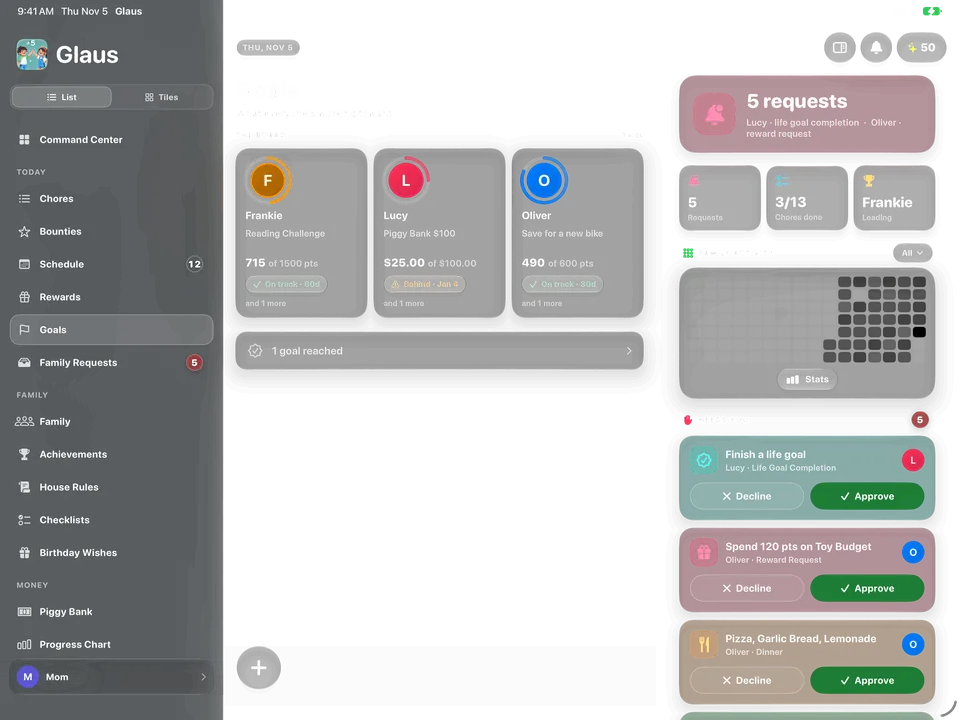
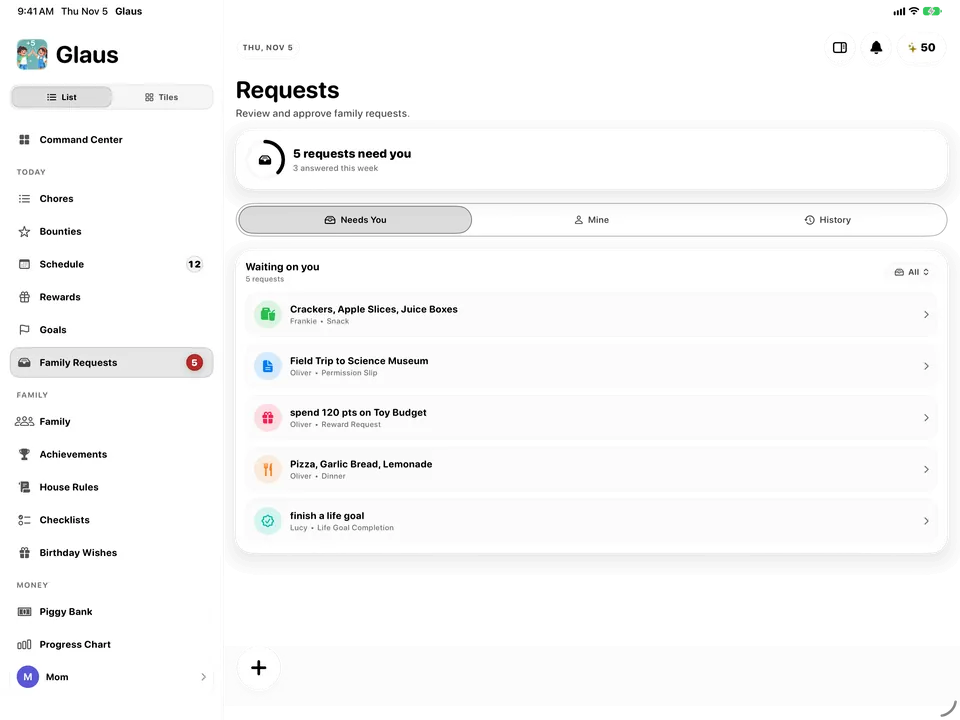
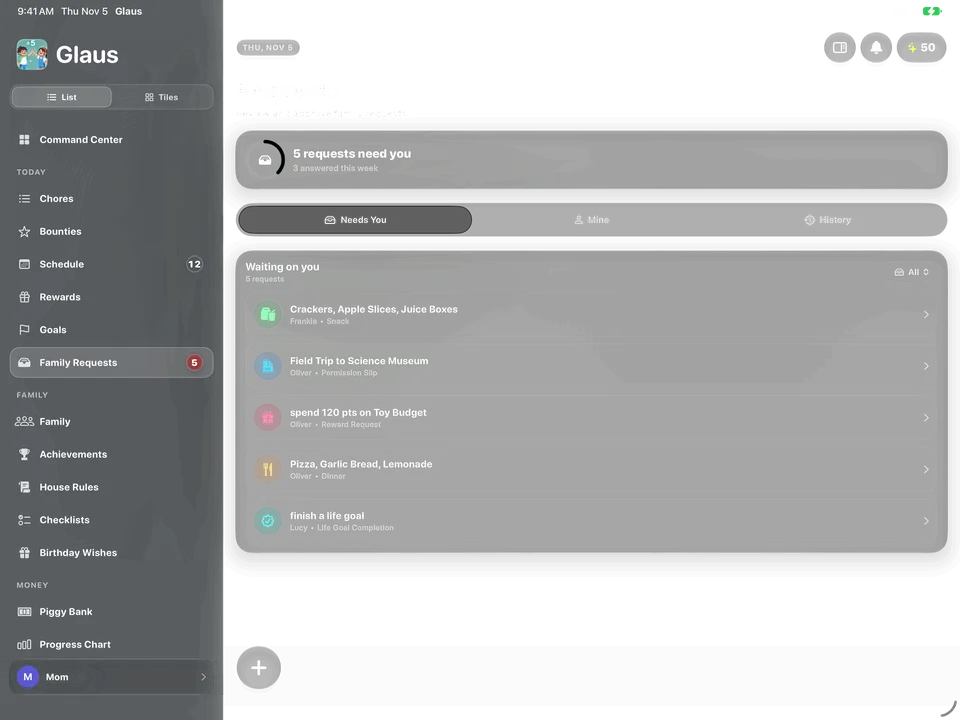
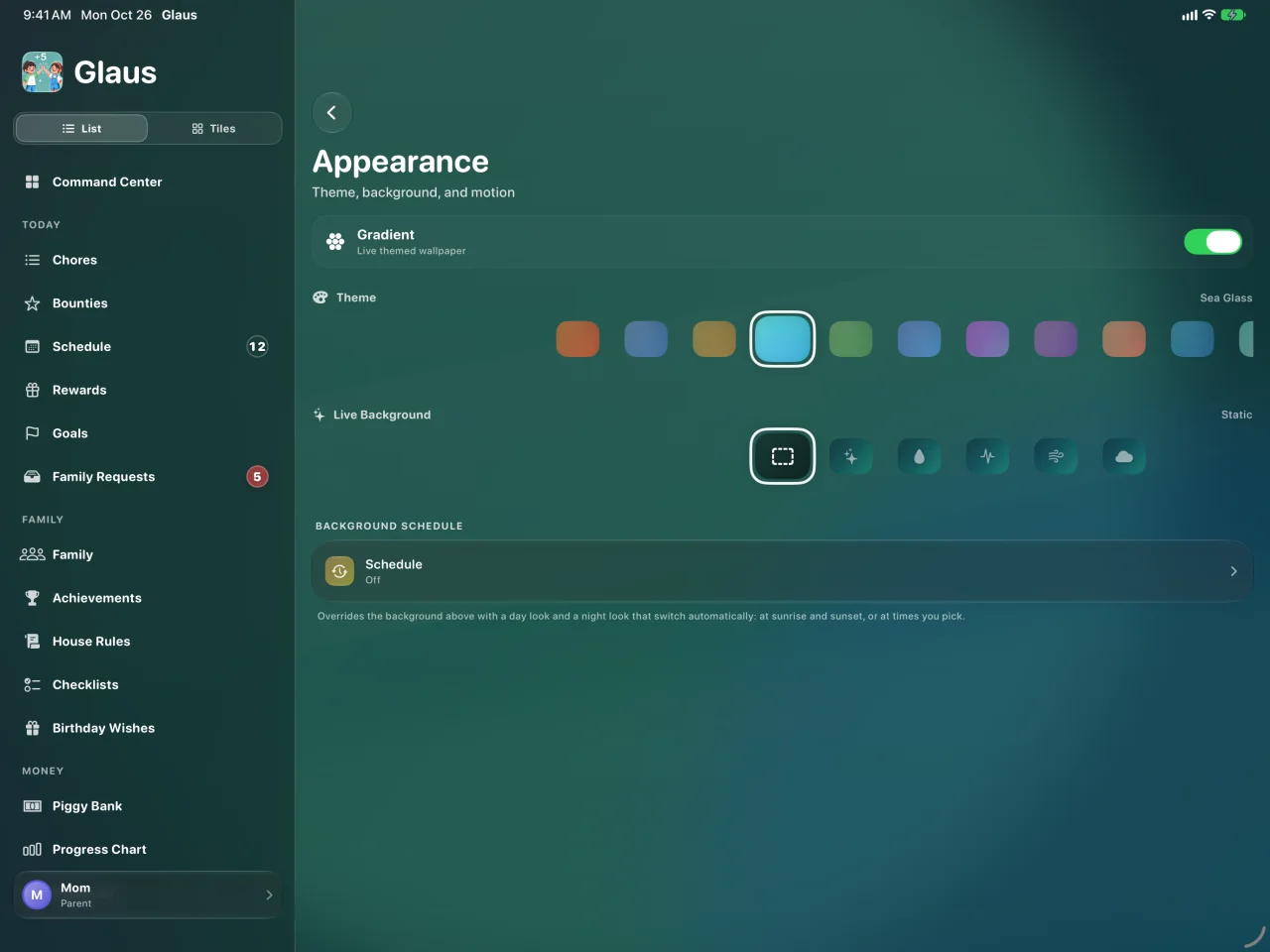
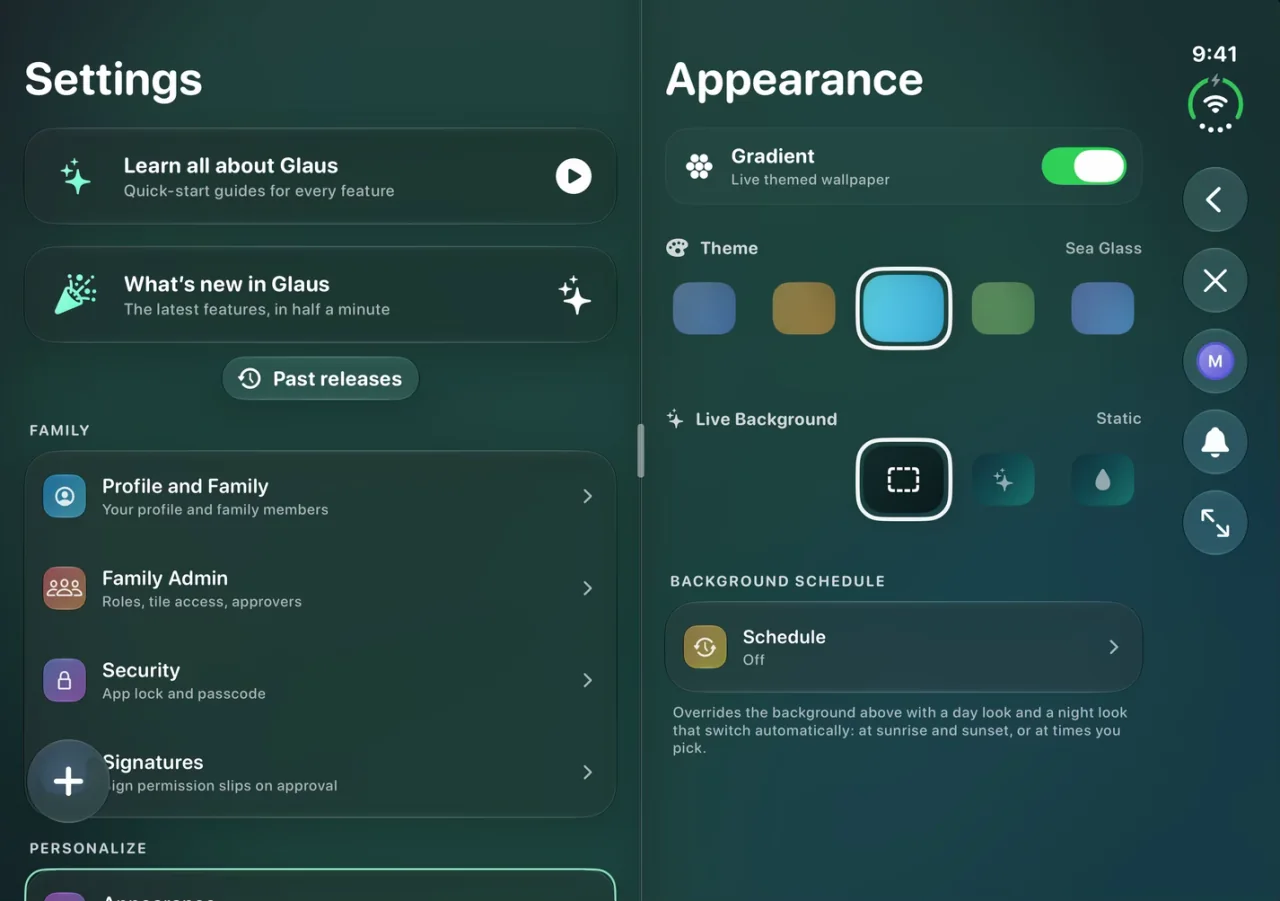
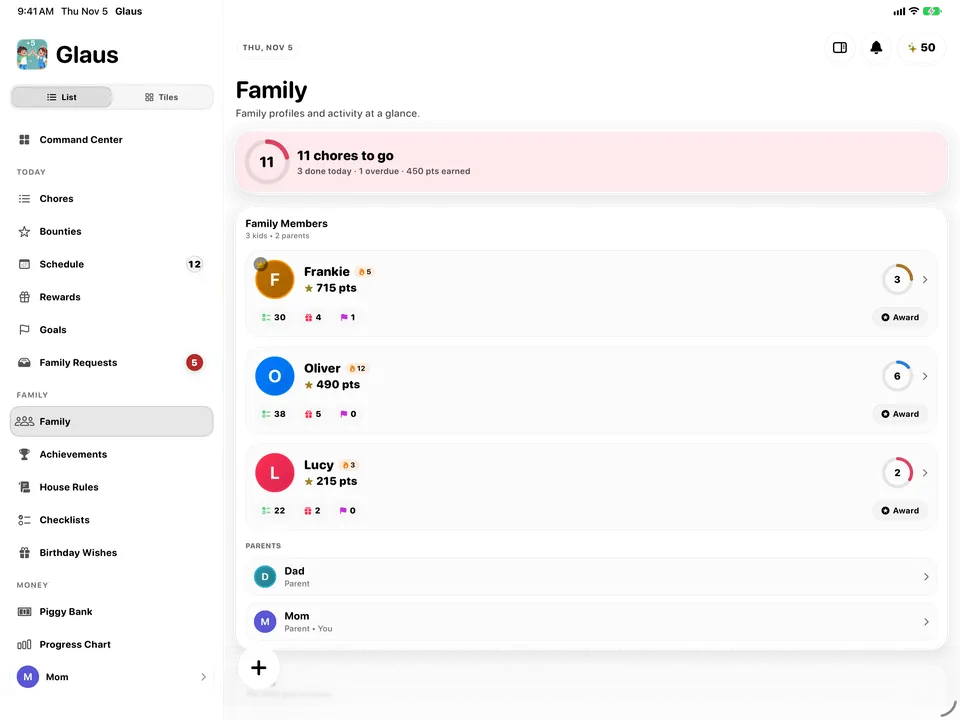
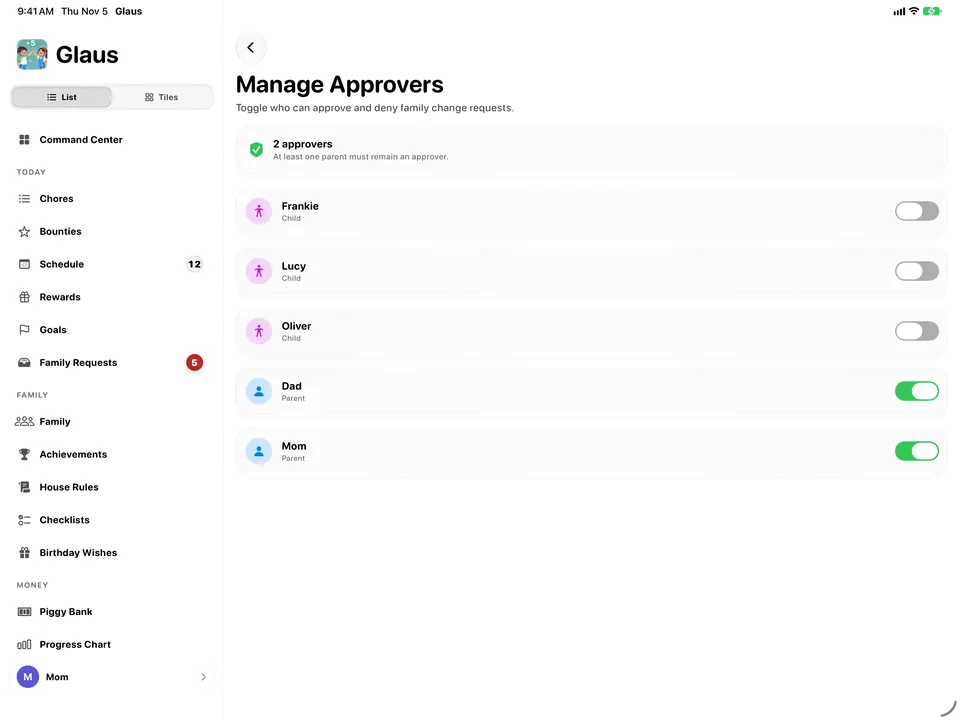
The sidebar goes anywhere. Back steps up one level.
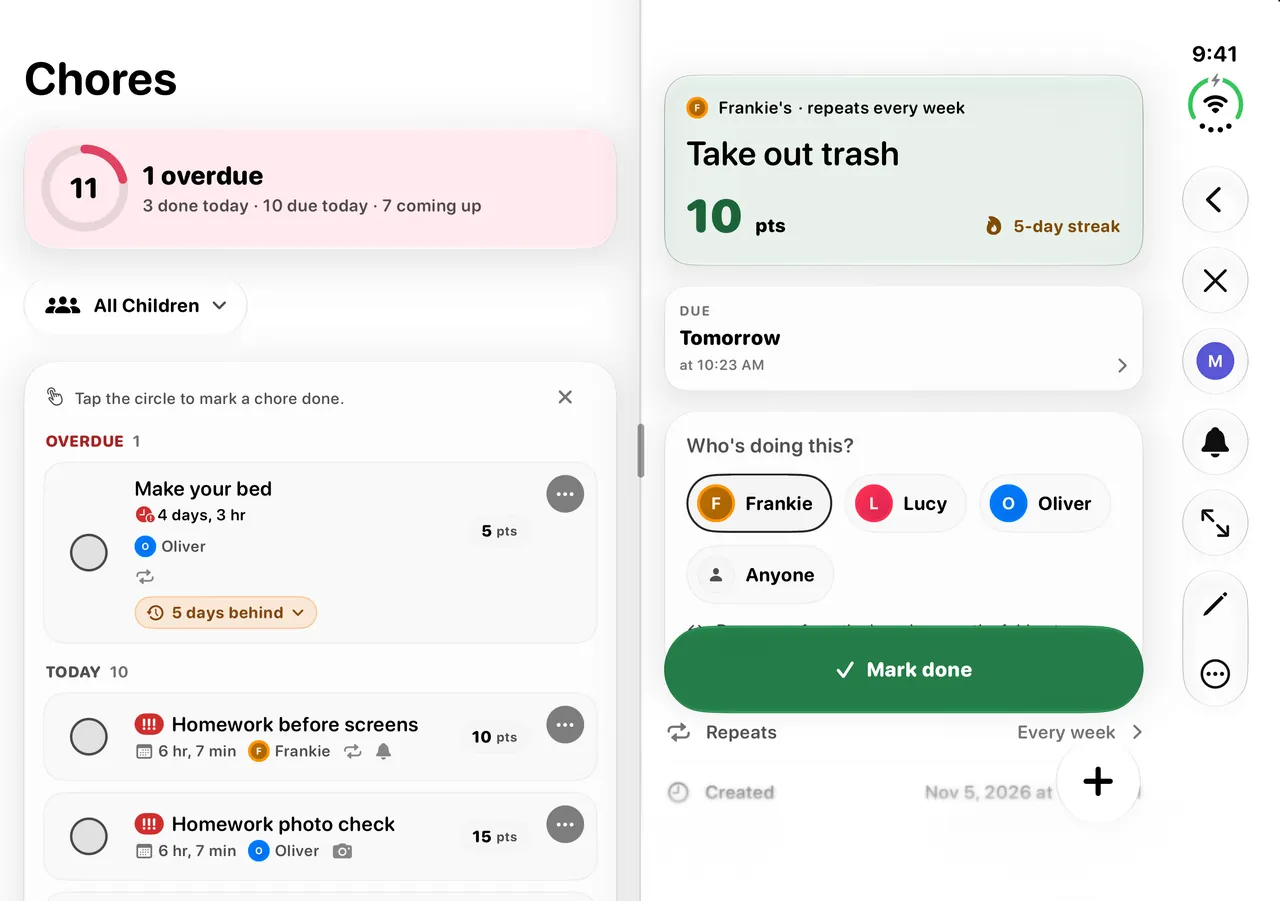
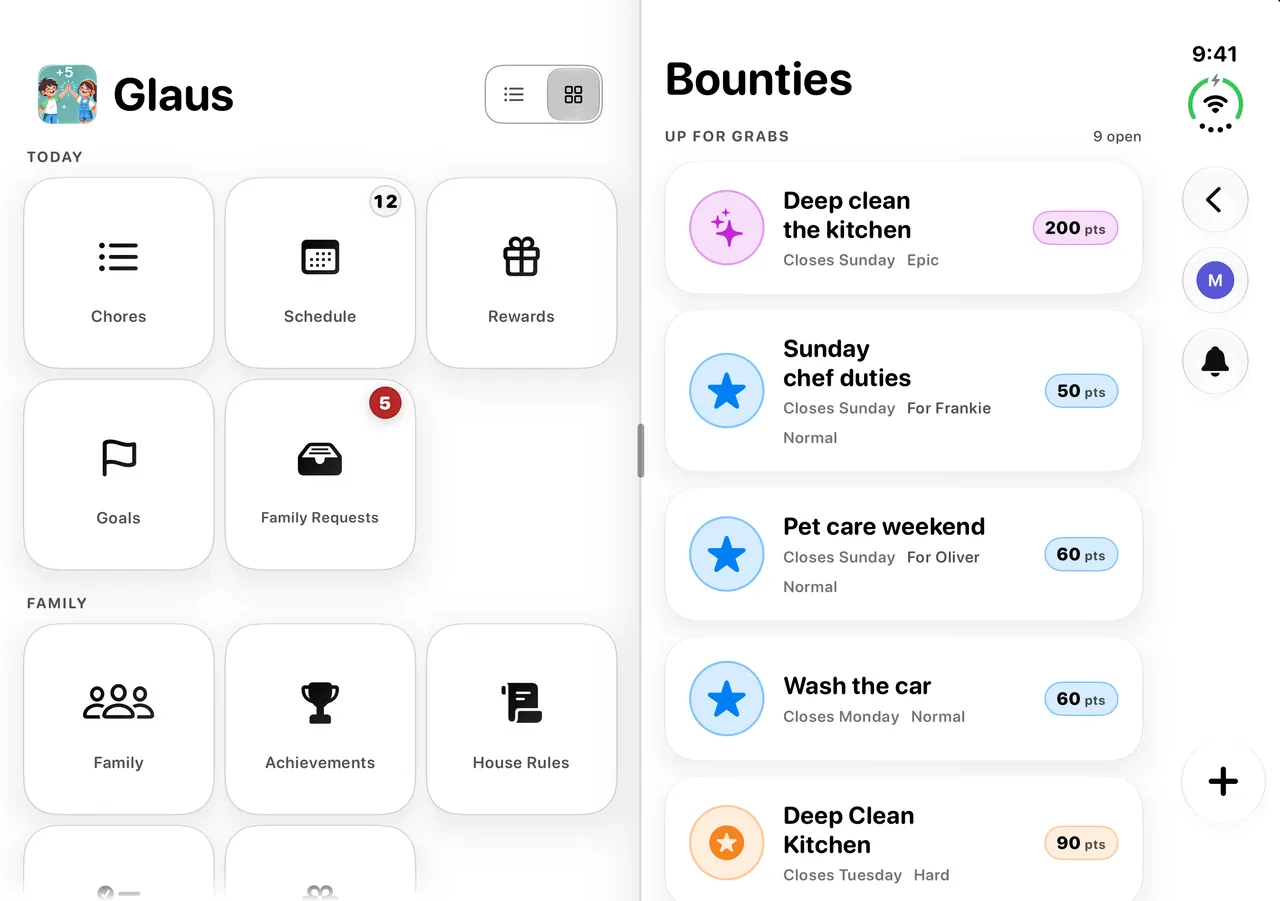
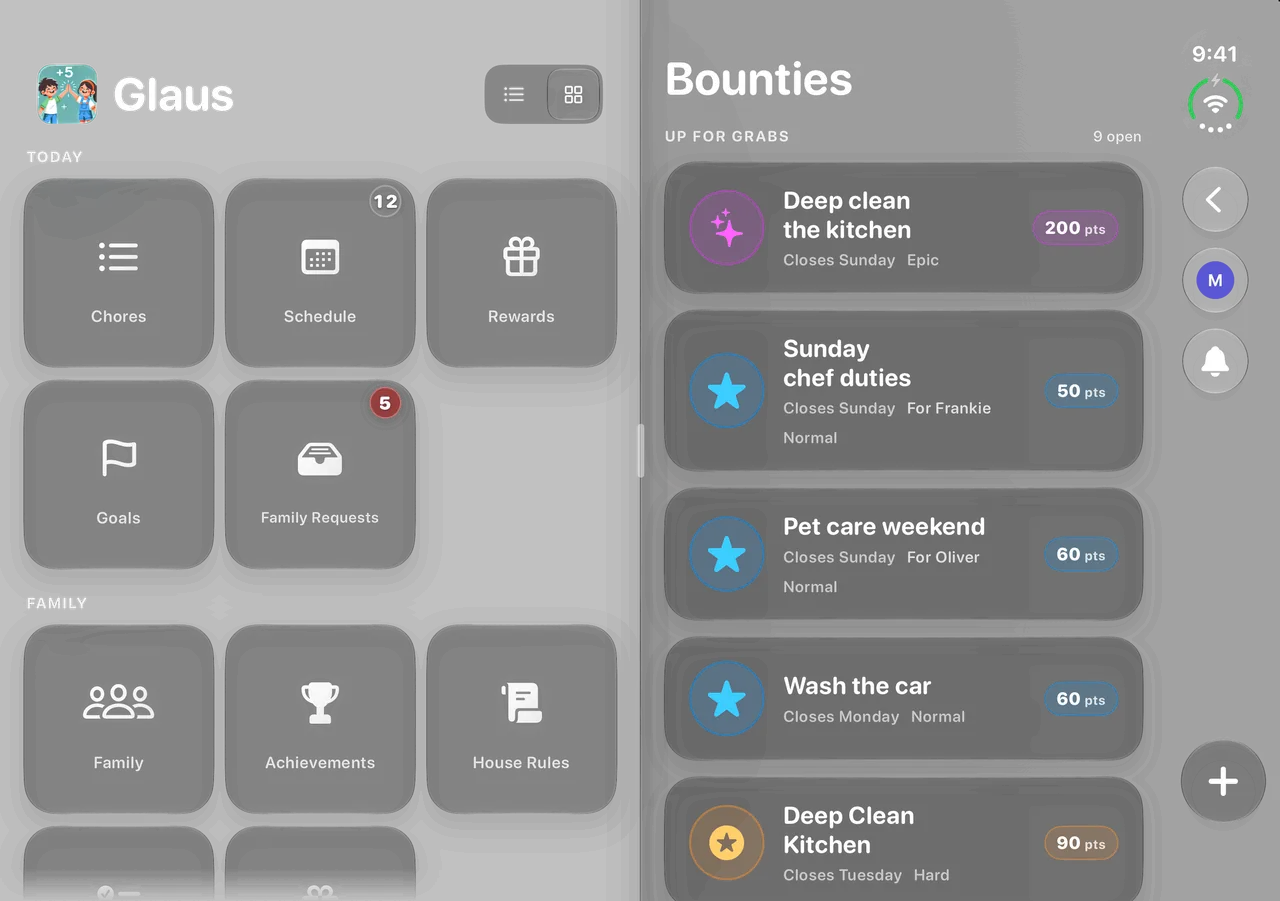
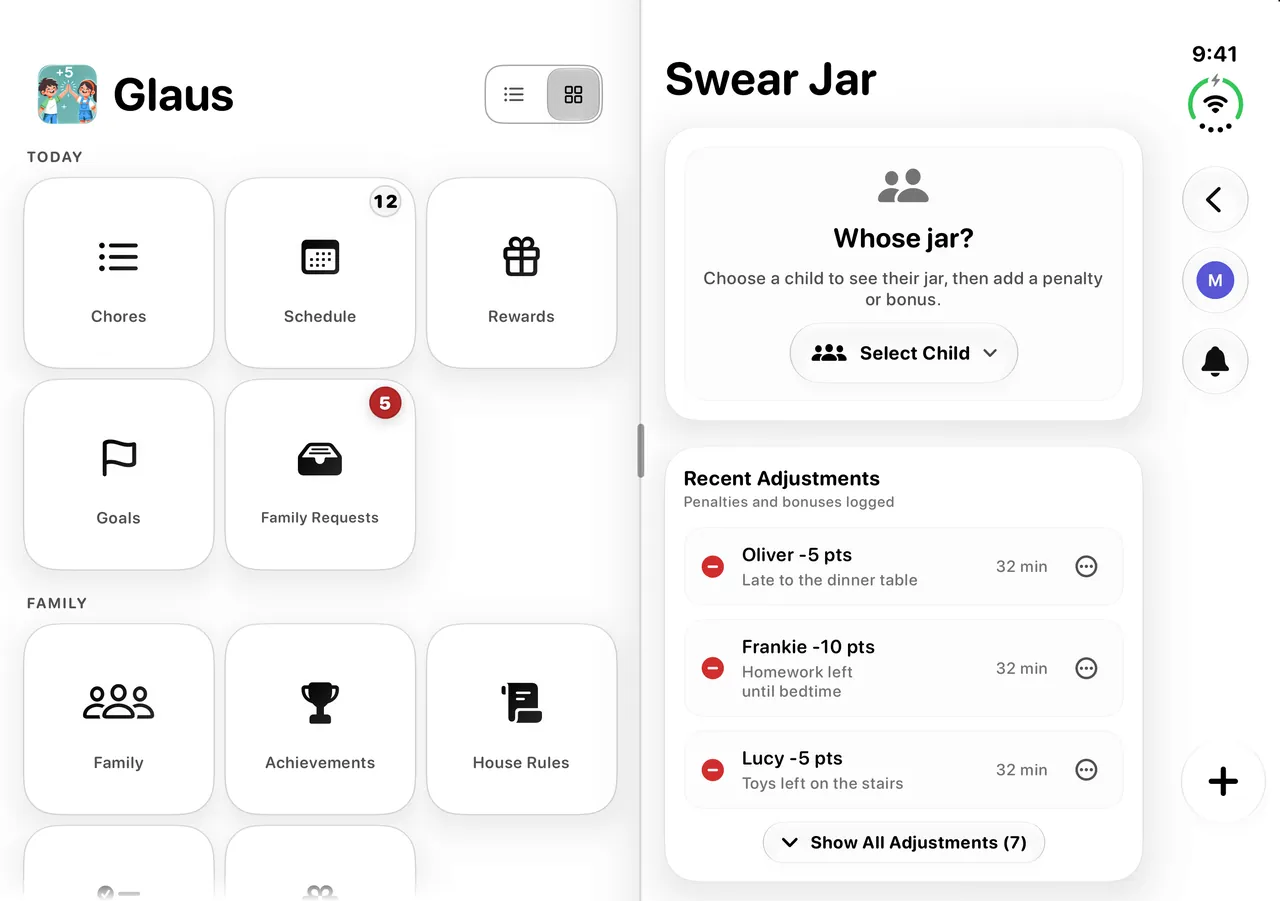
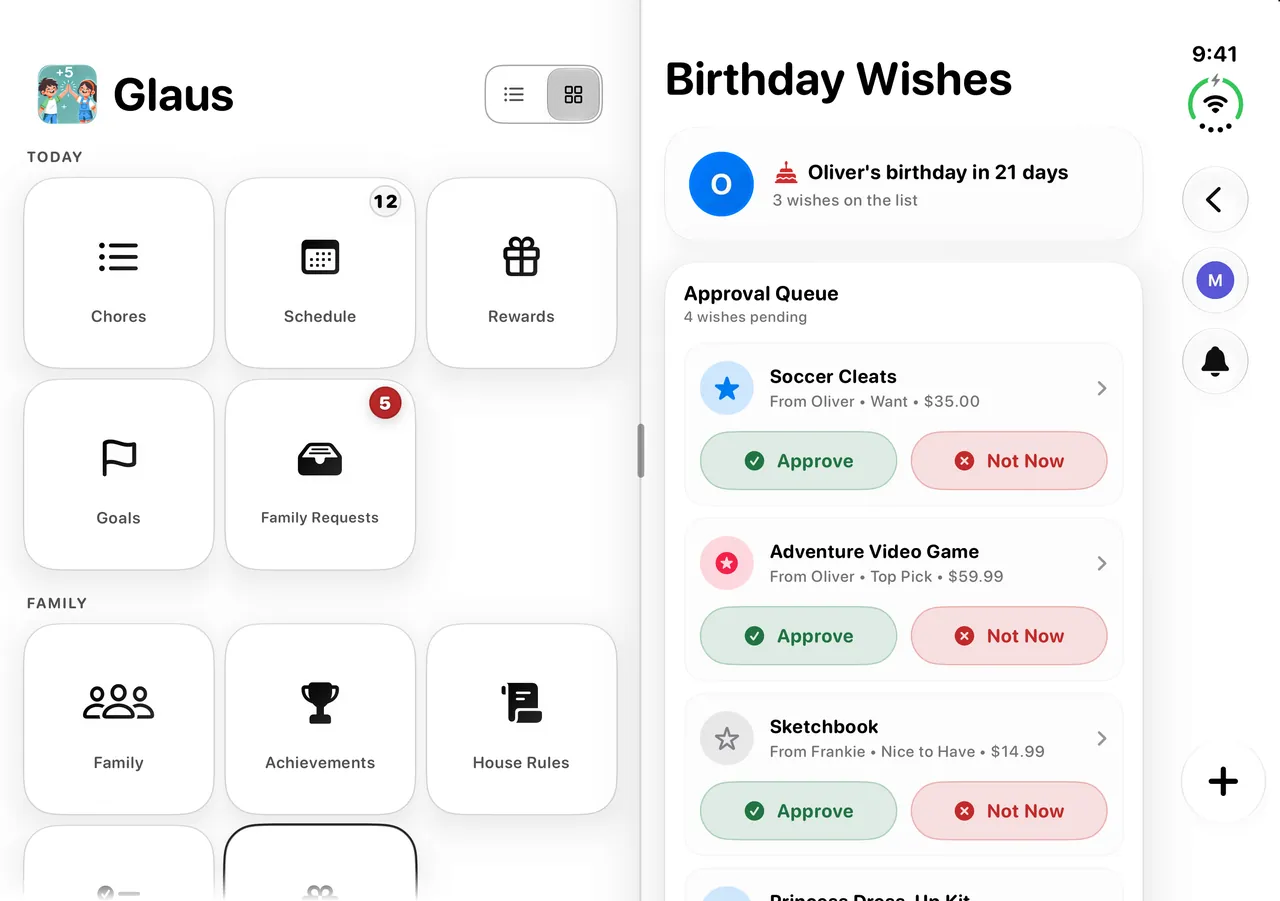
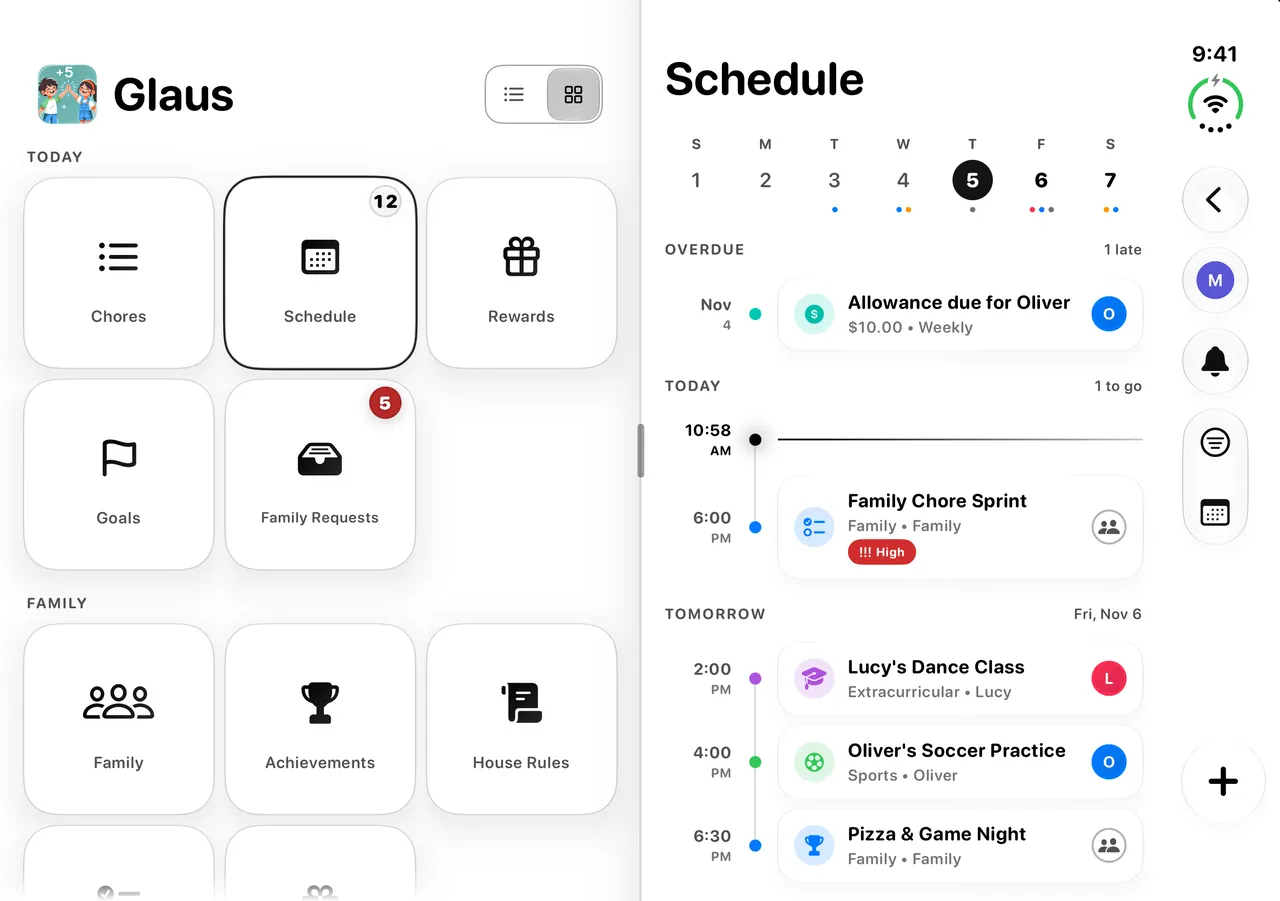
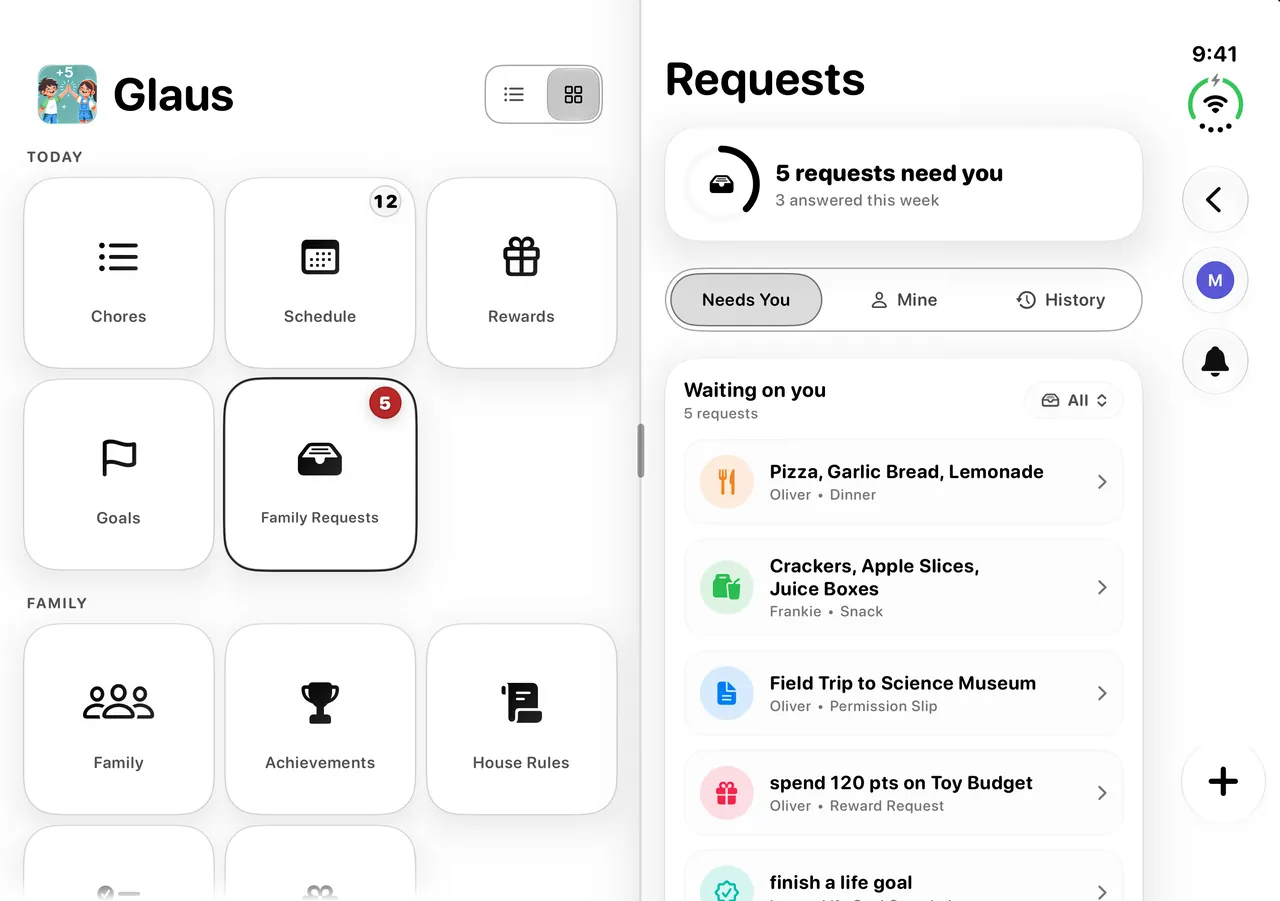
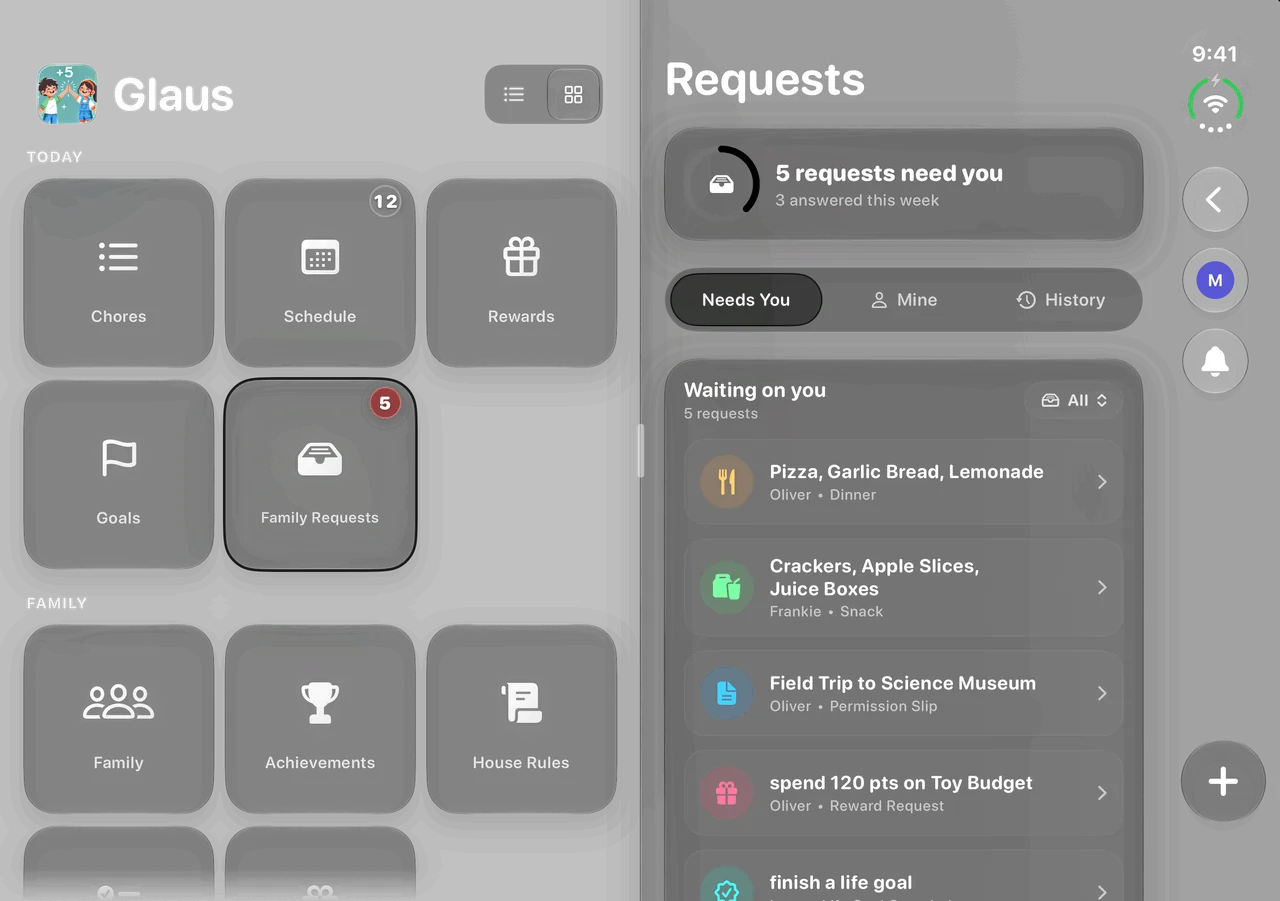
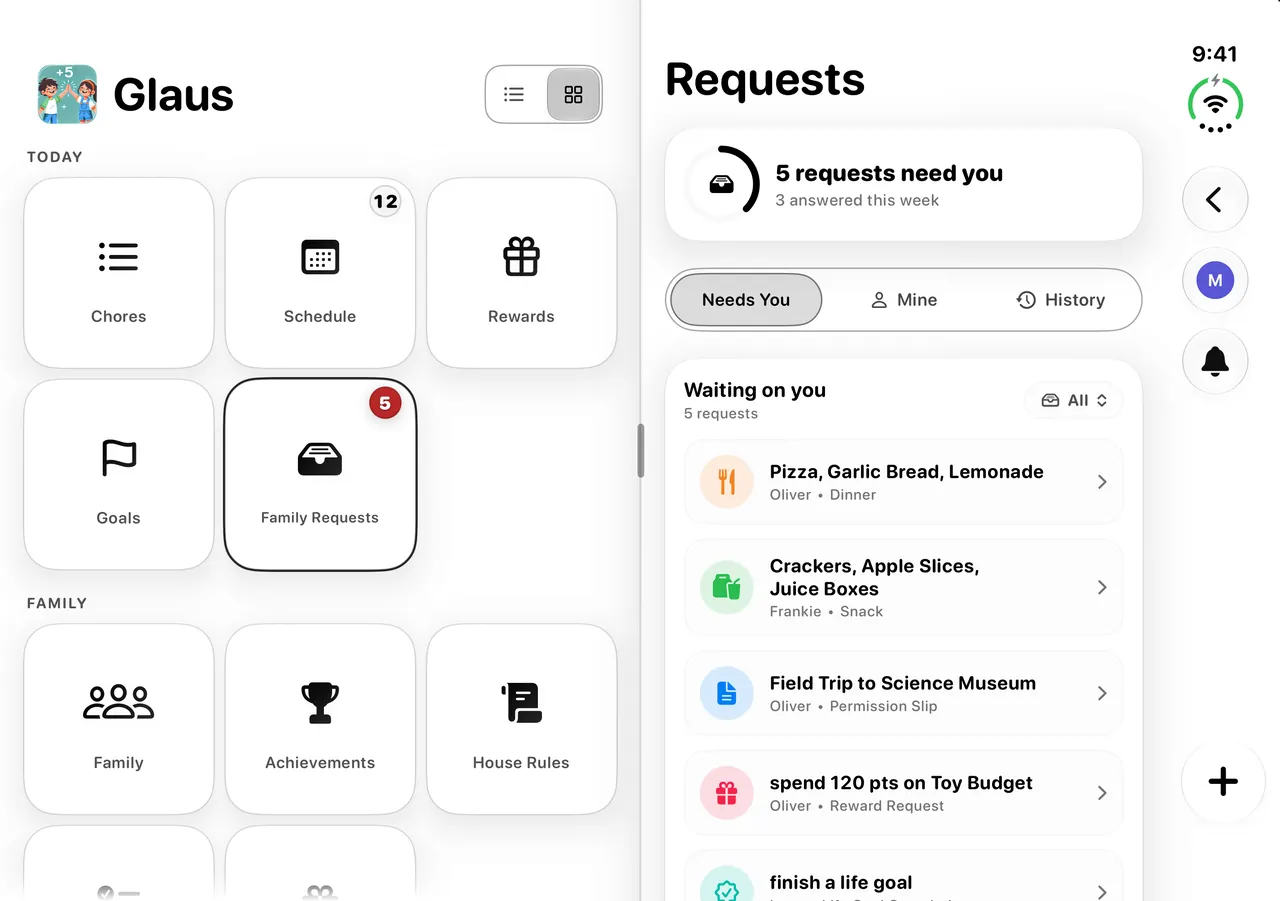
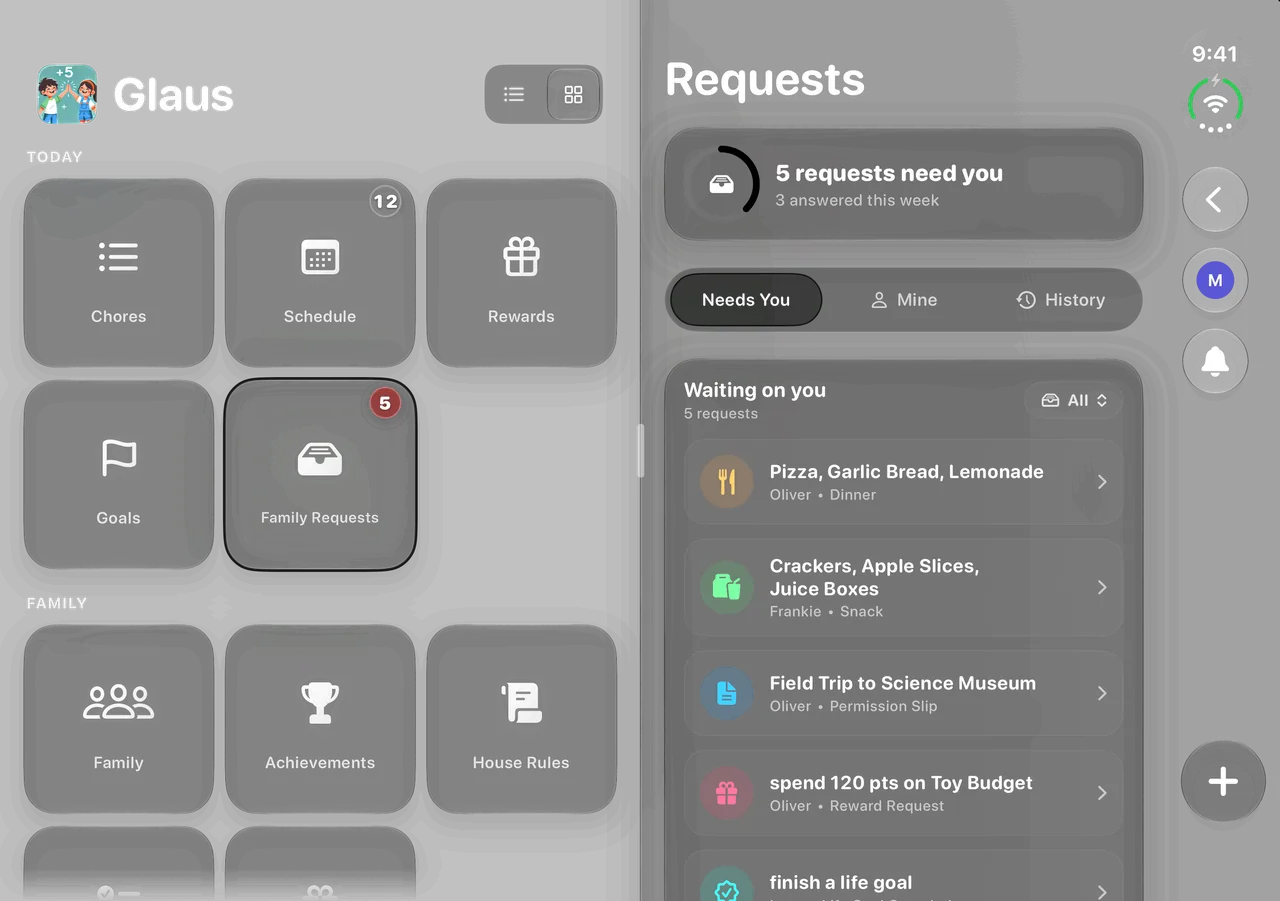
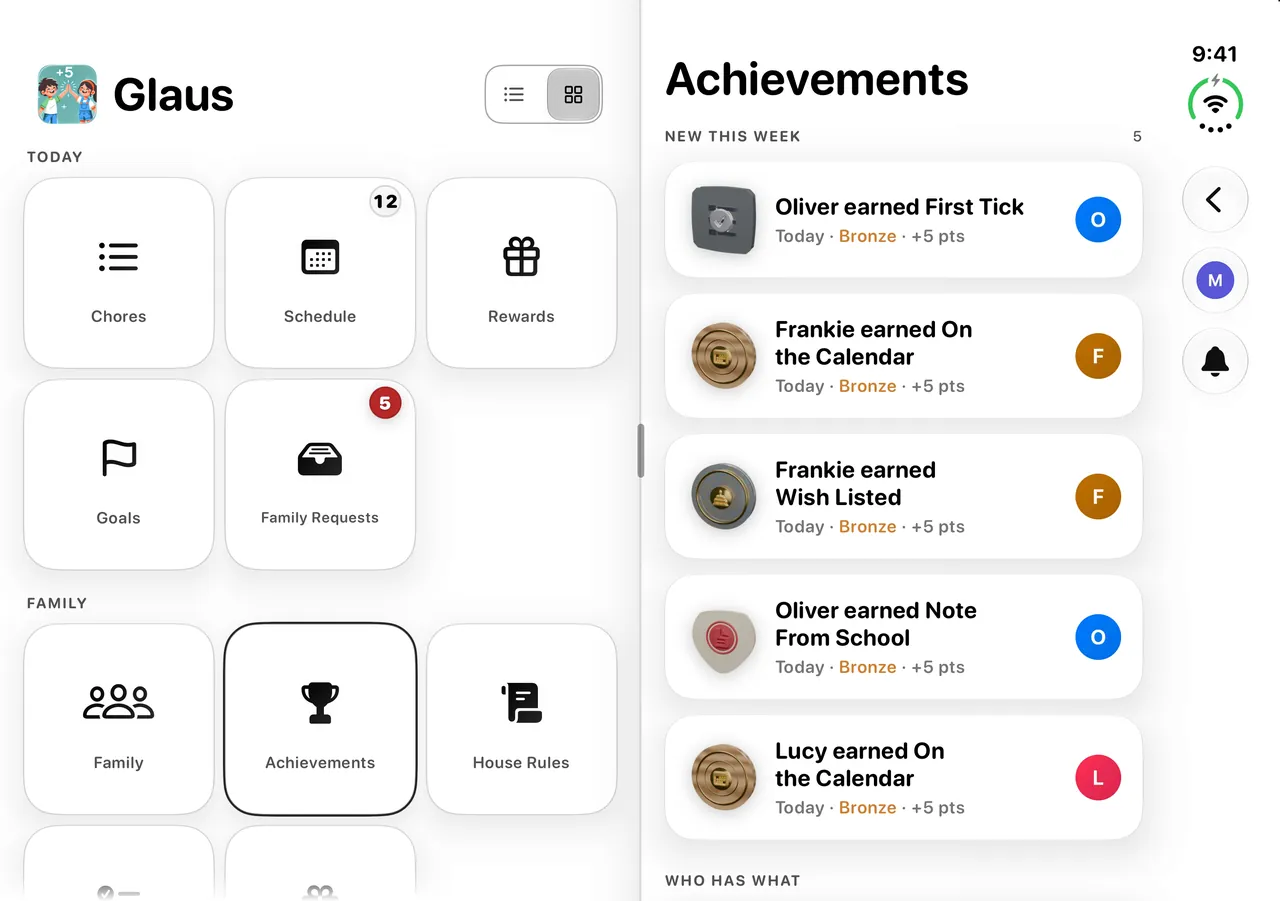
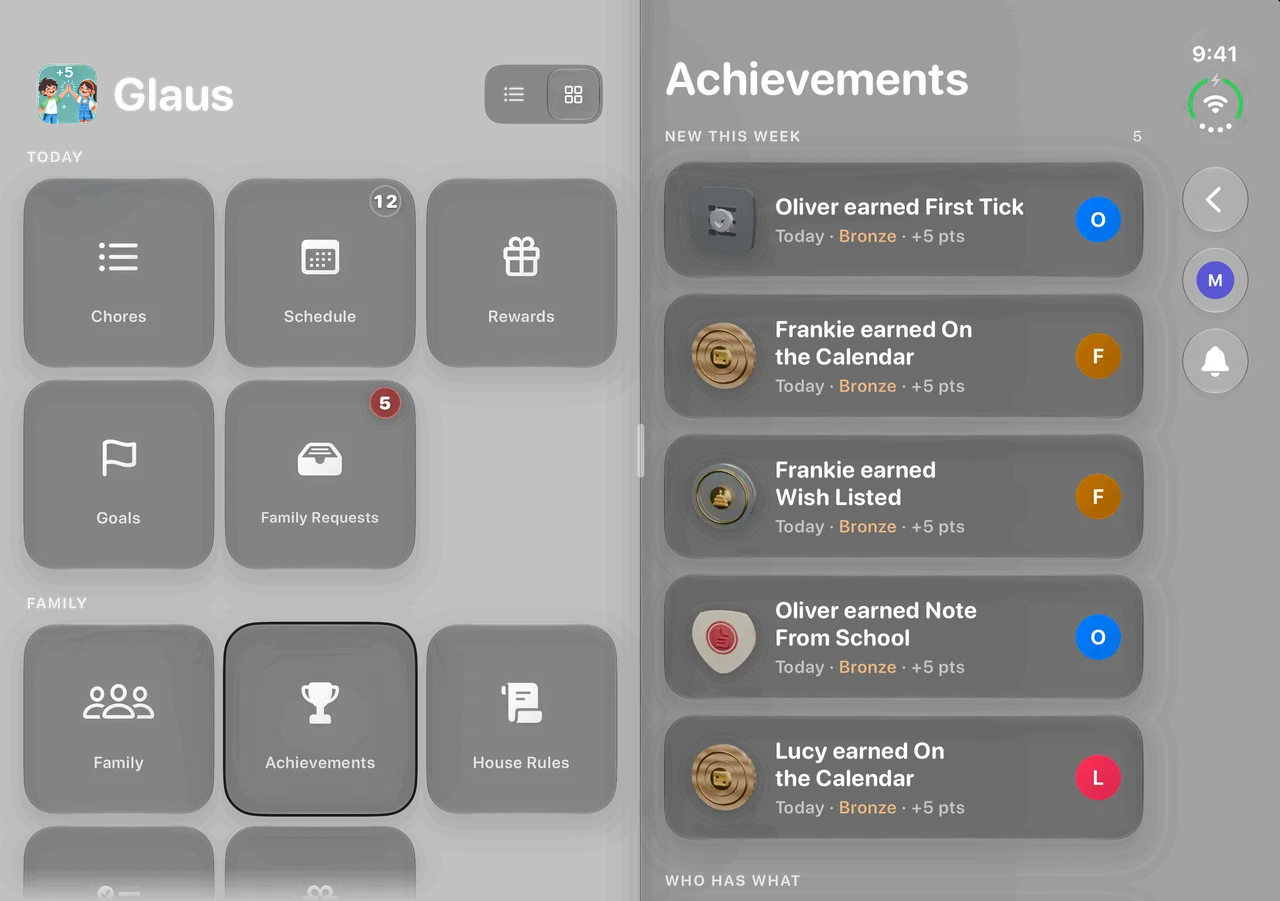
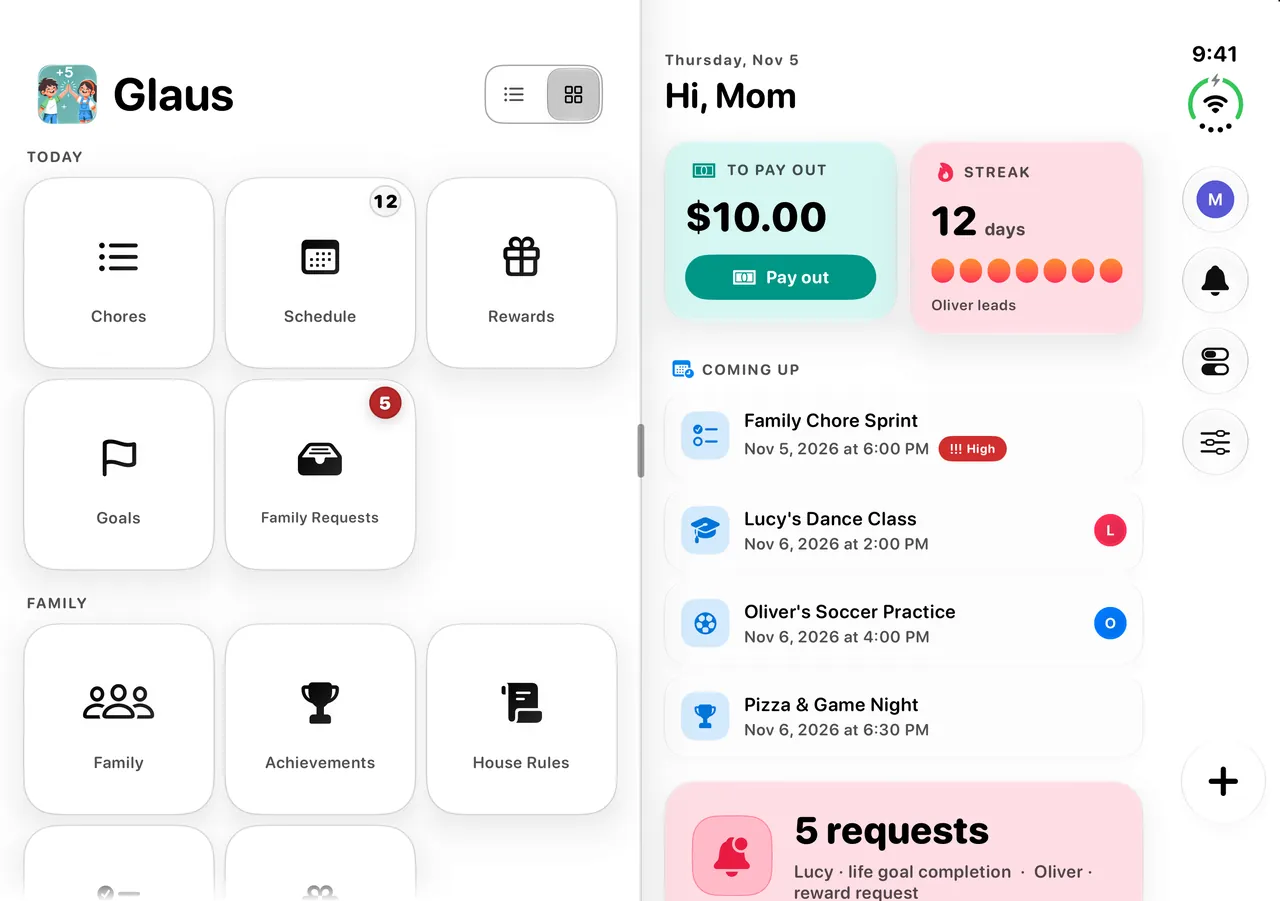
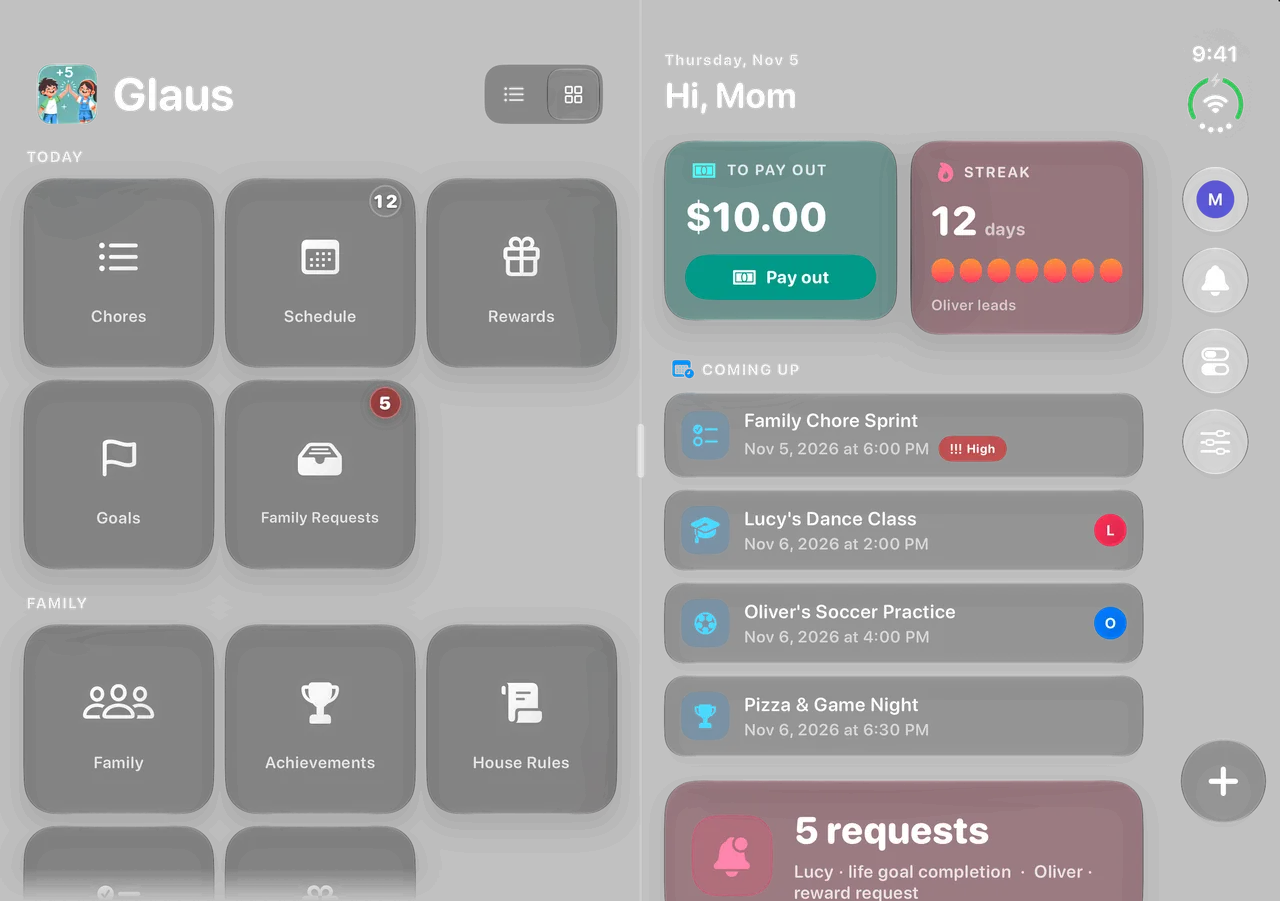
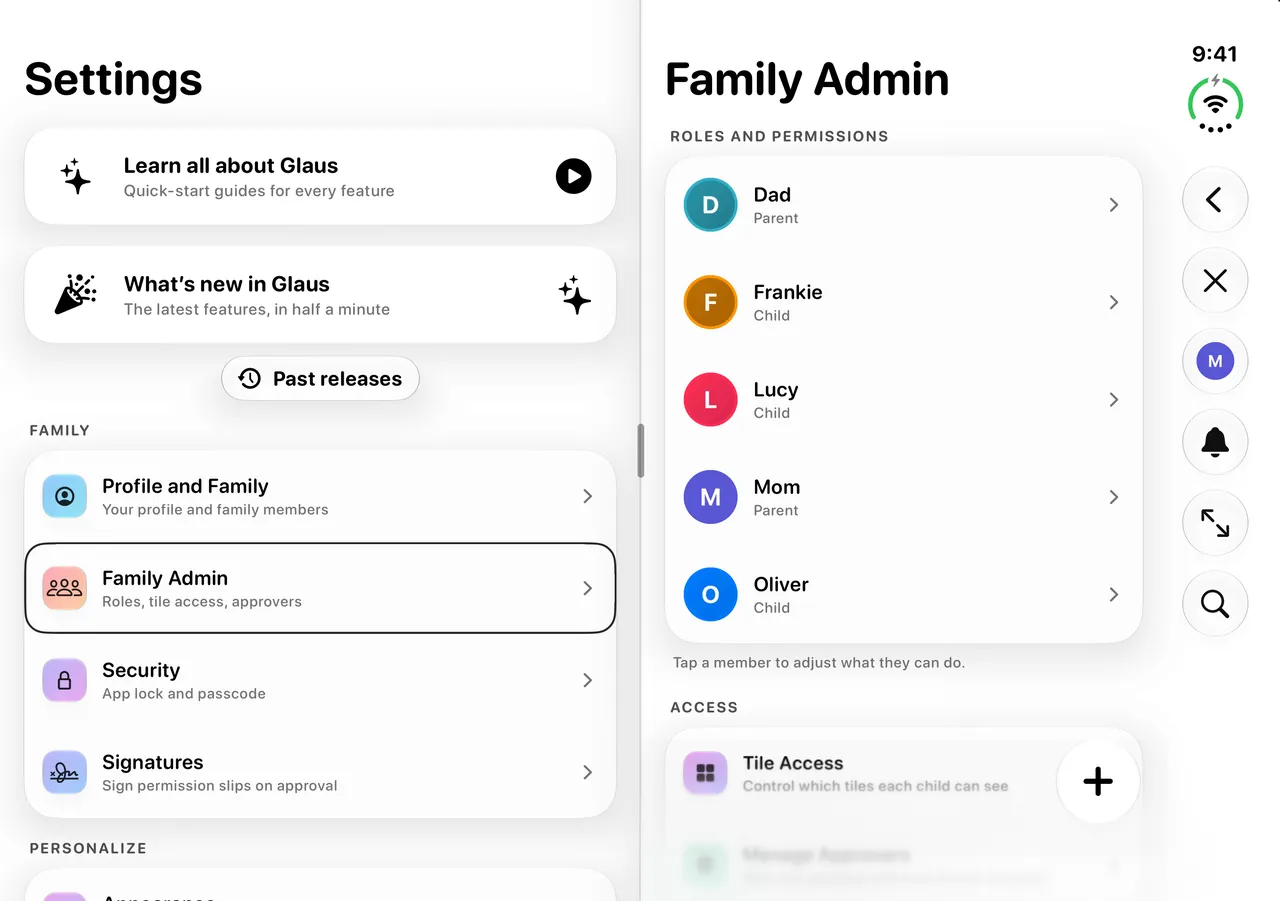
Tiles on one screen, what you open on the other.
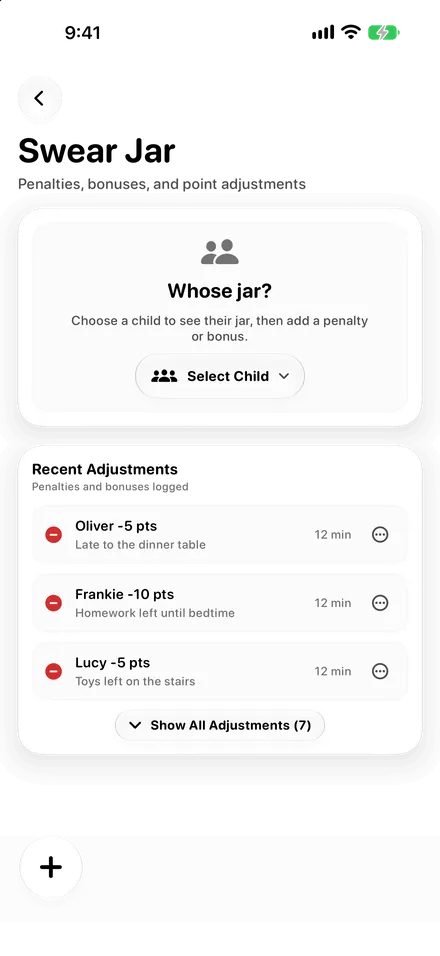
You can move back one screen at a time until you reach home.
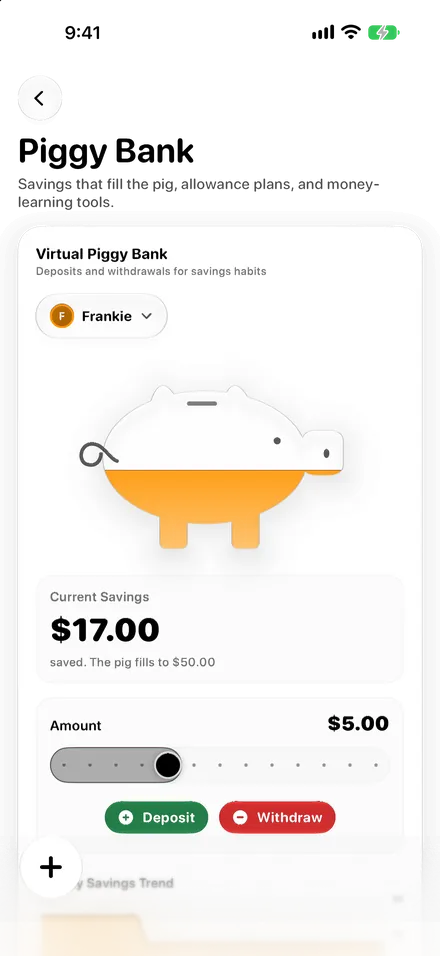
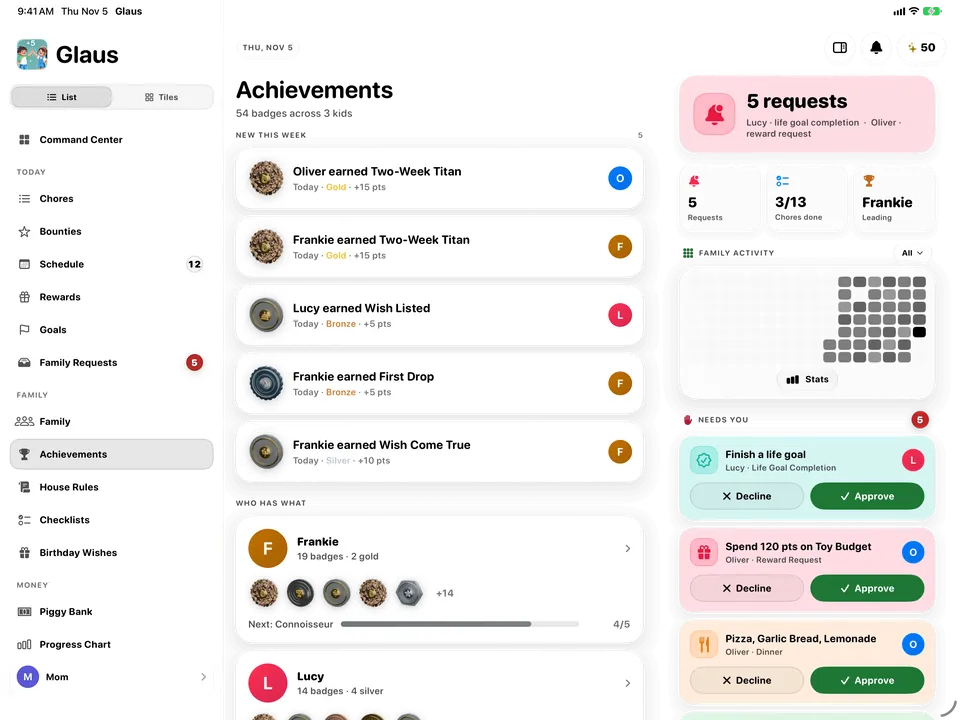
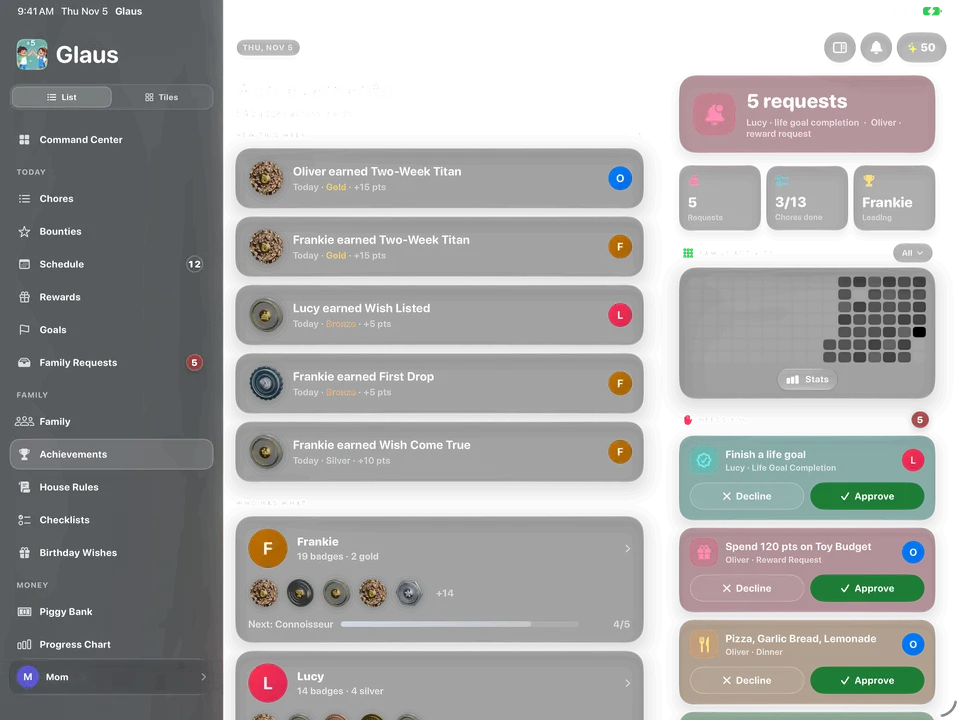
Open any feature from the sidebar, and use the back arrow to leave a screen inside it.
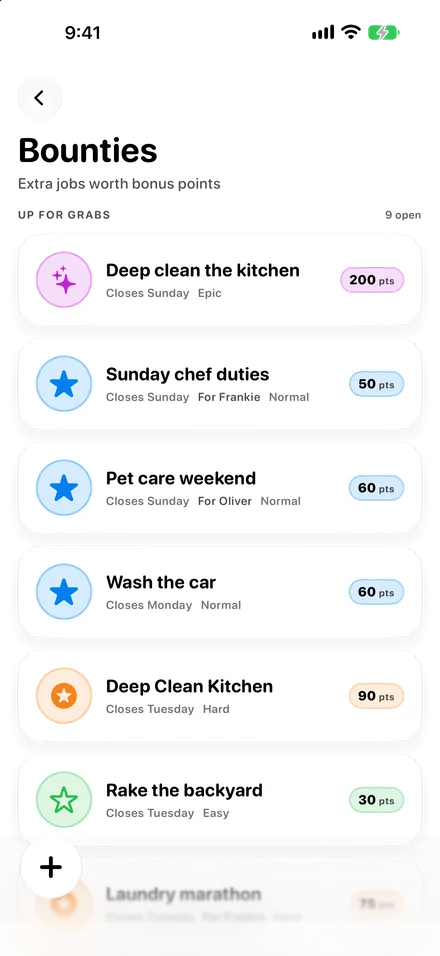
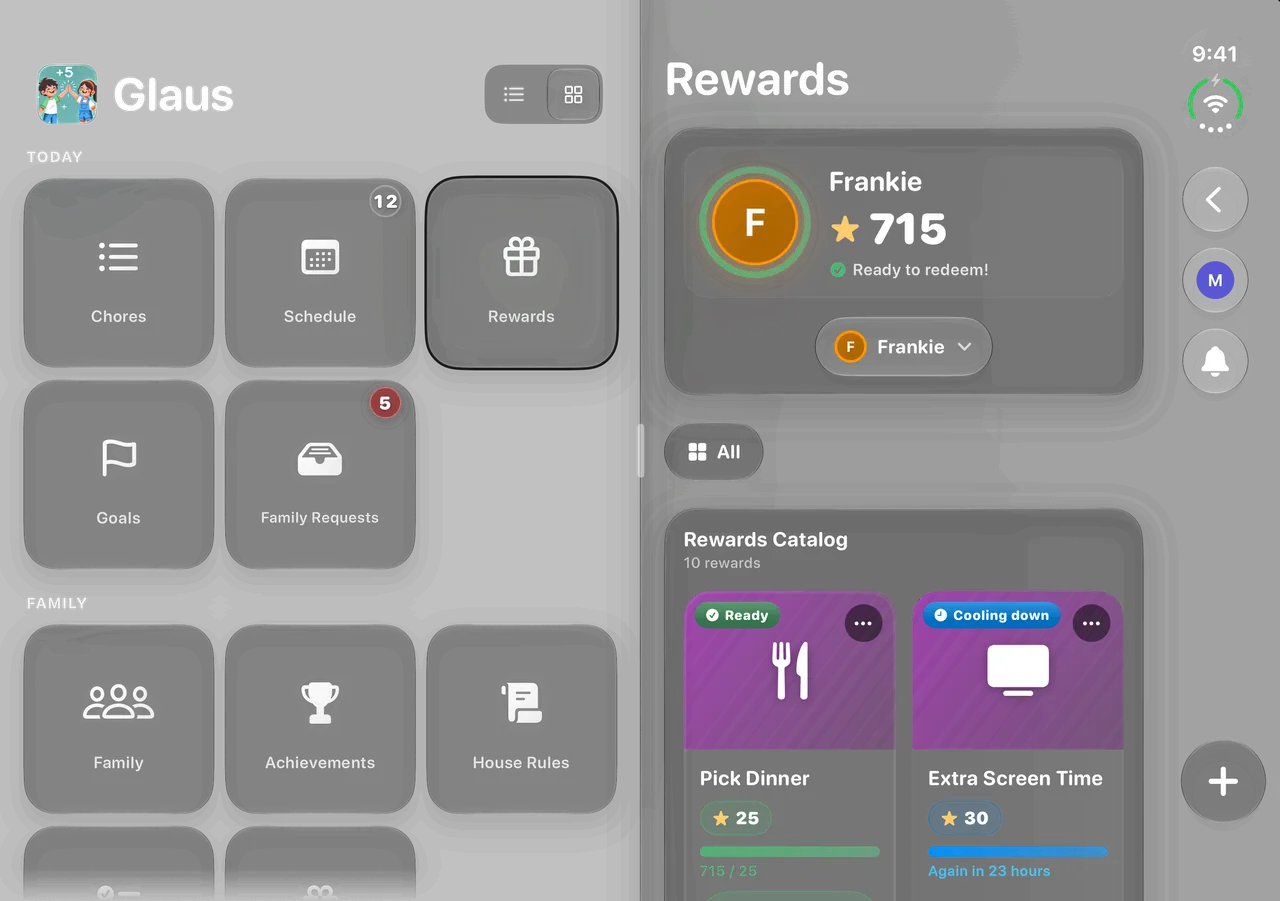
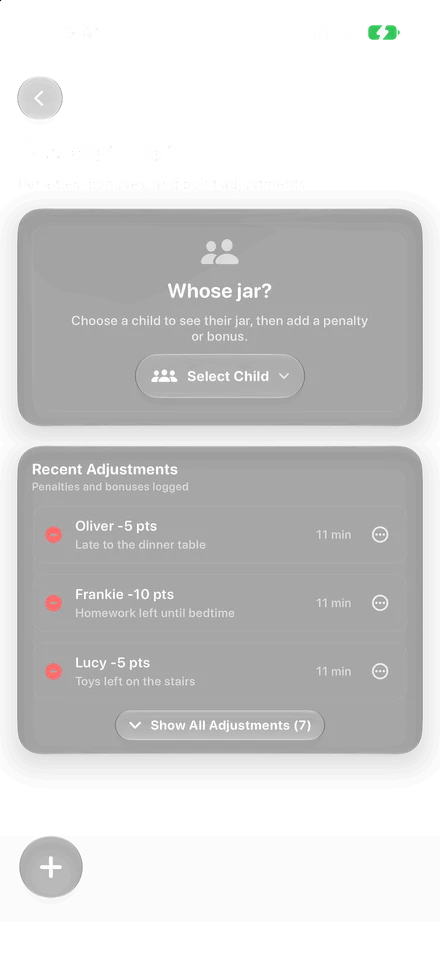
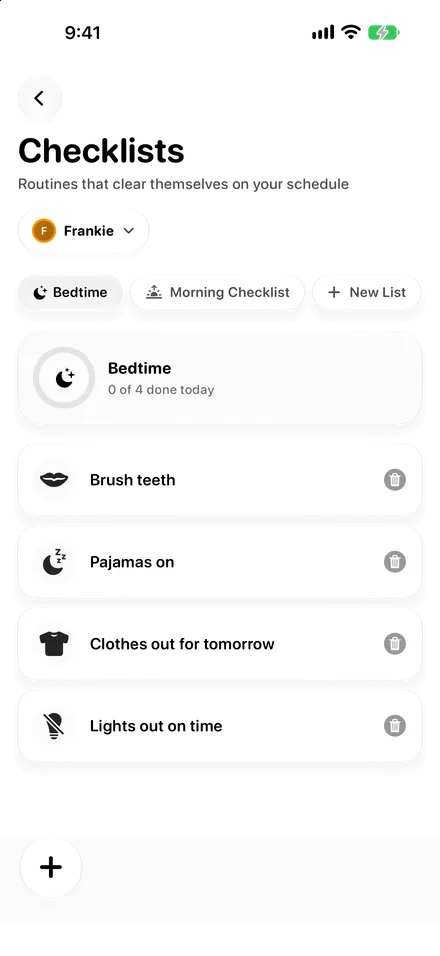
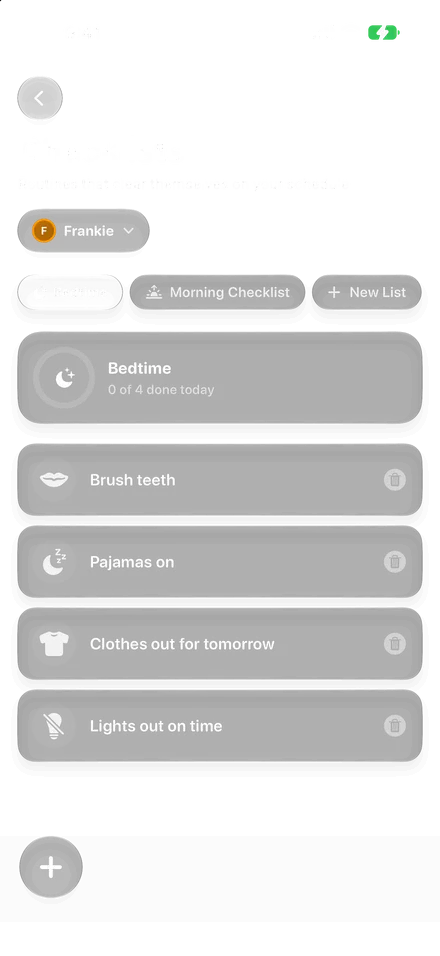
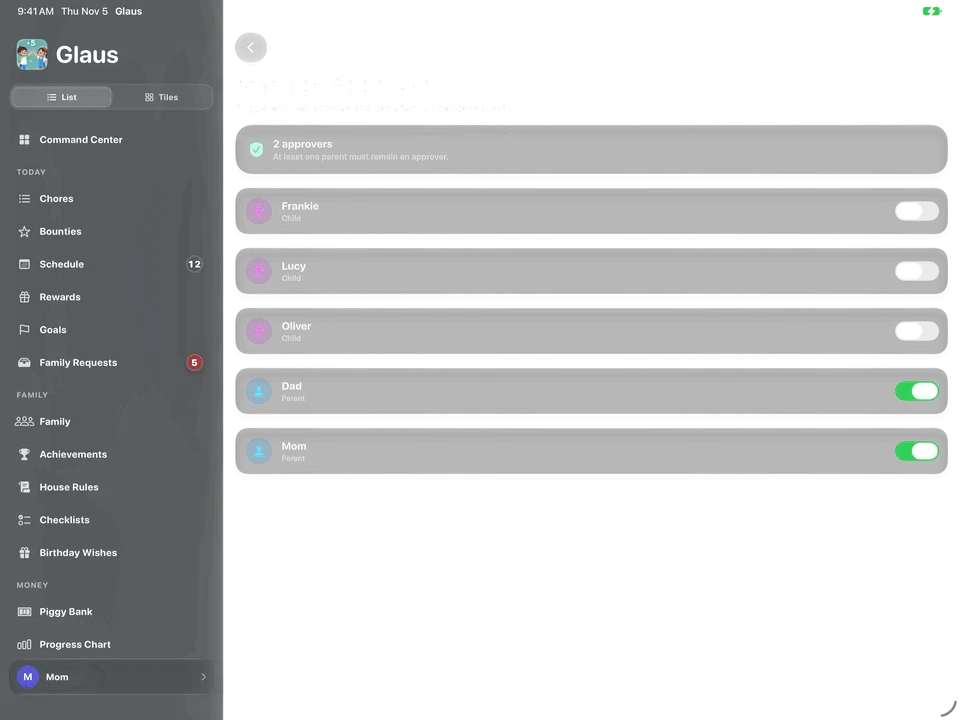
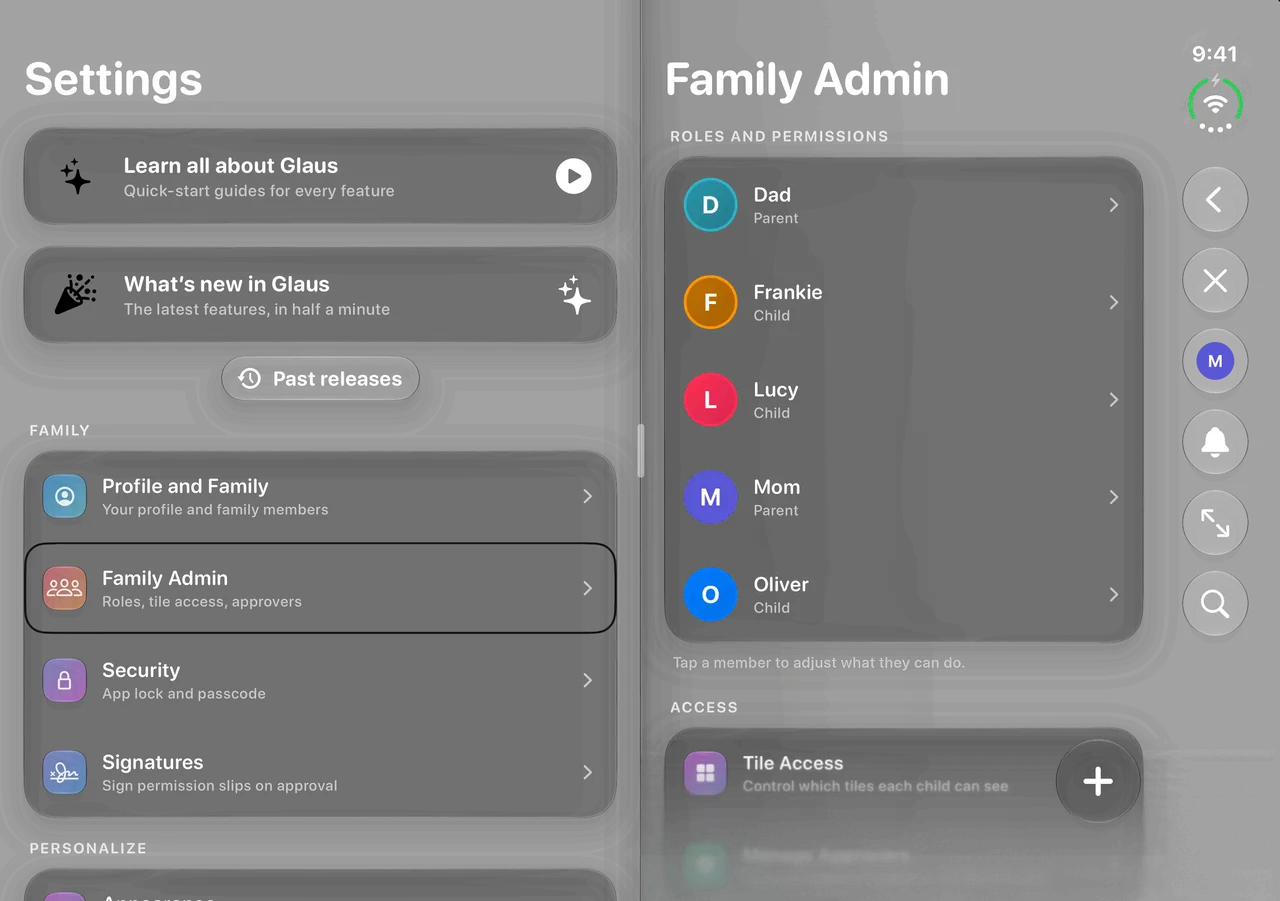
Each screen you open slides in next to the last one, and Back slides it away until you reach home.
Get started
- Open a feature from a tile on page 2 of home.
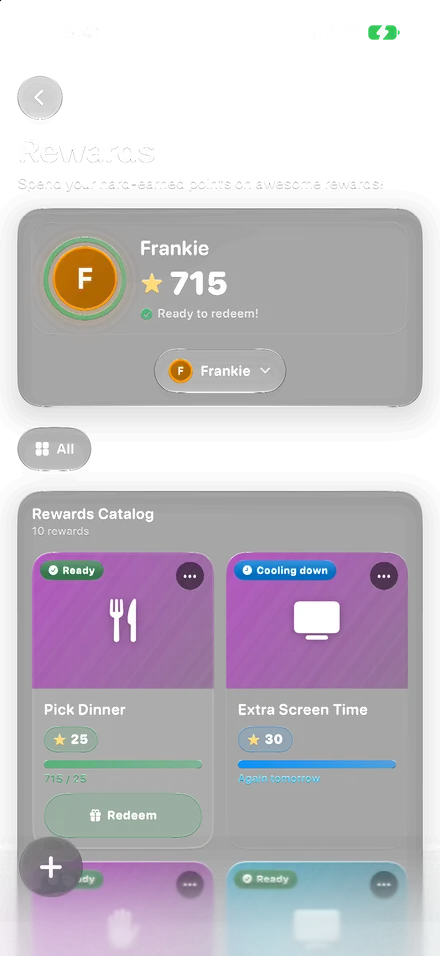
- Swipe in from the left edge to go back one screen.
- Keep swiping back until you reach home.
- Tap a feature in the sidebar to open it.
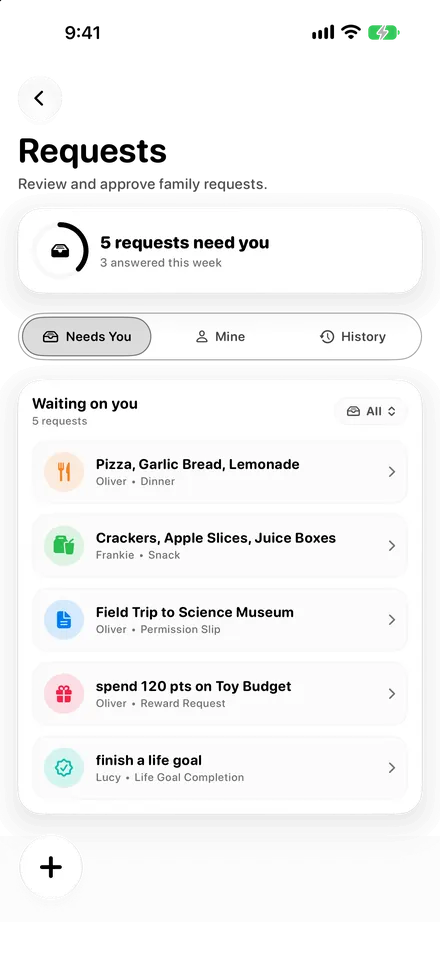
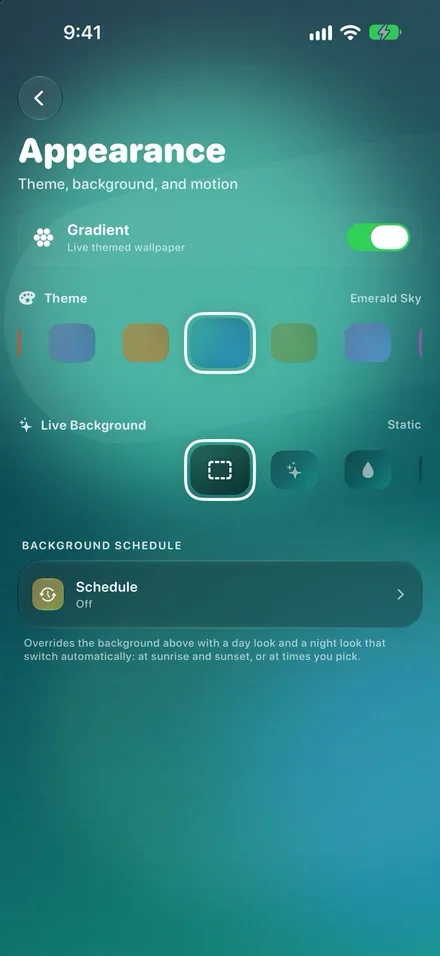
- Inside a feature, tap the back arrow at the top to go up one level.
- Tap Command Center in the sidebar to return to the dashboard.
- Tap a feature tile to open it on the other screen.
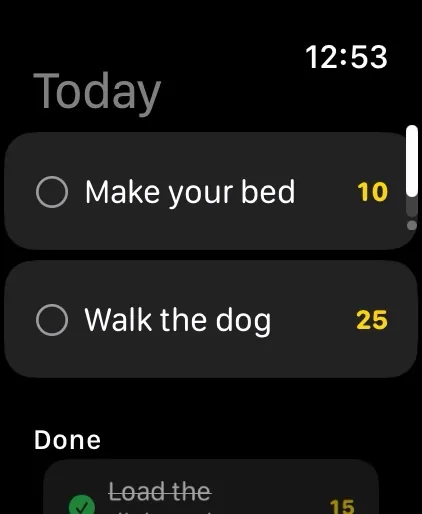
- Tap a row in the list, such as a chore, and it opens next to it.
- Tap Back, on the side bar or at the top of the screen, to go back.
More details
- You can tap the round back arrow at the top instead of swiping.
- The dots at the bottom of home switch between page 1 and page 2.
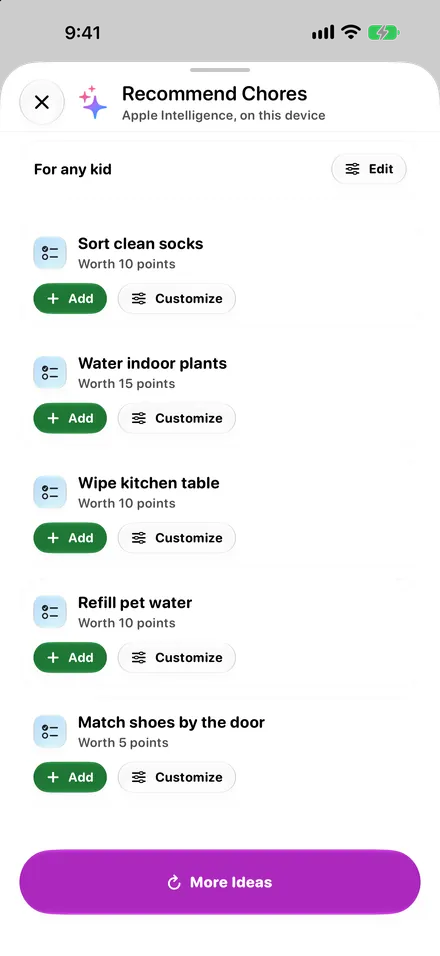
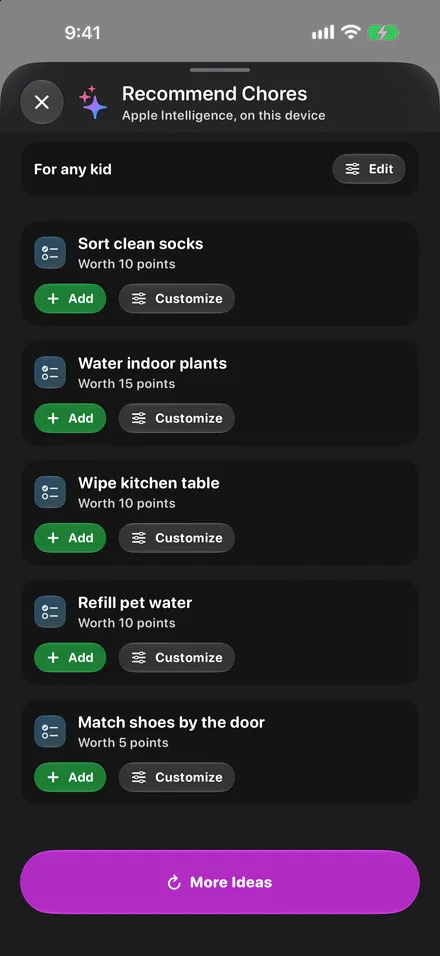
- Sheets close with the X button, or by dragging them down.
- Left Handed Mode adds a back swipe from the right edge and moves the back arrow right.
- A feature's main screen has no back arrow, because the sidebar switches features.
- The List and Tiles buttons at the top of the sidebar change how features are shown.
- Left Handed Mode puts the back arrow on the right and the family panel on the left.
- In Slide Over or a narrow Split View, iPad shows the phone layout instead of the sidebar.
- Close, or the X, puts the open item away and keeps its list.
- Held sideways, Full Screen on the side bar gives the open item the whole screen.
- Held sideways and lying flat, drag the divider to make the left screen a third or half.
- Where the + Lives, in Quick Settings, sets a spot for the + button for each way you hold it.